Ask Qubi from Slack
Ask Qubi is available right inside Slack. Once your workspace has Slack Chat connected, team members can message the Qubi bot directly and get answers grounded in your deals, customers, past meetings, and Knowledge Base — without leaving Slack.
Start a conversation
To talk to Qubi, open a direct message with the Qubi app. A few ways:
- Search — type Qubi in the search bar at the top of Slack and click the app result to open a direct message.
- Direct messages — in the left sidebar, look under Direct messages for the Qubi app and click it.
- Mention — type
@Qubiin any message and select it, then choose Message Qubi.
How it works
Qubi's Slack assistant answers direct messages only. It does not respond to @mentions in channels.
Because Qubi only replies in a direct message, its answers stay between you and Qubi. Nothing is ever posted back into a channel, so sensitive details about deals, customers, and meetings can't leak into shared public or private channels.
- Ask your question — the same questions you'd ask on the Qubi home page
- Qubi answers in the thread, grounded in your deals, customers, meetings, and Knowledge Base
Conversation memory
Qubi keeps the context of your conversation within a thread. Reply in the same thread to ask follow-up questions — Qubi remembers what you've already discussed.
Start a new message (a fresh top-level message, outside the thread) to begin a clean conversation. Qubi starts fresh and does not carry over the previous thread's context, so each conversation stays focused and old context doesn't bloat new answers.
Connect Slack Chat
An admin connects Slack Chat for the whole workspace:
- Go to Settings > Integrations
- Click Connect next to Slack Chat
- Authorize the connection in Slack
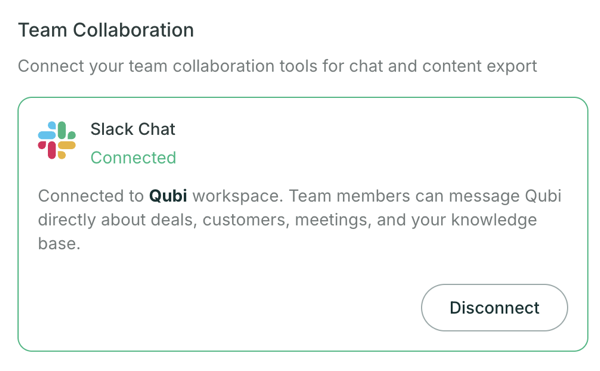
Once connected, you'll see your Slack workspace here, with a Disconnect button.
Meeting notifications
With Slack Chat connected, Qubi also sends each rep a Slack direct message:
- A meeting-prep brief before their meetings
- A recap summary after each meeting
Add Slack to your Knowledge Base
To make Slack conversations searchable for live coaching and Ask Qubi, add Slack as a Knowledge Base connector and choose which channels to sync. See Add Content from Anywhere.