Chrome Extension
The Qubi Assistant Chrome extension brings Qubi into your browser. It works in two places:
- Google Calendar: see whether each meeting is set to be recorded, and invite or remove the Qubi bot with one click
- Google Meet, Microsoft Teams, and Zoom: the Qubi assistant opens in a side panel when you join a call, with live intelligence, your playbook, and a wrap-up as the conversation happens
Install the extension
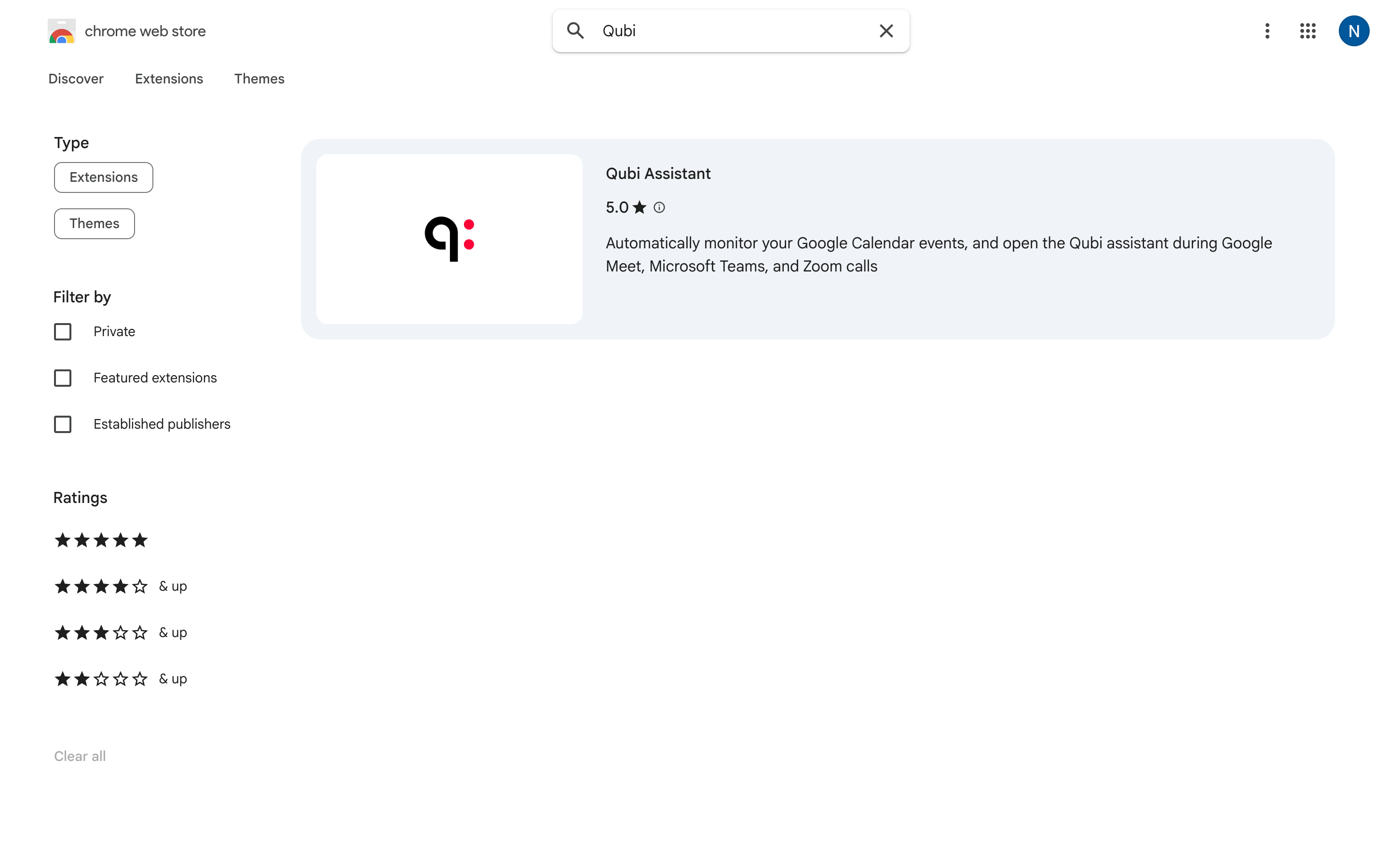
- Open the Chrome Web Store and search for Qubi Assistant
- Open the listing and click Add to Chrome, then Add extension
- Pin the extension: click the extensions (puzzle piece) icon in the Chrome toolbar, then the pin next to Qubi Assistant
- Sign in to Qubi when the assistant asks you to — the side panel keeps its own session, separate from your browser tabs
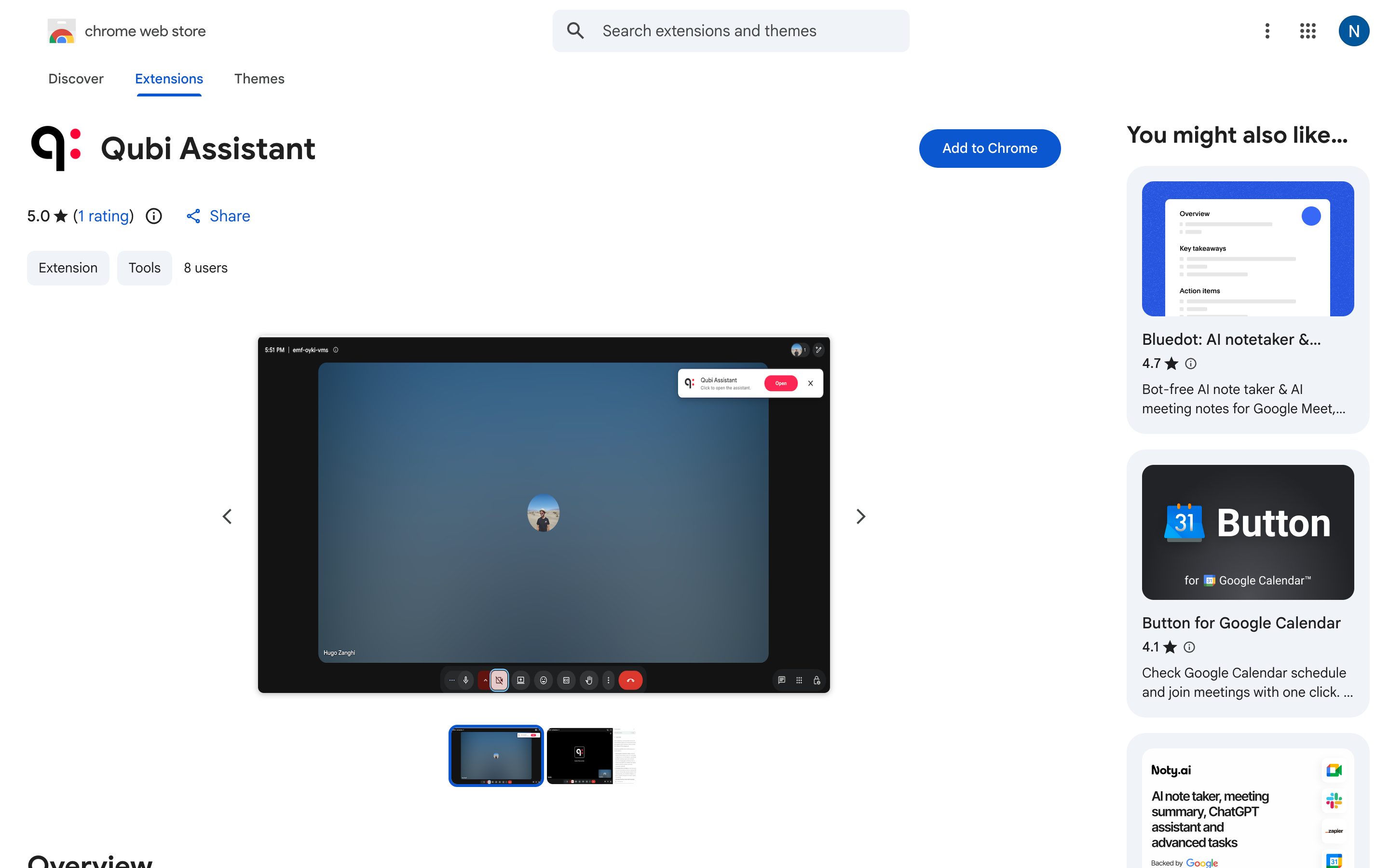
Pin Qubi Assistant to your Chrome toolbar for one-click access throughout your workday.
What the extension does
- Auto-joins your calls: when you join a Google Meet, Microsoft Teams, or Zoom meeting, the assistant opens in a side panel and the Qubi bot joins the call automatically
- Live transcription and intelligence cards: talking points, product information with its sources, and pain points appear as the conversation unfolds
- Playbook tracking: your sales methodology, checked off live as you cover each item
- Wrap-up on demand: a structured summary of the call while you're still on it
- Ask Qubi during the call: ask about the ongoing conversation, the attendees, or your internal documentation
- One-click recording setup in Google Calendar: invite the bot to a meeting without leaving your calendar
- "Qubi is ready" notification: a nudge whenever a call starts without the assistant open
The assistant itself is the same live experience described in What Is Live Call Intelligence? — the extension is simply where it runs on Google Meet, Microsoft Teams, and Zoom.
During a call
Open the assistant
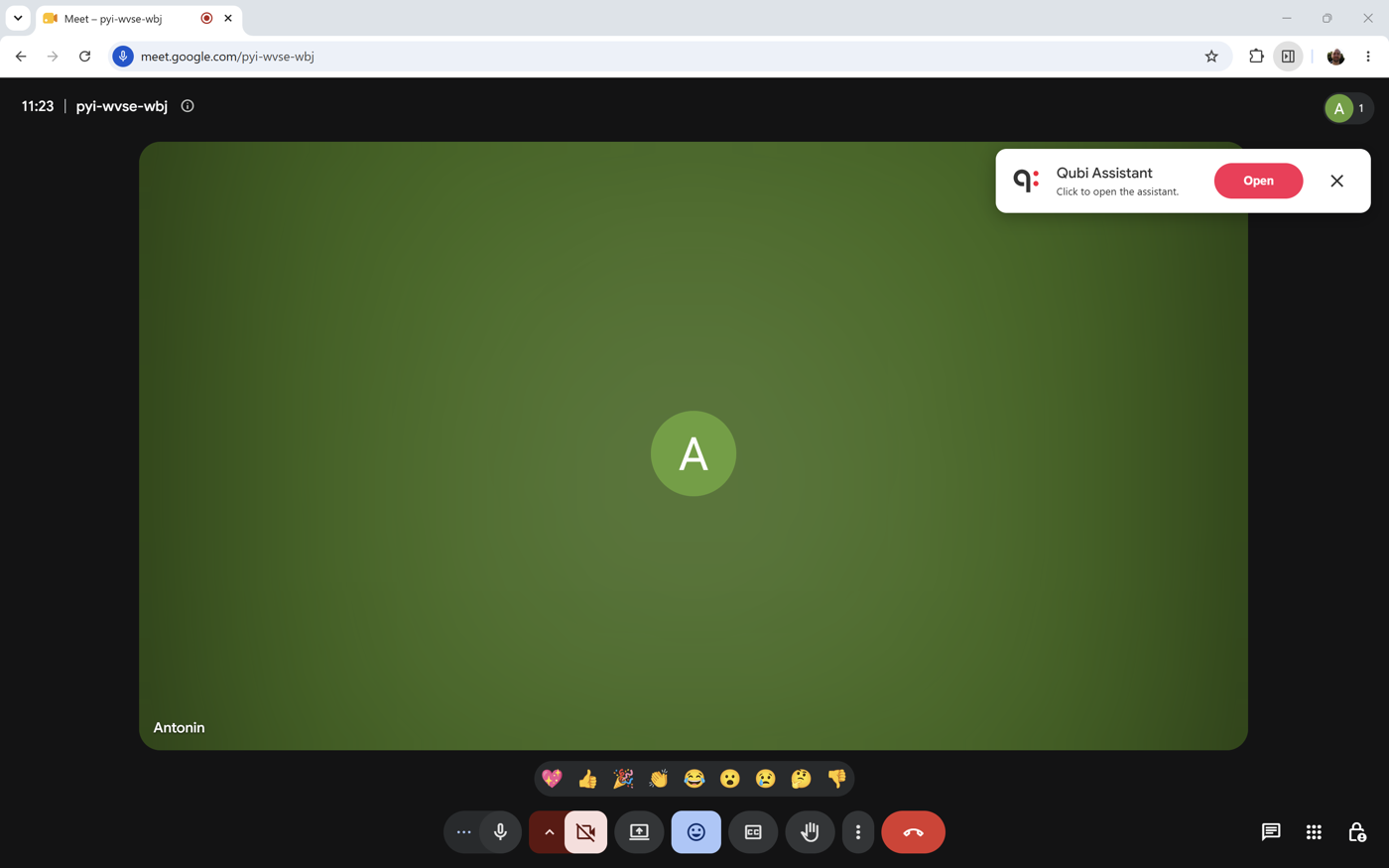
The side panel opens by itself a couple of seconds after you join a supported call. If it doesn't, the Qubi Assistant notification appears in the top-right corner of the call window — click Open to bring up the panel. The notification dismisses itself after a minute; you can always click the extension icon in the Chrome toolbar instead.
The assistant panel
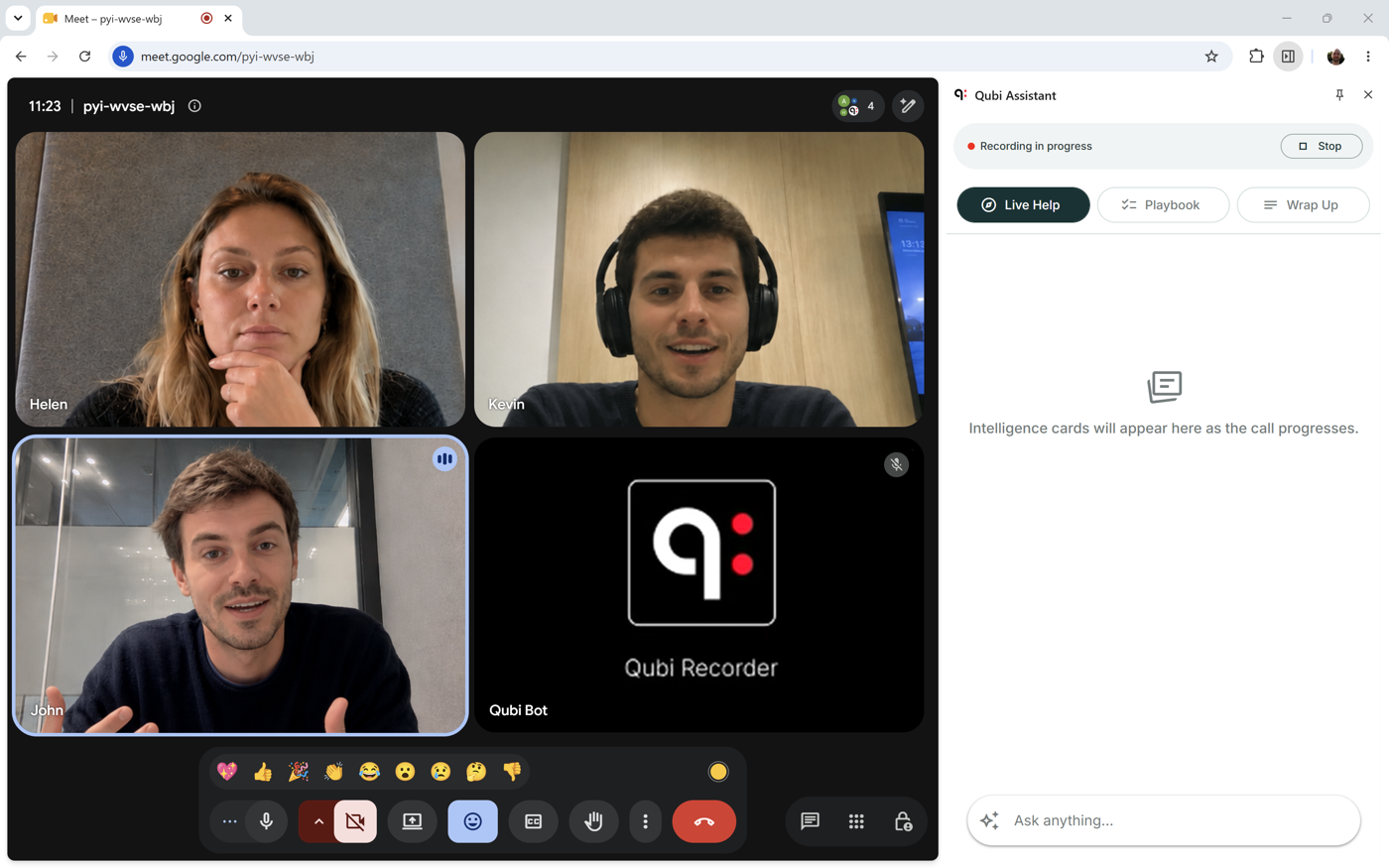
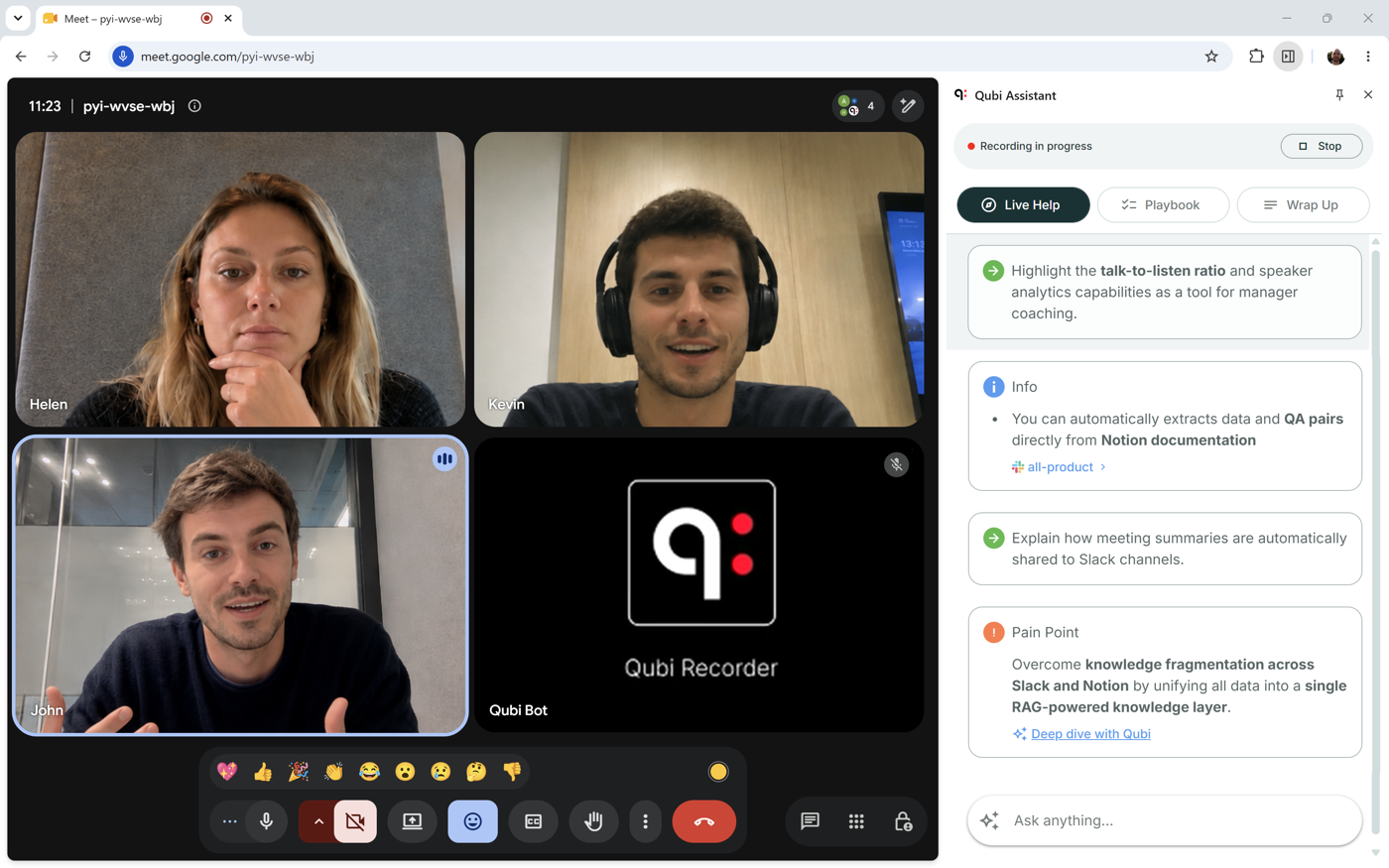
The panel sits next to your call and stays out of the way. At the top you'll see the recording status — Recording in progress with a red dot — and a Stop button if you need to end the recording early. Below that are three tabs: Live Help, Playbook, and Wrap Up. The Ask anything… box at the bottom is always available.
Live Help
Live Help is the running feed of intelligence cards, revealed one at a time as the conversation progresses:
- Talking points with a green arrow, such as a capability worth highlighting while you demo
- Info cards quoting a product or process detail, each with a chip showing which knowledge source it came from
- Pain Point cards describing a customer problem Qubi picked up on, with a Deep dive with Qubi link to explore it further
The tab stays empty until there's something worth surfacing, with the note "Intelligence cards will appear here as the call progresses."
Playbook
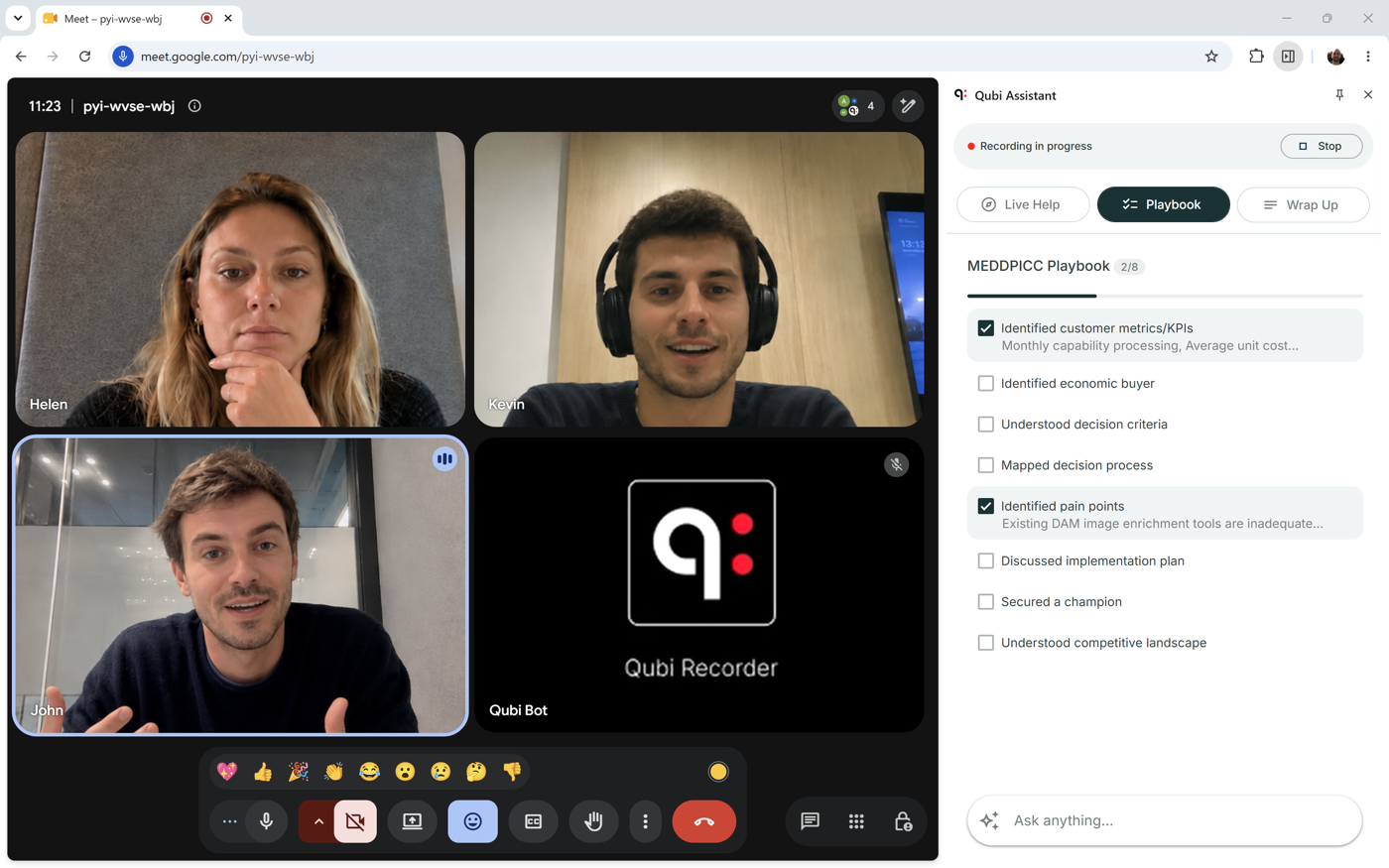
The Playbook tab tracks your methodology live: the header shows how much you've covered (MEDDPICC Playbook 2/8) with a progress bar underneath, and each item you hit gets a checked box and an evidence line quoting what was said. See Methodology Tracking for how your team's framework is configured.
Wrap Up
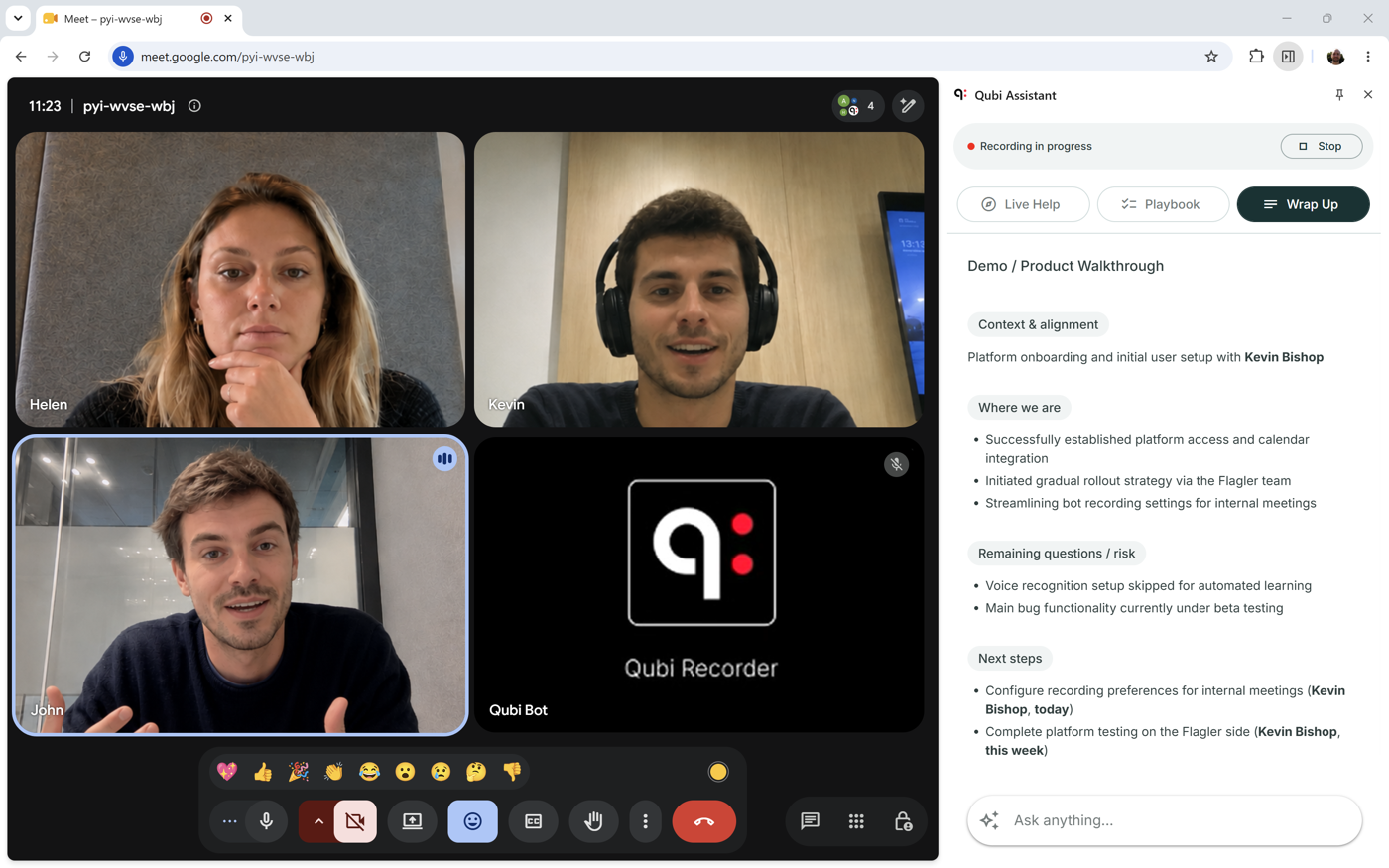
The Wrap Up tab summarizes the call while you're still on it: the meeting type, followed by Context & alignment, Where we are, Remaining questions / risk, and Next steps with owners. Open the tab during the call to generate it — if you only look at the end, Qubi needs a moment to catch up.
Ask Qubi
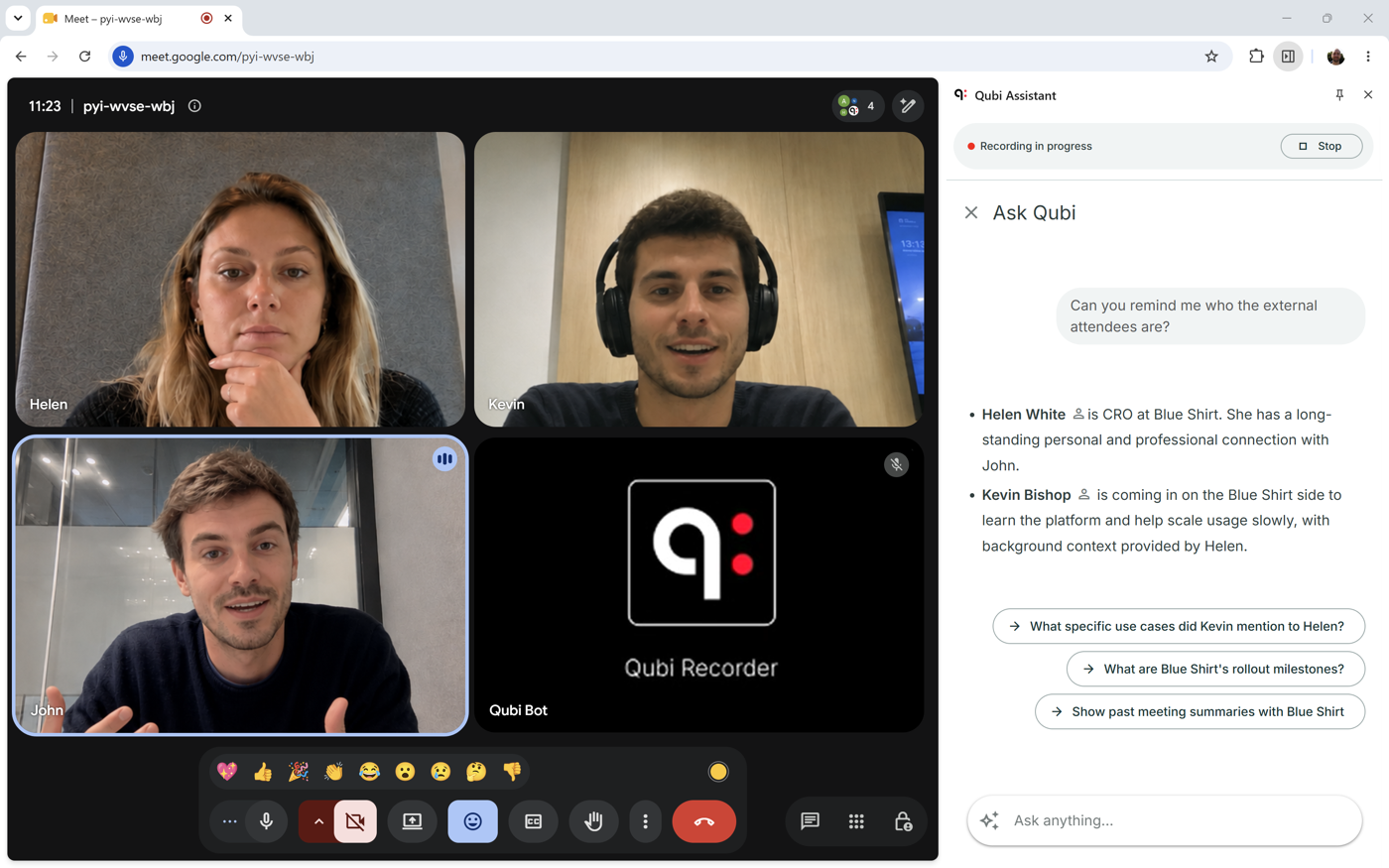
The Ask anything… box at the bottom of the panel opens Ask Qubi over the tabs — close it with the ✕ to return. Ask about the call in progress, the people on it, or anything in your internal documentation, and pick one of the suggested follow-ups if you're not sure where to start. See What Is Ask Qubi?.
Google Calendar
Open any event in Google Calendar and the event popup shows a Qubi button with the current recording status:
- Activate Qubi for this call — the bot isn't invited yet; click to add it
- Will be recorded with Qubi — the bot is invited; click to remove it
- Recording link — the meeting already happened; click to open the recording in Qubi
If your Qubi session has expired, a banner appears at the top of Google Calendar with a Login to Qubi button. Sign in and the banner clears on its own.
Requirements
The extension runs in Google Chrome and other Chromium-based browsers. You need a Qubi account, and calls must be on Google Meet, Microsoft Teams, or Zoom.