Zoom App
The Qubi Zoom App runs the assistant in your Zoom sidebar, so you get live intelligence, methodology tracking, and Ask Qubi without leaving your meeting window. It's the same live experience described in What Is Live Call Intelligence?.
Before your first call
- Connect Zoom in Qubi. Go to Settings > Recordings > Zoom Integration and click Connect Zoom. The section reads "Connect your Zoom account to enable automatic meeting recording and transcription."
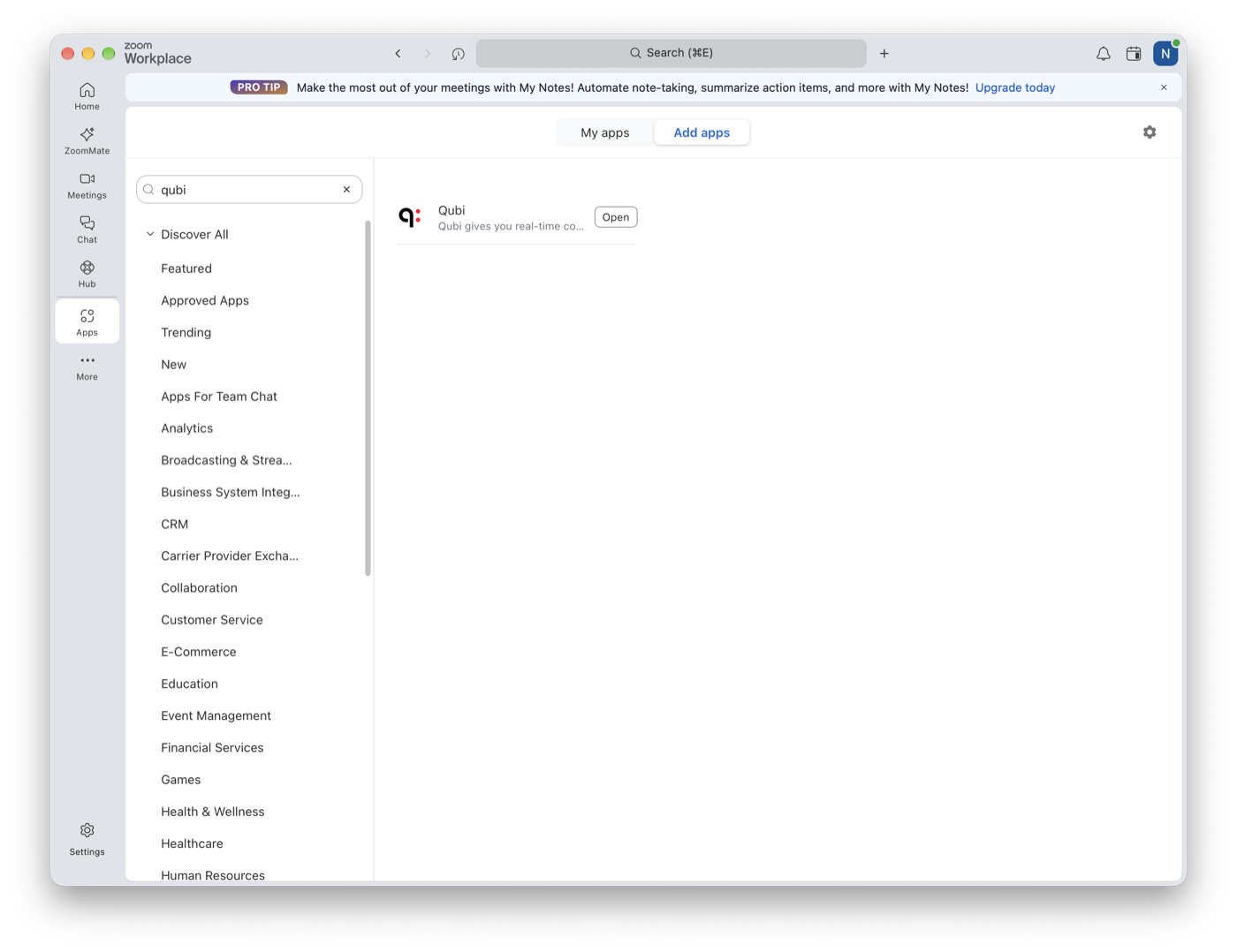
- Add the Qubi app to your Zoom account. Your Zoom admin may have already done this for the team. If not, open the Zoom client, go to Apps > Add apps, search for Qubi, and open the result.
If you'd rather have Qubi join and record your Zoom meetings without opening a sidebar, see Zoom Recording Setup.
During a meeting
- Join your Zoom meeting
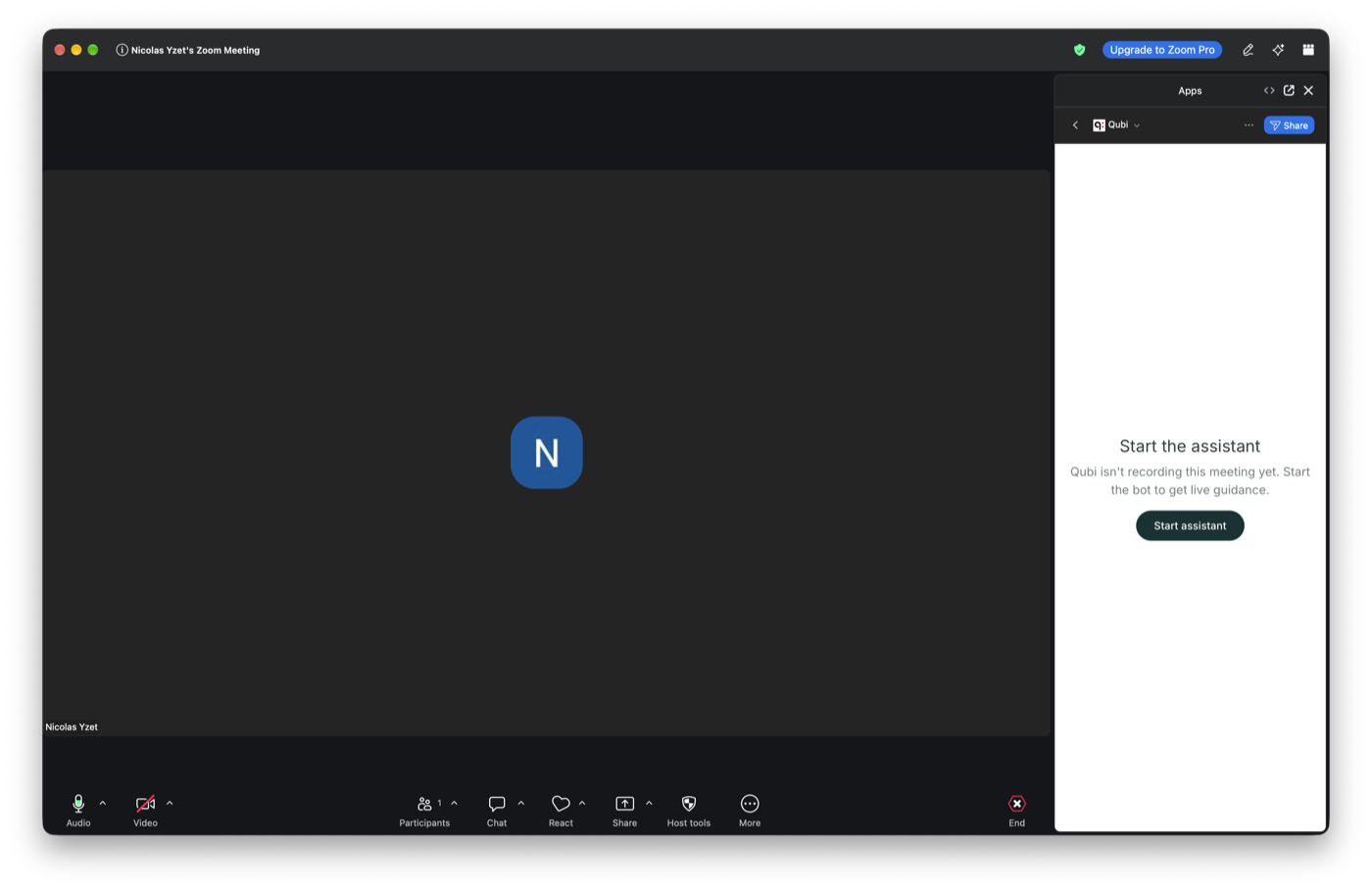
- Click Apps in the meeting toolbar and choose Qubi
- Qubi doesn't join the call on its own here. If it isn't recording yet, the panel shows Start the assistant — click it, then admit the bot when Zoom asks you to let it in
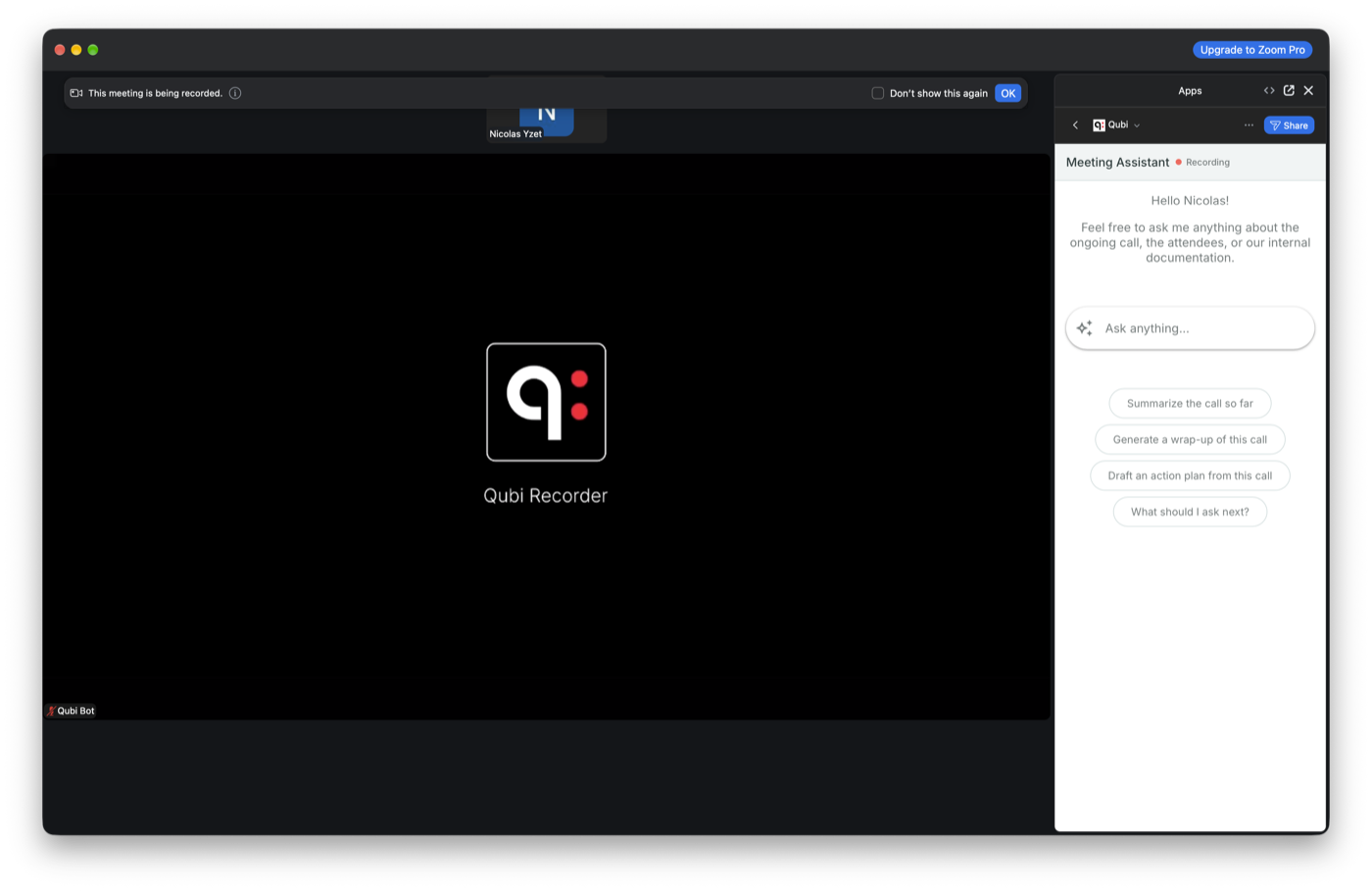
- Once recording starts, the panel becomes the Meeting Assistant, with the Context, Cues, Playbook (and its covered/total counter), and Wrap Up tabs, plus the Ask anything… box for Ask Qubi
note
For a meeting with no calendar event behind it, the panel is just the Ask Qubi chat — there's no meeting context to fill the tabs with.
Stopping the recording
The Zoom panel shows the recording status but has no Stop button. To stop a recording early, use the Qubi web app (or the Chrome extension); otherwise the recording ends when the meeting does.
If something looks off
- No Active Call — the app is open but Qubi isn't recording this meeting. This is what you see when the panel is opened from the Zoom client rather than from inside a call. Click Check Again after starting the bot from a meeting.
- Assistant stopped — Qubi has left the meeting and is no longer recording. Click Start again to bring it back.
- Enter the join link — Zoom didn't hand Qubi the meeting's password, so paste the meeting's join link, the one ending in
?pwd=…, and click Start with this link.