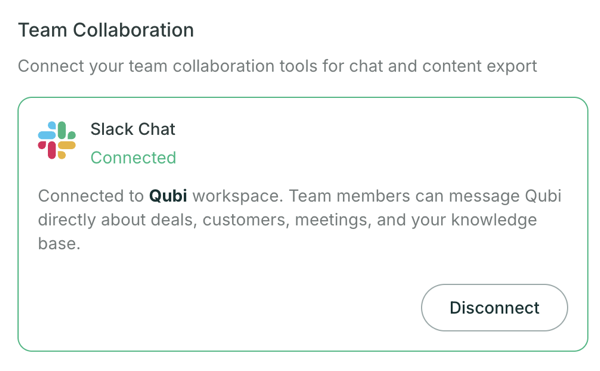
 *Once connected, you'll see your Slack workspace here, with a **Disconnect** button.*
## Meeting notifications
With Slack Chat connected, Qubi also sends each rep a Slack direct message:
- A **meeting-prep brief** before their meetings
- A **recap summary** after each meeting
## Add Slack to your Knowledge Base
To make Slack conversations searchable for live coaching and Ask Qubi, add Slack as a Knowledge Base connector and choose which channels to sync. See [Add Content from Anywhere](/docs/knowledge-base/add-content).
---
# Ask About Deals & Customers
URL: https://docs.getqubi.com/docs/ask-qubi/deals-and-customers
Ask Qubi is particularly powerful when used for deal and customer intelligence. Instead of digging through your CRM or replaying old calls, just ask.
## Deal-related questions
Get instant answers about any deal in your pipeline:
- "What's the current status of the Acme opportunity?"
- "What risks should I be aware of for this deal?"
- "When was our last interaction with the Globex buying committee?"
- "What's the next step on the Initech renewal?"
Qubi combines CRM data with your past conversations to give you a complete picture.
## Customer-related questions
Learn about any contact or account without searching through meeting notes:
- "What are the main pain points for [contact name]?"
- "How many times have we met with [account name] this quarter?"
- "Who from our team has spoken with [contact name]?"
## Voice input
Prefer to speak? Click the **microphone icon** and ask your question out loud. Qubi transcribes your question in real time and returns the answer just like a typed query.
This is especially useful when you're prepping between back-to-back calls and need a quick answer.
---
# Ask Qubi
URL: https://docs.getqubi.com/docs/ask-qubi/
Have a question about a deal, a prospect, or your next move? Just ask Qubi. Whether it's about a specific meeting, a CRM opportunity, or your team's knowledge base. Qubi gives you instant, grounded answers.
---
# What Is Ask Qubi?
URL: https://docs.getqubi.com/docs/ask-qubi/what-is-ask-qubi
Ask Qubi is your always-available AI sales assistant. It lives on the home page of Qubi and can answer questions about your deals, customers, past conversations, and internal knowledge, instantly.
## How to use Ask Qubi
1. Go to the **Home** page (the **Ask Qubi** tab in the navigation)
2. Type your question in the "Ask anything..." text field, or use **voice input** by clicking the microphone icon
3. Qubi searches across your meetings, CRM data, and Knowledge Base to generate an answer
4. The response includes sources so you can verify where the information came from
If your workspace has Slack Chat connected, you can also DM the Qubi bot in Slack to ask the same questions without leaving Slack. See [Ask Qubi from Slack](/docs/ask-qubi/ask-from-slack).
## What kind of questions can you ask?
Ask Qubi is designed for real sales scenarios:
- **"What are the main concerns from our last call with Acme Corp?"**
- **"When is our next meeting with the Globex team?"**
- **"What competitors did the prospect mention?"**
- **"Summarize the deal status for the Q4 pipeline review"**
- **"What pricing did we discuss with Initech last month?"**
- **"What are our key differentiators against [competitor]?"**
## Where Qubi finds answers
Qubi draws from multiple sources to build its responses:
| Source | Examples |
|---|---|
| **Past meetings** | Transcripts, summaries, action items |
| **CRM data** | Accounts, opportunities, deal stages |
| **Knowledge Base** | Documents, Google Drive files, Confluence pages, Slack threads |
| **Competitor intel** | Battlecards, competitor profiles |
The more context you provide in your question, the better Qubi's answer. Instead of "Tell me about Acme," try "What pricing objections did Acme raise in our last discovery call?"
---
# Call-Level Coaching
URL: https://docs.getqubi.com/docs/coaching/call-level-coaching
After every sales call, Qubi generates a detailed coaching analysis in the **Sales Coaching** tab on the call detail page. This gives you specific, actionable feedback on what you did well and where you can improve.
## AI performance score
Each call receives an overall performance score based on methodology coverage, conversation quality, and sales effectiveness. This score helps you quickly gauge how a call went.
## Methodology coverage with evidence
Qubi checks each item from your active sales methodology and shows:
- **Which items you covered**: with the exact quote and timestamp as evidence
- **Which items you missed**: opportunities to address in follow-up
- **How thoroughly each item was addressed**: surface-level mention vs. deep exploration
## AI-recommended responses
For key moments in the call, Qubi compares what you said to what an ideal response might look like:
- See the **actual response** you gave
- See the **AI-recommended response** based on your Knowledge Base and best practices
- Understand the gap and how to improve next time
## What you did well
Coaching isn't just about improvement. Qubi highlights your strengths too:
- Effective discovery questions you asked
- Objections you handled well
- Moments where you demonstrated strong sales skills
Review your Sales Coaching tab within 24 hours of a call, while the conversation is still fresh. This is when coaching insights are most actionable.
---
# Your Coaching Profile
URL: https://docs.getqubi.com/docs/coaching/coaching-profile
Beyond individual call coaching, Qubi builds a comprehensive coaching profile that aggregates insights across all your conversations. This is your personalized improvement roadmap.
## Accessing your Coaching Profile
Click on your **Coaching** section in the navigation to see your profile. It includes:
- **Executive Summary**: A high-level overview of your coaching trajectory
- **Key metrics**: Performance scores aggregated over time
- **Strengths**: What you consistently do well across calls
- **Growth opportunities**: Patterns where you can improve
- **Action items**: Specific, prioritized next steps for development
- **Key patterns**: Recurring behaviors Qubi has identified across your calls
## How metrics are calculated
Your coaching metrics are built from data across all your recorded sales calls. The more calls Qubi analyzes, the more accurate and useful your profile becomes.
## For managers: view your team's profiles
As a manager, you can view the coaching profile of any team member you manage:
1. Navigate to the **Coaching** section
2. Select a team member from your reports
3. Review their strengths, growth areas, and action items
This gives managers data-driven coaching material for 1:1s, replacing guesswork with specific, evidence-backed recommendations.
Your coaching profile improves over time as Qubi analyzes more of your calls. The first few calls establish a baseline; after 10+ calls, patterns and trends become much more visible.
---
# AI Coaching
URL: https://docs.getqubi.com/docs/coaching/
Qubi doesn't just analyze your calls. It helps you get better. Every call gets a coaching assessment, and over time, Qubi builds a personalized coaching profile that tracks your strengths, patterns, and areas for growth.
---
# Competitor Intelligence
URL: https://docs.getqubi.com/docs/competitors/competitor-intelligence
Once you've set up your competitors, Qubi organizes intelligence about each one and makes it available across the platform: in live coaching, meeting prep, and Ask Qubi.
## Intel cards
Each competitor has an intel card that organizes competitive information by category:
- **Product**: Features, capabilities, and limitations
- **Pricing**: Pricing models, discounts, and typical contract structures
- **Market**: Target segments, customer base, and positioning
- **Sales tactics**: How they sell, common pitches, and closing techniques
## Source attribution
Every piece of competitive intelligence includes a source, so your team knows whether the information comes from:
- A customer conversation (transcript)
- An internal document
- A battlecard or manual entry
## Your own product profile
Qubi also maintains an intelligence profile for your own product, organized the same way. This lets you compare your solution side by side with any competitor.
## How competitive intel powers Qubi
Competitor information flows throughout Qubi:
| Feature | How competitor intel is used |
|---|---|
| **Live coaching** | When a competitor is mentioned on a call, Qubi surfaces relevant battlecard responses |
| **Meeting prep** | Competitor context is included in preparation notes for competitive deals |
| **Ask Qubi** | You can ask "How do we compare to [competitor] on [feature]?" |
| **Coaching** | Post-call analysis evaluates how you handled competitive mentions |
---
# Competitors & Battlecards
URL: https://docs.getqubi.com/docs/competitors/
Qubi helps you track your competitors and arm your team with the right information to win competitive deals. Surface key competitors automatically, create battlecards, and get competitive intelligence surfaced during live calls.
---
# Track Your Competitors
URL: https://docs.getqubi.com/docs/competitors/track-competitors
Qubi maintains a list of your competitors and uses it to surface relevant intelligence during meetings, in coaching, and through Ask Qubi.
## Automatic competitor detection
Qubi's AI can detect when competitors are mentioned in your calls. When it identifies a company being discussed competitively, it flags it for you. You can then:
- **Confirm** the detection and add it to your tracked competitors
- **Dismiss** false positives
## Add competitors manually
To add a competitor yourself:
1. Go to **Settings** > **Competitors**
2. Click **Add Competitor**
3. Enter the competitor's name and website
4. Save
## Maintain competitor profiles
Each competitor in Qubi has a profile that you can build out with:
- **Overview**: Who they are and what they offer
- **Strengths and weaknesses**: How they compare to your solution
- **Key differentiators**: What sets you apart
- **Common objections**: What prospects say about them and how to respond
Keep your competitor profiles up to date. The better your competitive intel, the more helpful Qubi's live coaching will be during competitive deals.
---
# Deal Review on Calls
URL: https://docs.getqubi.com/docs/deals/deal-review
After every sales call, Qubi links the conversation to the relevant CRM account and opportunity, giving you deal context right alongside the meeting analysis.
## The Deal Review tab
On sales call detail pages, the **Deal Review** tab shows:
- **Linked account**: The CRM account associated with this meeting
- **Linked opportunity**: The specific deal or opportunity
- **Deal health signals**: Risks, momentum indicators, and next steps
- **Key insights**: What changed as a result of this call
## How Qubi links calls to deals
Qubi automatically matches meetings to CRM accounts and opportunities based on:
- Meeting participants (email matching against CRM contacts)
- Calendar event details
- Conversation content
If Qubi can't make an automatic match, you can manually link a call to the correct account or opportunity.
Review the Deal Review tab after every sales call to make sure your CRM is up to date. Qubi surfaces what changed, so you know exactly what to update.
---
# Deals Dashboard
URL: https://docs.getqubi.com/docs/deals/deals-dashboard
The Deals Dashboard gives you a complete, conversation-powered view of your pipeline. See all your accounts and opportunities in one place, with meeting history and deal health for each.
## View your accounts and opportunities
The dashboard shows your CRM accounts and their associated opportunities. For each, you can see:
- **Account name** and key contacts
- **Open opportunities** with stage, amount, and close date
- **Meeting history**: How many conversations you've had and when the last one was
- **Deal health**: AI-assessed health status based on conversation signals
## Monitor deal health
Qubi assesses deal health based on what's happening in your conversations, not just CRM field updates:
- **Healthy**: Positive signals, engaged stakeholders, good momentum
- **At risk**: Warning signs like stalled conversations, unresolved objections, or missing stakeholders
- **Needs attention**: Significant gaps in methodology coverage or long periods without contact
## Drill into a deal
Click any account or opportunity to see:
- Every meeting associated with that deal
- Key moments and decisions from each call
- Action items and follow-ups
- Contact engagement across meetings
The Deals Dashboard requires a CRM integration (Salesforce or HubSpot). See [Admin Guide: CRM Integration](/docs/admin/crm-integration) for setup instructions.
---
# Deals & Pipeline
URL: https://docs.getqubi.com/docs/deals/
Qubi connects directly to your CRM and updates in real time, giving you a conversation-powered view of every deal. See deal health, review meeting history per account, and catch risks before they derail your pipeline.
---
# Chrome Extension
URL: https://docs.getqubi.com/docs/devices/chrome-extension
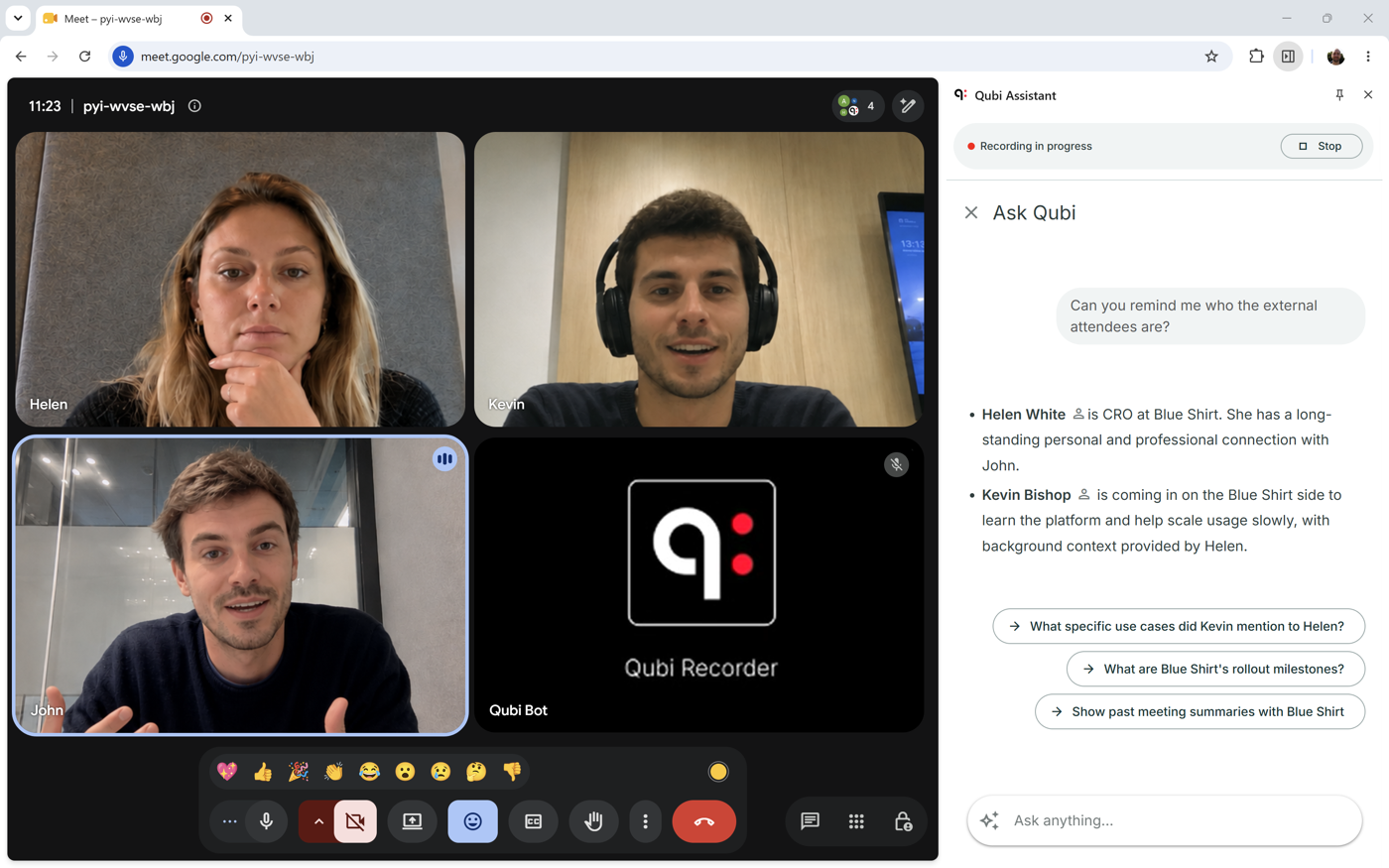
The Qubi Assistant Chrome extension brings Qubi into your browser. It works in two places:
- **Google Calendar**: see whether each meeting is set to be recorded, and invite or remove the Qubi bot with one click
- **Google Meet, Microsoft Teams, and Zoom**: the Qubi assistant opens in a side panel when you join a call, with live intelligence, your playbook, and a wrap-up as the conversation happens
## Install the extension
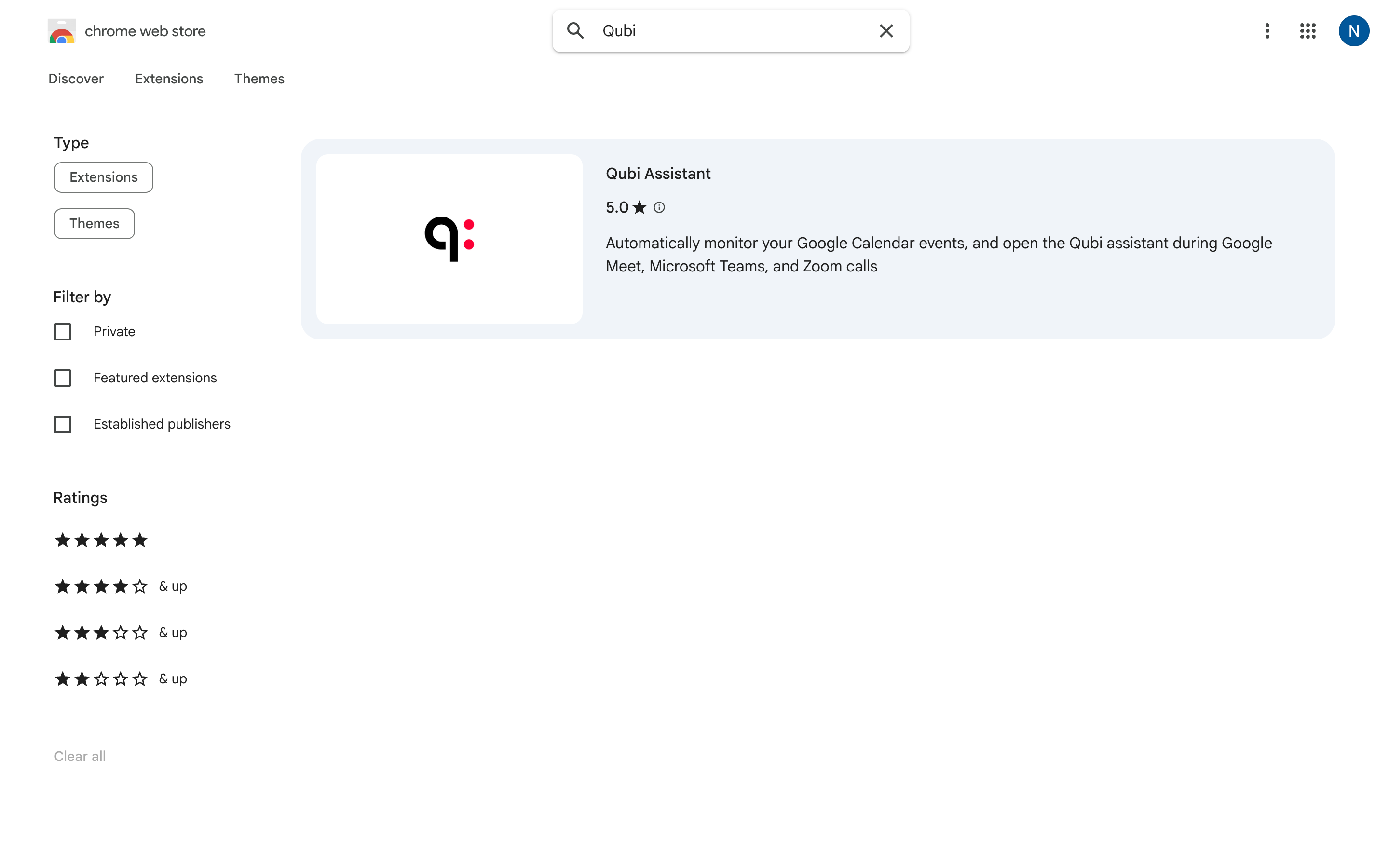
1. Open the [Chrome Web Store](https://chromewebstore.google.com/search/Qubi) and search for **Qubi Assistant**
2. Open the listing and click **Add to Chrome**, then **Add extension**
3. Pin the extension: click the extensions (puzzle piece) icon in the Chrome toolbar, then the pin next to **Qubi Assistant**
4. Sign in to Qubi when the assistant asks you to — the side panel keeps its own session, separate from your browser tabs
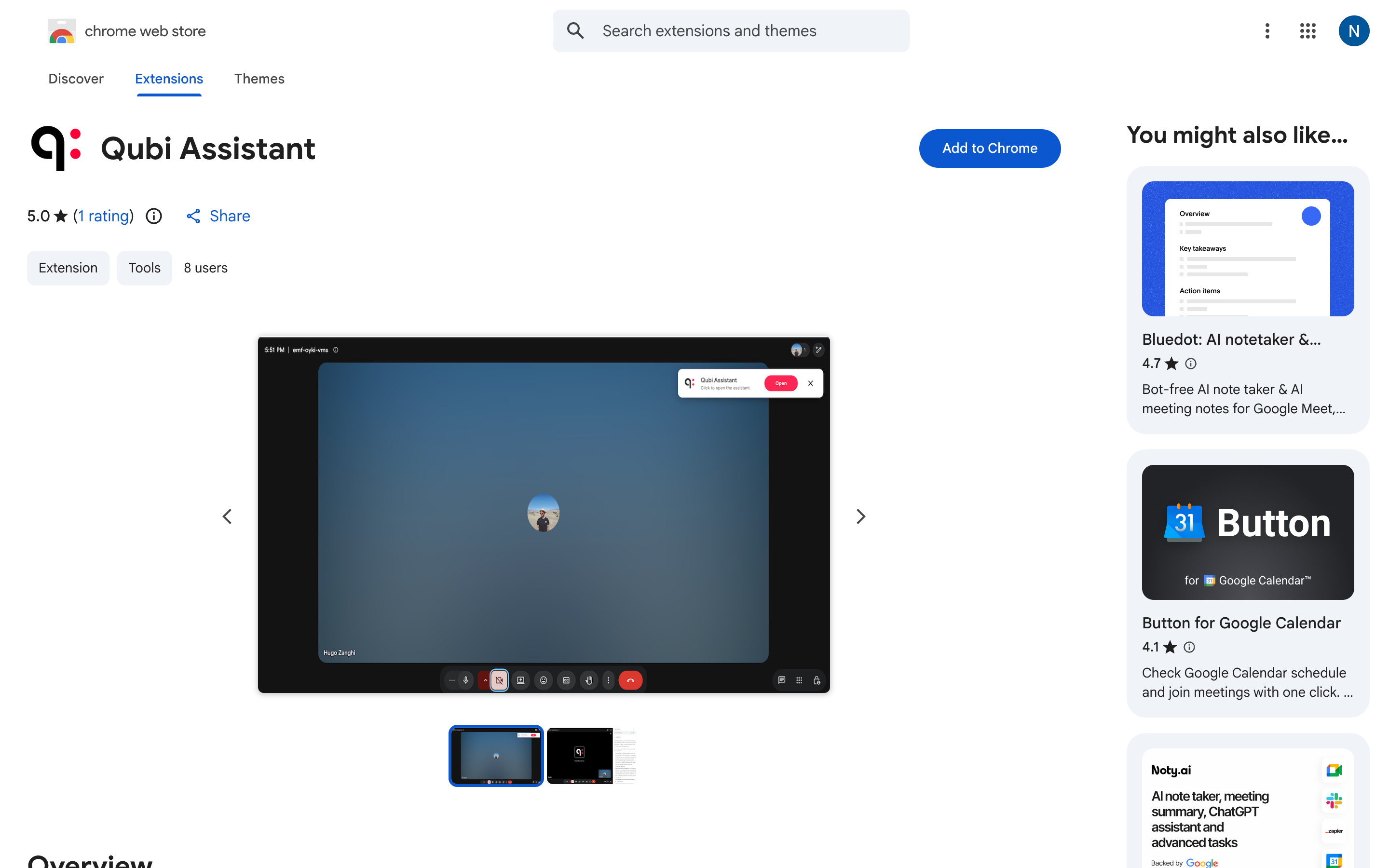
Pin Qubi Assistant to your Chrome toolbar for one-click access throughout your workday.
## What the extension does
- **Auto-joins your calls**: when you join a Google Meet, Microsoft Teams, or Zoom meeting, the assistant opens in a side panel and the Qubi bot joins the call automatically
- **Live transcription and intelligence cards**: talking points, product information with its sources, and pain points appear as the conversation unfolds
- **Playbook tracking**: your sales methodology, checked off live as you cover each item
- **Wrap-up on demand**: a structured summary of the call while you're still on it
- **Ask Qubi during the call**: ask about the ongoing conversation, the attendees, or your internal documentation
- **One-click recording setup in Google Calendar**: invite the bot to a meeting without leaving your calendar
- **"Qubi is ready" notification**: a nudge whenever a call starts without the assistant open
The assistant itself is the same live experience described in [What Is Live Call Intelligence?](/docs/live-calls/what-is-live-call-intelligence) — the extension is simply where it runs on Google Meet, Microsoft Teams, and Zoom.
## During a call
### Open the assistant
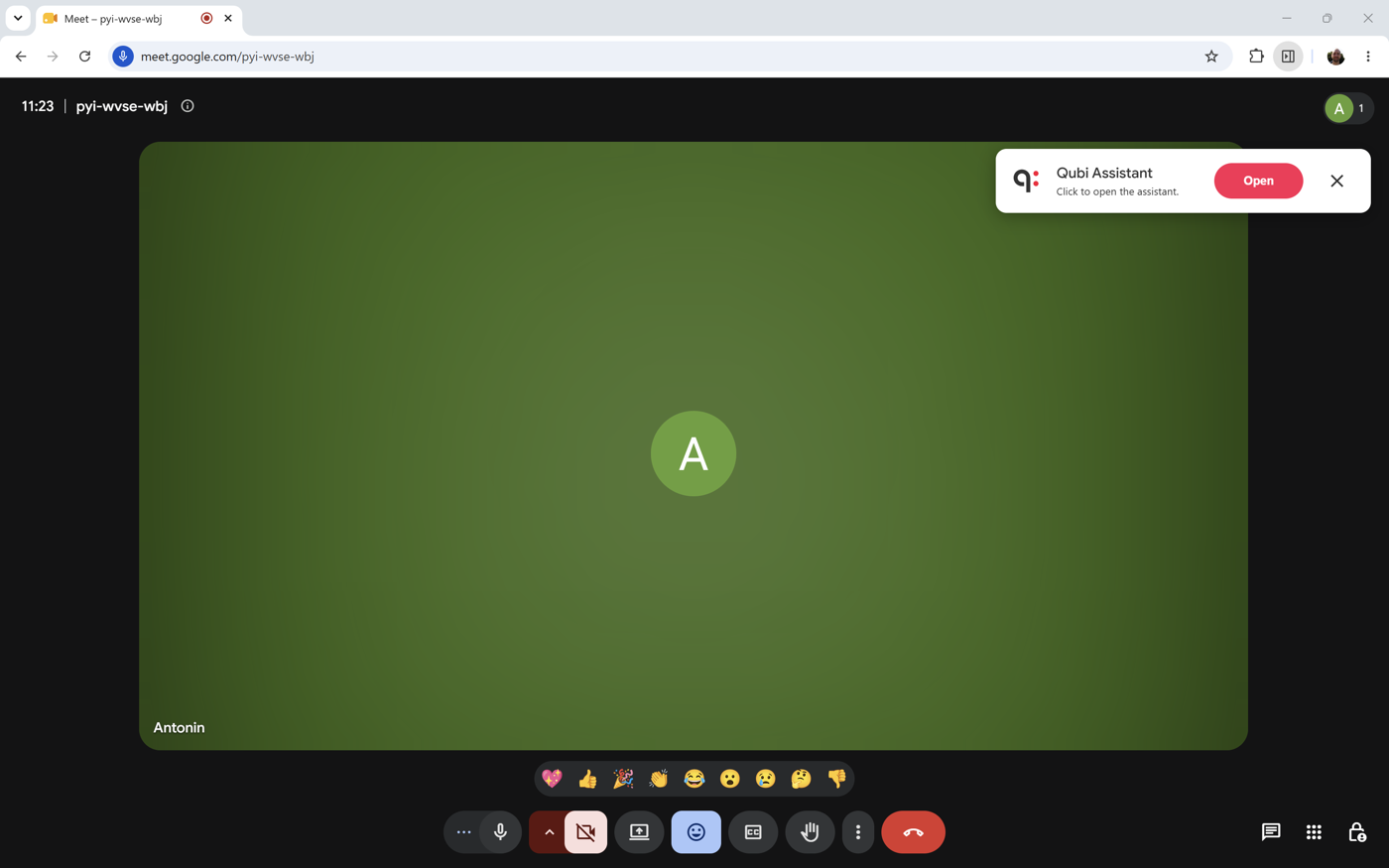
The side panel opens by itself a couple of seconds after you join a supported call. If it doesn't, the **Qubi Assistant** notification appears in the top-right corner of the call window — click **Open** to bring up the panel. The notification dismisses itself after a minute; you can always click the extension icon in the Chrome toolbar instead.
### The assistant panel
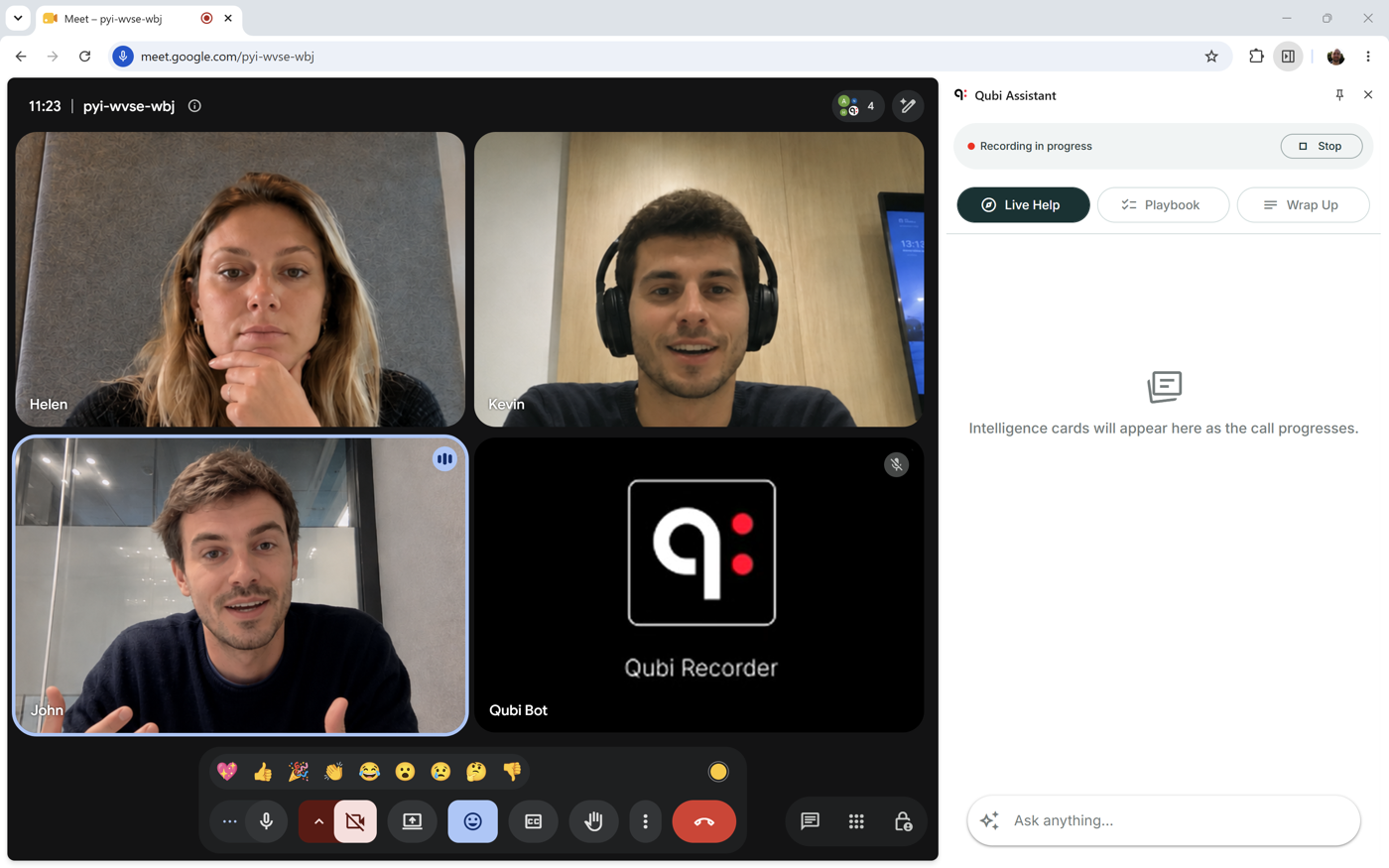
The panel sits next to your call and stays out of the way. At the top you'll see the recording status — **Recording in progress** with a red dot — and a **Stop** button if you need to end the recording early. Below that are three tabs: **Live Help**, **Playbook**, and **Wrap Up**. The **Ask anything…** box at the bottom is always available.
### Live Help
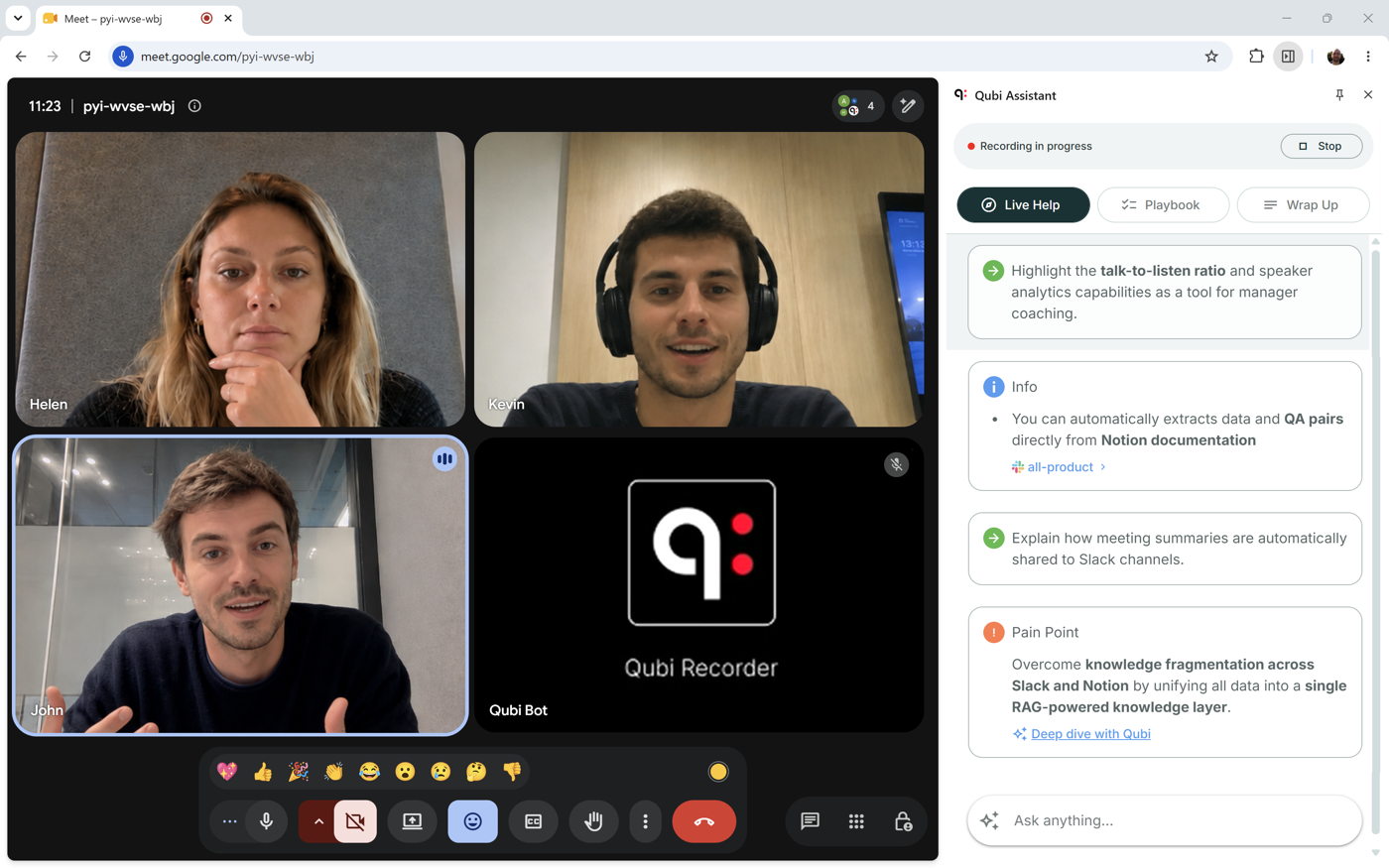
Live Help is the running feed of intelligence cards, revealed one at a time as the conversation progresses:
- **Talking points** with a green arrow, such as a capability worth highlighting while you demo
- **Info** cards quoting a product or process detail, each with a chip showing which knowledge source it came from
- **Pain Point** cards describing a customer problem Qubi picked up on, with a **Deep dive with Qubi** link to explore it further
The tab stays empty until there's something worth surfacing, with the note *"Intelligence cards will appear here as the call progresses."*
### Playbook
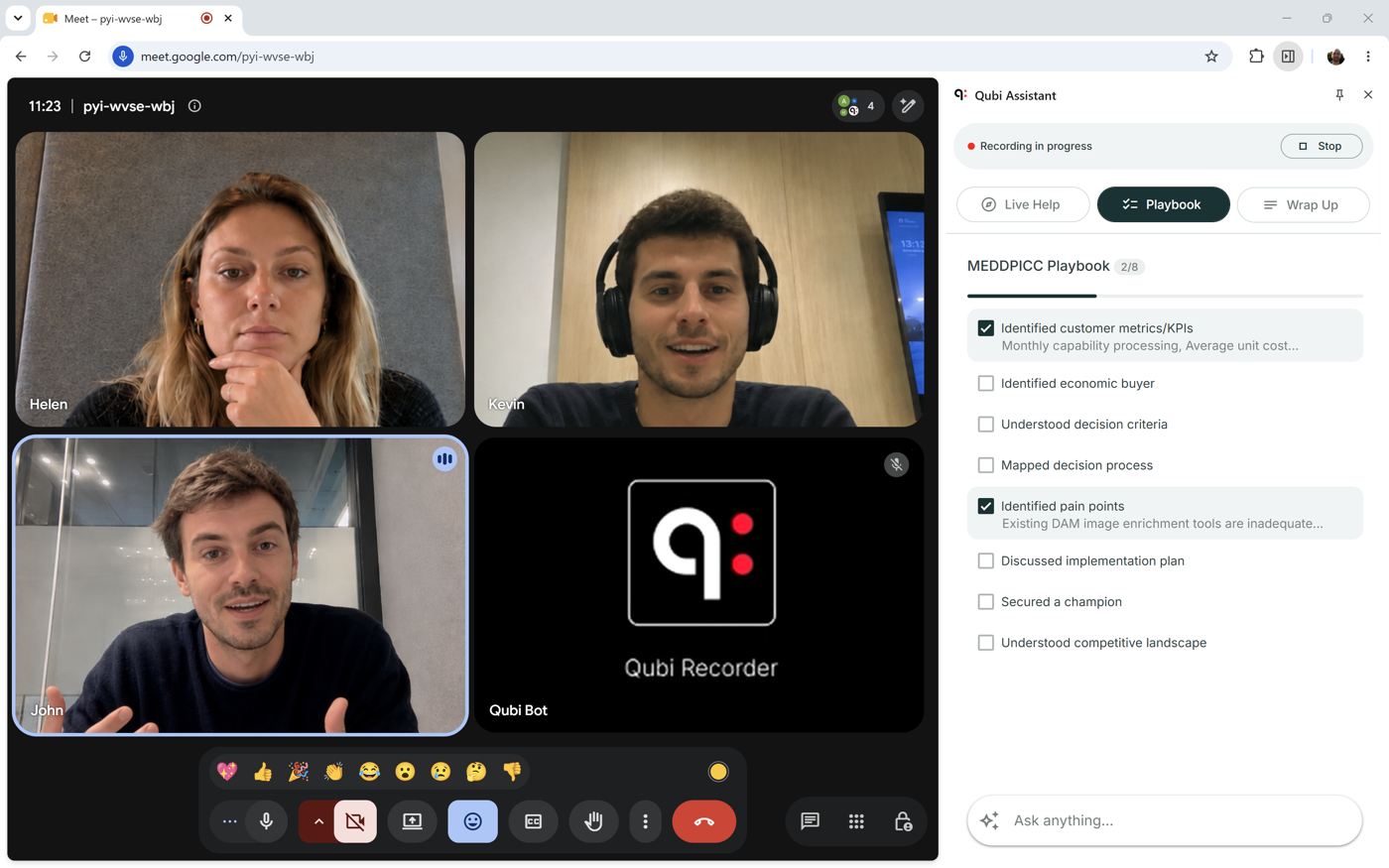
The Playbook tab tracks your methodology live: the header shows how much you've covered (**MEDDPICC Playbook 2/8**) with a progress bar underneath, and each item you hit gets a checked box and an evidence line quoting what was said. See [Methodology Tracking](/docs/live-calls/methodology-tracking) for how your team's framework is configured.
### Wrap Up
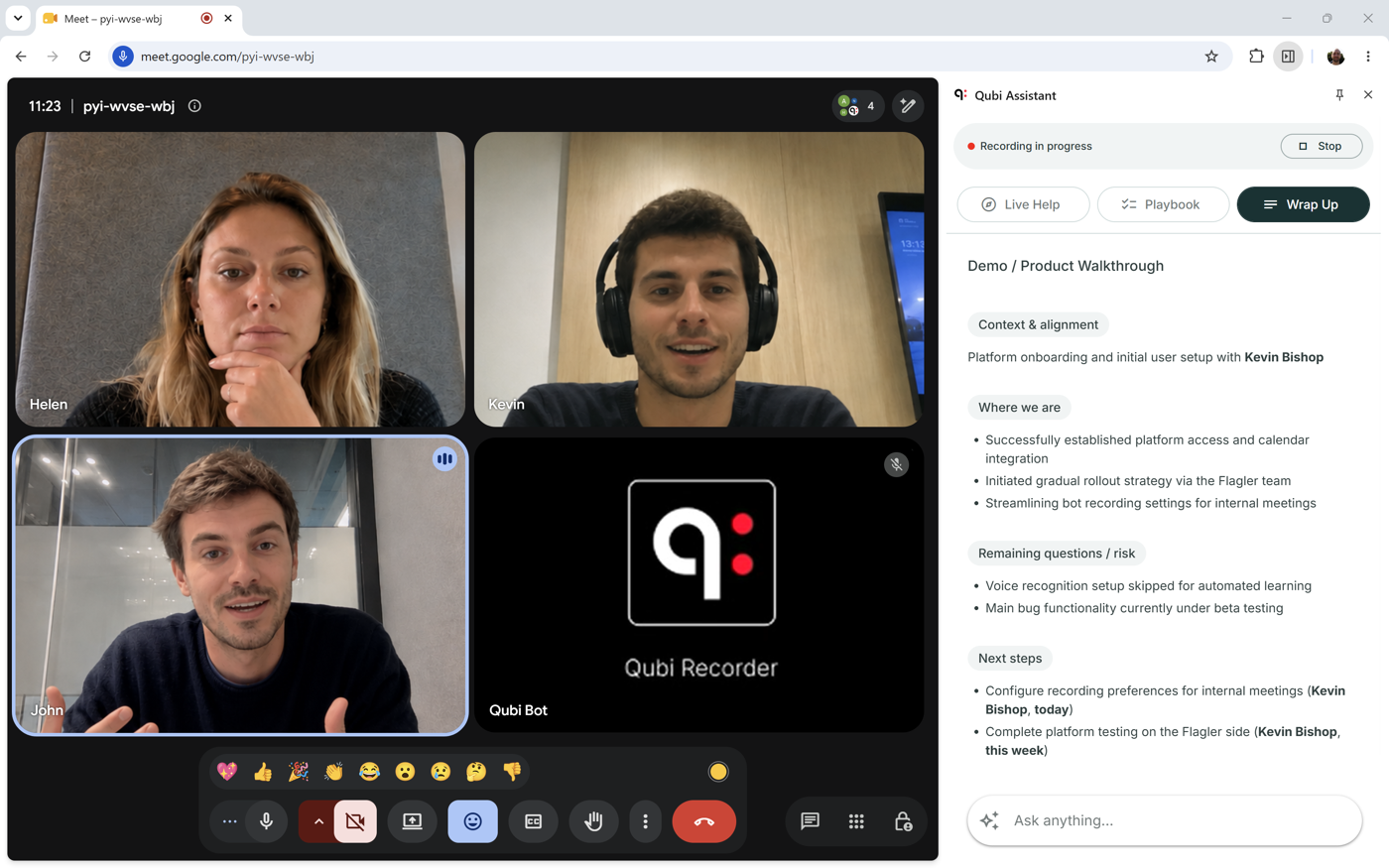
The Wrap Up tab summarizes the call while you're still on it: the meeting type, followed by **Context & alignment**, **Where we are**, **Remaining questions / risk**, and **Next steps** with owners. Open the tab during the call to generate it — if you only look at the end, Qubi needs a moment to catch up.
### Ask Qubi
The **Ask anything…** box at the bottom of the panel opens Ask Qubi over the tabs — close it with the **✕** to return. Ask about the call in progress, the people on it, or anything in your internal documentation, and pick one of the suggested follow-ups if you're not sure where to start. See [What Is Ask Qubi?](/docs/ask-qubi/what-is-ask-qubi).
## Google Calendar
Open any event in Google Calendar and the event popup shows a Qubi button with the current recording status:
- **Activate Qubi for this call** — the bot isn't invited yet; click to add it
- **Will be recorded with Qubi** — the bot is invited; click to remove it
- **Recording link** — the meeting already happened; click to open the recording in Qubi
If your Qubi session has expired, a banner appears at the top of Google Calendar with a **Login to Qubi** button. Sign in and the banner clears on its own.
## Requirements
The extension runs in Google Chrome and other Chromium-based browsers. You need a Qubi account, and calls must be on Google Meet, Microsoft Teams, or Zoom.
---
# Desktop App
URL: https://docs.getqubi.com/docs/devices/desktop-app
The Qubi Desktop App provides a dedicated experience on macOS or Windows, always accessible from your taskbar or dock.
## Install the Desktop App
1. Visit [app.getqubi.com](https://app.getqubi.com)
2. Look for the desktop app download link in your Settings or profile
3. Download and install for your operating system
4. Sign in with your Qubi account
## Benefits of the Desktop App
- **Dedicated window**: Keep Qubi open alongside your other tools without browser tab clutter
- **System notifications**: Get native desktop notifications for meeting prep and call summaries
- **Quick access**: Launch Qubi from your dock or taskbar with one click
---
# Qubi on Every Device
URL: https://docs.getqubi.com/docs/devices/
Access Qubi wherever you work: in your browser, on your desktop, on your phone, directly inside Zoom, or through your favorite AI assistant. Your meetings, coaching, and insights are always within reach.
---
# AI Assistant Integration (MCP)
URL: https://docs.getqubi.com/docs/devices/mcp-integration
Qubi plugs into AI assistants such as **Claude** and **ChatGPT** through the **Model Context Protocol (MCP)**. Your assistant gets direct access to the same sales intelligence Ask Qubi uses: past meetings and transcripts, CRM deals, contacts, competitors, coaching, and your Knowledge Base.
Ask a question in plain language and your assistant works out which Qubi data to pull. Think of it as Ask Qubi, available wherever you already work with AI.
MCP access is **read-only**. Your assistant can read Qubi data. It cannot change anything in Qubi, your CRM, or your calendar.
## What you can do
| Capability | Example question |
|---|---|
| **Ask about meetings** | *"What objections came up in calls with Acme last month?"* |
| **Search deals** | *"What's the status of the TechCorp renewal?"* |
| **Count deals and pipeline** | *"How many deals did we close last quarter?"* |
| **Research people** | *"Who is the decision-maker at Globex?"* |
| **Prepare for a call** | *"What should I know before my 2pm with Initech?"* |
| **Review recent calls** | *"Summarize my meetings from last week"* |
| **Compare against competitors** | *"How do we stack up against CompetitorX?"* |
| **Search internal docs** | *"What's our onboarding process for enterprise customers?"* |
| **Check your todos** | *"What follow-ups are still open?"* |
## Before you start
- You need a **Qubi account with data in it** — recorded meetings, a connected CRM, Knowledge Base content, or a mix. Your assistant can only answer from what Qubi holds.
- Your Qubi user must be **provisioned in your organization**. If it is not, the connection succeeds but every question fails. See [Not provisioned in Qubi](#not-provisioned-in-qubi).
- Your AI assistant must support **remote MCP servers with OAuth**. Claude and ChatGPT both do.
## Connect your AI assistant
Qubi runs a hosted MCP server:
```
https://mcp.getqubi.com/mcp
```
There is nothing to install and no API key to copy. Your assistant discovers the server's OAuth metadata, registers itself, and sends you to a browser to **sign in with your Qubi account**. It then keeps the connection alive on its own, so you sign in once.
### Claude Desktop
1. Open [Claude Desktop](https://claude.ai/download)
2. Go to **Settings** → **MCP Servers** (labelled **Connectors** in newer builds) → **Add**
3. Name it `Qubi` and enter the server URL: `https://mcp.getqubi.com/mcp`
4. Claude opens a browser window — **sign in with your Qubi account**
5. Finish the browser flow, then restart Claude Desktop
6. Click the **tools** icon in the chat input and confirm the Qubi tools are listed
### Claude on the web
1. Open **Settings** → **Connectors** → **Add custom connector**
2. Name it `Qubi` and enter `https://mcp.getqubi.com/mcp`
3. Click **Connect** and sign in with your Qubi account
### ChatGPT
ChatGPT connects to remote MCP servers as a **custom connector**, and needs a **paid plan** (Plus, Pro, Business, Enterprise, or Edu).
1. In the ChatGPT **web app**, open **Settings** → **Connectors** (or **Apps**) → **Advanced settings** and turn on **Developer mode**
2. Create a **custom connector** and enter the Qubi server URL: `https://mcp.getqubi.com/mcp`
3. Choose **OAuth** as the authentication method. ChatGPT discovers the remaining settings automatically
4. Sign in with your Qubi account when prompted
On Business and Enterprise plans, an administrator may need to allow custom connectors and developer mode before you can add one.
### Other MCP clients
Any assistant that supports remote MCP with OAuth can connect:
1. Point it at `https://mcp.getqubi.com/mcp`
2. Complete the OAuth sign-in when the client opens your browser
3. Confirm the Qubi tools are listed
The protocol is young and client support moves quickly. If your assistant only supports local (stdio) MCP servers, it cannot connect to Qubi's hosted server.
### Verify the connection
Once connected, you should see **21 Qubi tools** listed — the same tools Ask Qubi uses. They are all listed in the [tool reference](#tool-reference) below.
If they are missing, see [Tools don't appear](#tools-dont-appear).
## Tool reference
You rarely need to name a tool. Ask the question you care about and your assistant picks the right one. This reference is here for when you want to know what is available, or what a tool will not return.
### Meetings and transcripts
| Tool | What it returns | Useful inputs |
|---|---|---|
| `search_summaries` | Summaries of past meetings, filtered by date, topic, or deal | `limit` 1–20 (default 10), `start_date`, `end_date`, `semantic_query`, `opportunity_id` |
| `load_transcript` | The full transcript of one meeting | `transcript_id` |
| `extract_from_transcripts_with_instructions` | Answers pulled out of several transcripts at once — objections, pricing talk, next steps, competitors named | `extraction_instructions`, `limit` 1–20 (default 5), date and participant filters |
### Deals and pipeline
| Tool | What it returns | Useful inputs |
|---|---|---|
| `search_opportunities` | Deals by name or account, or a page of your whole book | `query`, `limit`, `owner_email` |
| `get_crm_opportunity_analytics` | Counts: deals created in a date window, the won/lost/open split, close rate, and results per rep | `start_date`, `end_date` |
| `get_crm_deal_velocity` | How long deals take to close — won and lost, per rep — and the days deals spend in each stage | `start_date`, `end_date`, `owner_email` |
| `get_crm_forecast_accuracy` | A forecast graded: the deals expected to close in a period, read on a date, against what actually closed | `period_start`, `period_end`, `as_of`, `owner_email` |
Deal search returns a **page of deals, not a total**, so it cannot answer "how many". For any counting question your assistant uses `get_crm_opportunity_analytics` instead. Questions about timing — sales cycle length, time in each stage, how accurate a forecast was — use `get_crm_deal_velocity` and `get_crm_forecast_accuracy`.
### People
| Tool | What it returns | Useful inputs |
|---|---|---|
| `search_participants` | Contacts and meeting participants | `query` for names, roles, and companies; `semantic_query` for descriptions such as *"who cares about security?"* |
| `get_contact_email_history` | Recent email engagement with one contact | `email`, `limit` 1–25 (default 10) |
### Meeting preparation
| Tool | What it returns | Useful inputs |
|---|---|---|
| `get_upcoming_prep_notes` | Prep briefs for your upcoming meetings | none |
| `get_prep_note_for_event` | The prep note for one calendar event | `event_id` |
### Competitors
| Tool | What it returns | Useful inputs |
|---|---|---|
| `list_competitors` | Every competitor your team tracks | none |
| `get_competitor_intel` | Detail on one competitor | `competitor_id` |
| `get_all_competitor_intel` | Competitive intelligence for all tracked competitors | none |
### Knowledge Base
| Tool | What it returns | Useful inputs |
|---|---|---|
| `search_knowledge_base` | Passages from your documents, playbooks, and battlecards, plus Q&A pairs already verified against their source | `query`, `top_k` (default 10) |
| `multi_query_search` | Results for several queries at once, deduplicated | `queries`, `top_k_per_query` (default 5) |
| `get_document_outline` | A document's sections and headings, so the assistant can navigate a long document | `document_id` |
| `read_document_segment` | One slice of a document, with surrounding context | `document_id`, `start_chunk`, `end_chunk` |
### Analytics, coaching, and todos
| Tool | What it returns | Useful inputs |
|---|---|---|
| `get_meeting_analytics` | Aggregated meeting analytics — distributions, trends, correlations | `start_date`, `end_date`, `dimension_type`, `filter_user_id` |
| `get_taxonomy_dimensions` | Your company's meeting categories | `dimension_type` |
| `get_meeting_classifications` | The taxonomy tags on one meeting | `meeting_id` |
| `get_coaching_profile` | Strengths, growth areas, and metrics | `email` — omit it for your own profile |
| `get_user_todos` | Your todo list | `status_filter` (default `OPEN`), `account_query`, `category`, `sort_by`, `order`, `limit` |
## What MCP cannot do
- **Change anything.** Every Qubi tool is read-only. Your assistant cannot create todos, edit deals, or write to your CRM or calendar.
- **Read a call that is happening right now.** Live-call tools are not exposed over MCP. A meeting becomes available once it has been recorded and processed.
- **See past your permissions.** Results are limited to your own Qubi account, and Knowledge Base results to the spaces you can open in Qubi.
- **Answer from data Qubi does not have.** If a meeting was never recorded, or a CRM is not connected, there is nothing to return.
## Example conversations
### Preparing for a call
> **You:** I have a call with Sarah Chen from Acme Corp in 30 minutes. What should I know?
>
> **Claude:** *(uses get_upcoming_prep_notes, search_summaries, extract_from_transcripts_with_instructions)* From your last three meetings with Acme: the open question is security review timing, and they asked twice about SSO...
### Checking deal status
> **You:** What's happening with the Globex enterprise deal?
>
> **Claude:** *(uses search_opportunities)* The Globex Enterprise deal is in Negotiation, valued at $85,000 with a 70% win probability. Expected close: March 15...
### Counting pipeline
> **You:** How many deals did we close last quarter, and who closed them?
>
> **Claude:** *(uses get_crm_opportunity_analytics)* 18 deals were created in Q3, of which 7 are won and 3 lost today. Close rate 70%. By rep: Sarah 4 won, Marcus 2, Priya 1...
### Finding competitor intel
> **You:** What do we know about how we compare to CompetitorX?
>
> **Claude:** *(uses search_knowledge_base, get_competitor_intel)* From your CompetitorX battlecard: your key differentiators are native CRM sync and per-seat pricing...
## Privacy and security
- The MCP integration uses the **same authentication and permissions as your Qubi web account**. Your assistant can only read what you can read.
- All access is **read-only**.
- Authentication is **OAuth 2.0 with PKCE**. Your assistant stores a token and refreshes it in the background — Qubi never receives or stores your password.
- Qubi sends the data your assistant asks for **into that assistant's own context**. Once it is there, the assistant vendor's retention and training policies apply to it. Use an assistant whose data terms you are comfortable with.
## Troubleshooting
### Tools don't appear
- Check the server URL is exactly `https://mcp.getqubi.com/mcp`
- Quit and reopen your AI assistant completely
- Remove the Qubi connector and add it again
- In Claude Desktop, click the tools icon in the chat input — if the list is empty, the connection did not complete
### Sign-in fails, or the connection stops working
- Finish the whole browser flow; a closed tab leaves the connection half-made
- Remove the connector and add it again to start a fresh sign-in
- Sign in with the same email you use for Qubi
### Not provisioned in Qubi
If every question fails with a message about your user not being provisioned, your Qubi account exists in your identity provider but not in your organization's Qubi workspace. Ask your Qubi administrator to add you, then reconnect.
### Empty or incomplete answers
- Confirm the data exists in Qubi first — open the meeting or deal in Qubi and check
- For questions about documents, confirm you have access to the relevant [Knowledge Base](/docs/knowledge-base) space
- Ask for a wider date range, or name the company or person explicitly
### A question about "how many" gets a list instead of a number
Deal and meeting search return a page of results, not totals. Ask for a **count** explicitly — *"how many deals..."* — so your assistant reaches for the analytics tool, or give it a count to make.
## Related
- [What Is Ask Qubi?](/docs/ask-qubi/what-is-ask-qubi) — the same intelligence, inside Qubi
- [Ask About Deals & Customers](/docs/ask-qubi/deals-and-customers) — question patterns that work well
- [Build Your Knowledge Base](/docs/knowledge-base/build-knowledge) — what the knowledge tools can reach
- [Track Competitors](/docs/competitors/track-competitors) — where competitor intelligence comes from
Need more help? [Contact Qubi support](/docs/welcome/contact-support).
---
# Mobile App
URL: https://docs.getqubi.com/docs/devices/mobile-app
Take Qubi on the go with the mobile app. Review meeting summaries, check your schedule, and ask Qubi questions from your phone.
## Download the app
- **iOS**: Available on the App Store
- **Android**: Available on Google Play
## What you can do on mobile
- **Review meeting summaries**: Read briefs and outlines from your recent calls
- **Check your schedule**: See upcoming meetings and AI prep materials
- **Ask Qubi**: Get instant answers about deals, customers, and meetings
- **Get notifications**: Stay informed about call summaries and meeting prep
The mobile app provides access to Qubi's core features. For the full experience, including live coaching, detailed analytics, and admin settings, use the web app or desktop app.
---
# Zoom App
URL: https://docs.getqubi.com/docs/devices/zoom-app
The Qubi Zoom App runs the assistant in your Zoom sidebar, so you get live intelligence, methodology tracking, and Ask Qubi without leaving your meeting window. It's the same live experience described in [What Is Live Call Intelligence?](/docs/live-calls/what-is-live-call-intelligence).
## Before your first call
1. **Connect Zoom in Qubi.** Go to **Settings** > **Recordings** > **Zoom Integration** and click **Connect Zoom**. The section reads "Connect your Zoom account to enable automatic meeting recording and transcription."
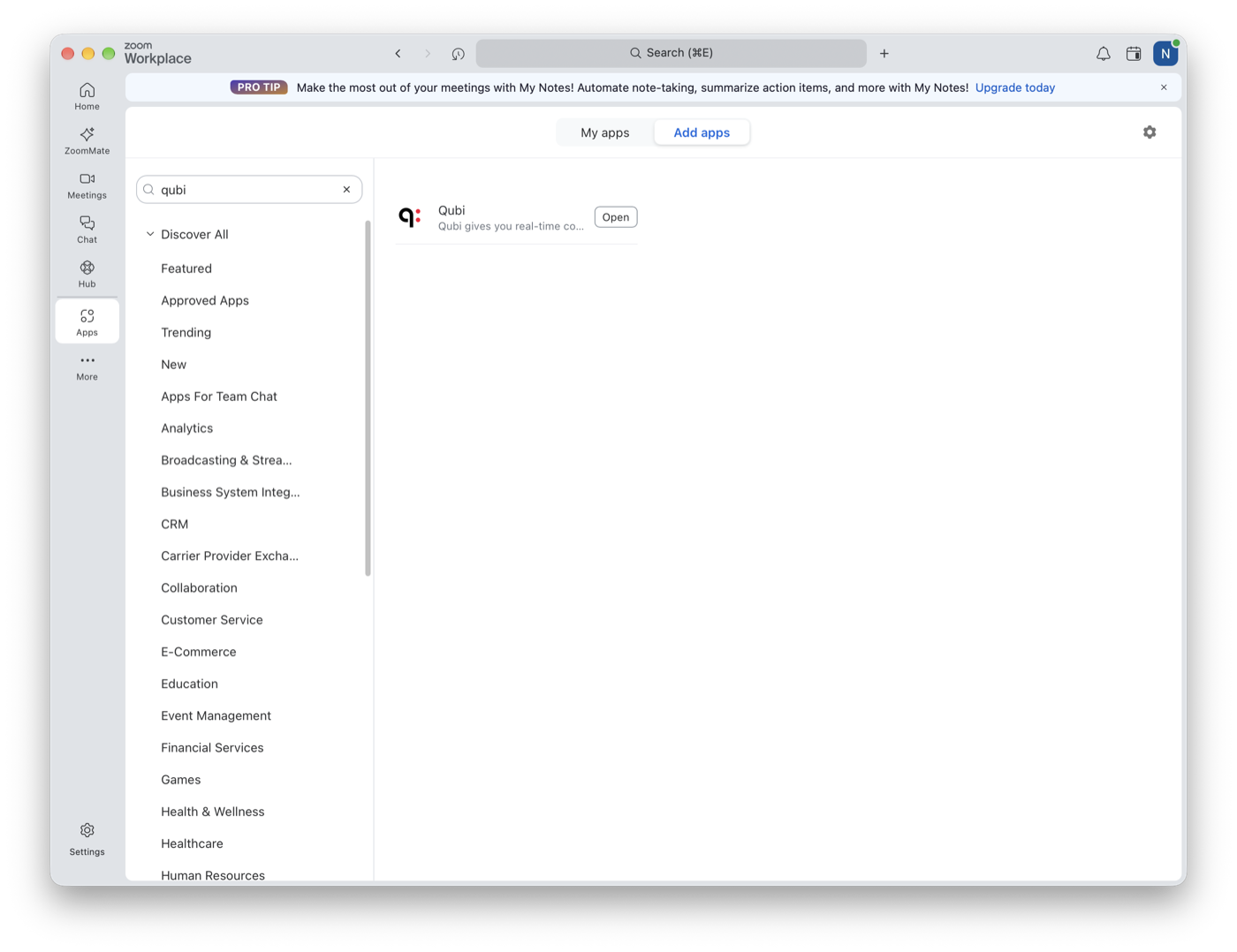
2. **Add the Qubi app to your Zoom account.** Your Zoom admin may have already done this for the team. If not, open the Zoom client, go to **Apps** > **Add apps**, search for **Qubi**, and open the result.
If you'd rather have Qubi join and record your Zoom meetings without opening a sidebar, see [Zoom Recording Setup](/docs/recording/zoom-recording-setup).
## During a meeting
1. Join your Zoom meeting
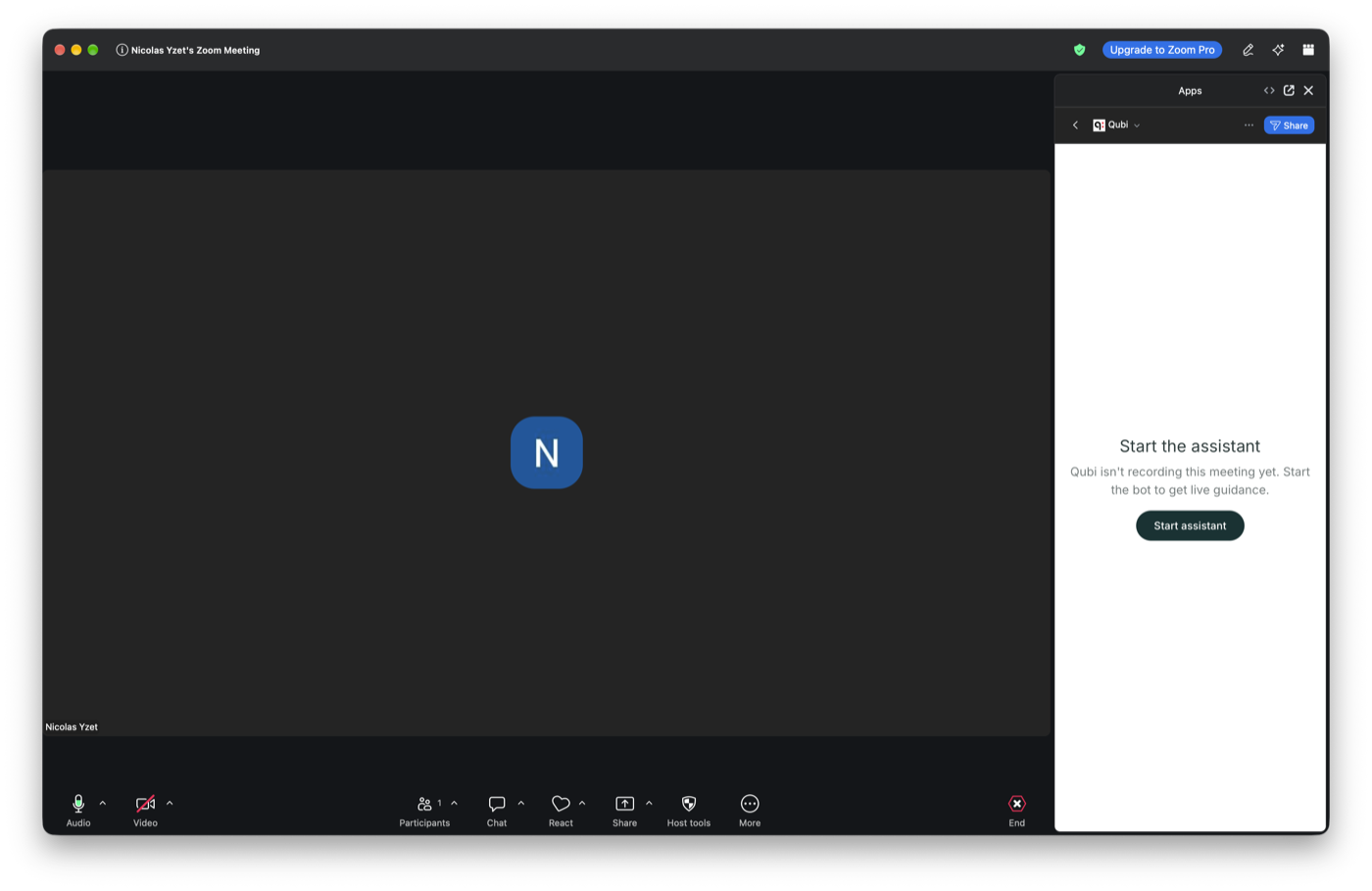
2. Click **Apps** in the meeting toolbar and choose **Qubi**
3. Qubi doesn't join the call on its own here. If it isn't recording yet, the panel shows **Start the assistant** — click it, then admit the bot when Zoom asks you to let it in
4. Once recording starts, the panel becomes the **Meeting Assistant**, with the **Context**, **Cues**, **Playbook** (and its covered/total counter), and **Wrap Up** tabs, plus the **Ask anything…** box for Ask Qubi
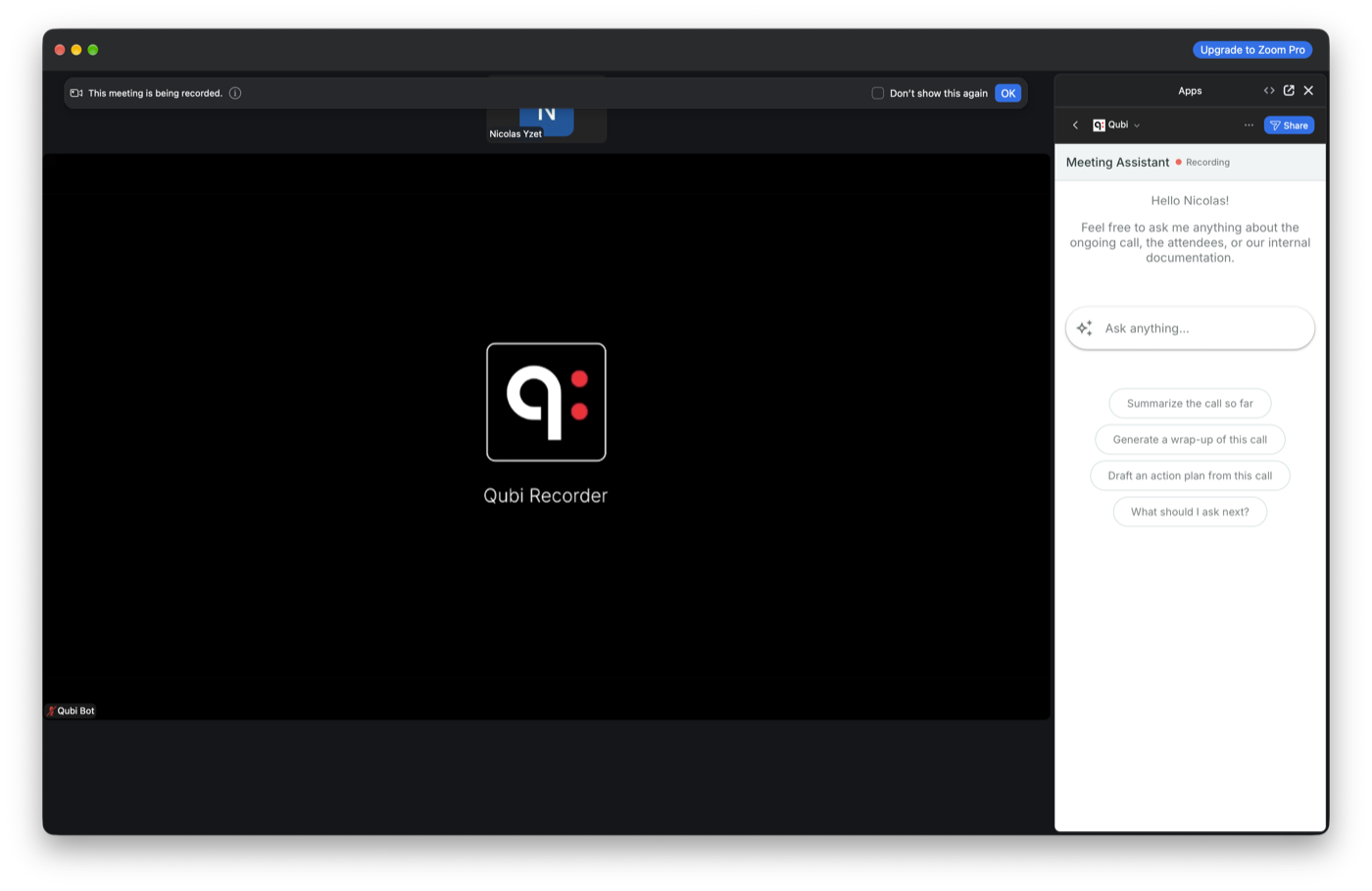
For a meeting with no calendar event behind it, the panel is just the Ask Qubi chat — there's no meeting context to fill the tabs with.
## Stopping the recording
The Zoom panel shows the recording status but has no **Stop** button. To stop a recording early, use the Qubi web app (or the [Chrome extension](/docs/devices/chrome-extension)); otherwise the recording ends when the meeting does.
## If something looks off
- **No Active Call** — the app is open but Qubi isn't recording this meeting. This is what you see when the panel is opened from the Zoom client rather than from inside a call. Click **Check Again** after starting the bot from a meeting.
- **Assistant stopped** — Qubi has left the meeting and is no longer recording. Click **Start again** to bring it back.
- **Enter the join link** — Zoom didn't hand Qubi the meeting's password, so paste the meeting's join link, the one ending in `?pwd=…`, and click **Start with this link**.
---
# Add Content from Anywhere
URL: https://docs.getqubi.com/docs/knowledge-base/add-content
Qubi can ingest content from multiple sources, so your Knowledge Base stays comprehensive and up to date without manual effort.
## Upload files directly
The simplest way to add content is uploading files:
1. Open a Knowledge Space
2. Click **Upload** or drag and drop files
3. Supported formats: PDF, DOCX, PPTX, XLSX, TXT, CSV, Markdown, HTML
4. Maximum file size: 500 MB
## Connect external sources
For content that lives outside Qubi, set up a connector to automatically sync and keep your Knowledge Base current:
| Source | What it syncs |
|---|---|
| **Google Drive** | Documents, sheets, slides from selected folders |
| **Confluence** | Pages from selected spaces |
| **Notion** | Pages from selected databases or workspaces |
| **Slack** | Messages and threads from selected channels |
| **Web Crawler** | Content from specified web pages or sitemaps |
### Set up a connector
1. Go to **Settings** > **Knowledge Base**
2. Open the Space you want to add content to
3. Click **Add Connector**
4. Choose the source type
5. Authorize access and configure which content to sync
6. Qubi will sync the content and keep it updated
## Import call transcripts
You can also add transcripts from past meetings to your Knowledge Base:
1. Open a meeting from **Conversations**
2. Open the actions menu
3. Select **Import to Knowledge Space**
4. Choose the destination Space
This is useful for preserving great calls as reference material. For example, a perfect discovery call that other reps can learn from.
Connected sources sync automatically on a regular schedule. When you update a document in Google Drive or a page in Confluence, the changes will appear in your Knowledge Base after the next sync.
---
# Ask Questions Against Your Knowledge
URL: https://docs.getqubi.com/docs/knowledge-base/ai-playground
The **AI Playground** lets you query your Knowledge Base directly: test whether your content is complete, find answers, and explore what Qubi knows.
## Using the AI Playground
1. Go to **Settings** > **Knowledge Base**
2. Open the **AI Playground**
3. Type a question (e.g., "What's our pricing for Enterprise plans?")
4. Qubi searches your Knowledge Base and returns an answer with source attribution
## Source attribution
Every answer from the AI Playground includes links to the source documents that informed the response. This lets you:
- **Verify accuracy**: Click through to the original document
- **Identify gaps**: If Qubi can't answer a question, you know what content is missing
- **Test your Knowledge Base**: Before relying on live coaching, make sure the answers are there
## Use cases
The AI Playground is useful for:
- **Testing before launch**: Make sure critical questions can be answered before enabling live coaching
- **Verifying new content**: After uploading documents, test whether the information is retrievable
- **Sales prep**: Quickly find information from your knowledge library
Use the AI Playground to test the questions your sales team gets asked most often. If Qubi can't answer them well, it's a signal to add more content to your Knowledge Base.
---
# Build Your Team's Knowledge
URL: https://docs.getqubi.com/docs/knowledge-base/build-knowledge
The Knowledge Base is organized into **Spaces**, collections of documents and content grouped by topic. Spaces make it easy to organize your team's knowledge and control what Qubi uses for coaching and answers.
## What is a Knowledge Space?
A Knowledge Space is a container for related content. For example:
- **Product Knowledge**: Product sheets, feature briefs, pricing guides
- **Sales Playbook**: Objection-handling scripts, discovery best practices, case studies
- **Onboarding**: Training materials, call recordings from top performers
- **Industry Research**: Market reports, analyst briefings
## Why your Knowledge Base matters
The quality of Qubi's coaching and answers depends directly on the quality of your Knowledge Base:
- **Live coaching** uses your Knowledge Base to suggest answers during calls
- **Ask Qubi** searches your Knowledge Base for answers to your questions
- **Competitor battlecards** draw from Knowledge Base content
- **Meeting prep** references relevant documents for upcoming calls
Start with your most-used sales materials: pricing guides, feature comparisons, and objection-handling docs. These give Qubi the biggest immediate impact on live coaching quality.
## Create a new Space
1. Go to **Settings** > **Knowledge Base**
2. Click **New Space**
3. Give it a name and description
4. Start adding content
---
# Knowledge Base
URL: https://docs.getqubi.com/docs/knowledge-base/
Your Knowledge Base is what makes Qubi truly intelligent. By integrating your internal documents, Slack channels, Google Drive files, and more, you give Qubi the context it needs to provide accurate live coaching, answer questions, and surface the right information at the right time.
---
# Live Conversation Insights
URL: https://docs.getqubi.com/docs/live-calls/conversation-insights
While your call is in progress, Qubi monitors several conversation dynamics to help you stay aware of how the meeting is going.
## Talk time balance
See a real-time breakdown of how much each participant has spoken. This helps you:
- **Avoid dominating the conversation**: the best discovery calls let the prospect talk more
- **Spot disengaged participants**: if a key stakeholder hasn't spoken, it may be time to bring them in
- **Balance multi-person calls**: make sure all participants are included
## Sentiment tracking
Qubi analyzes tone and language to give you a sense of how the conversation is going. Use sentiment signals to:
- Adjust your approach if the tone shifts
- Lean into topics that generate positive engagement
- Notice when a prospect becomes hesitant or resistant
## Key triggers
As the conversation unfolds, Qubi flags key triggers: moments where a competitor is mentioned, pricing comes up, or a pain point is expressed. These highlights help you respond in the moment rather than discovering them later in the transcript.
---
# Live Call Intelligence
URL: https://docs.getqubi.com/docs/live-calls/
Qubi doesn't just record your meetings. It coaches you in real time. While you're on a call, Qubi surfaces answers, highlights key information, and tracks your methodology coverage, all without you leaving the conversation.
---
# Live Guidance & Coaching
URL: https://docs.getqubi.com/docs/live-calls/live-guidance
During a live call, Qubi's Live Guidance thread delivers real-time suggestions based on what's being discussed. Think of it as having your best sales coach whispering in your ear.
## How Live Guidance works
As the conversation progresses, Qubi listens and surfaces relevant coaching cues in a thread alongside your call:
- **Recommended responses** when the prospect asks a tough question
- **Objection handling** with battlecard-backed answers pulled from your Knowledge Base and competitor intel
- **Key information highlights**: important data points, pricing, or terms mentioned during the call
- **Talking points** you haven't covered yet
## Knowledge-backed answers
Every suggestion Qubi provides is grounded in your team's actual knowledge. Sources can include:
- **Knowledge Base documents**: Product sheets, case studies, FAQs
- **Competitor battlecards**: How you compare on specific features or pricing
- **Past call transcripts**: How your best reps handled similar situations
- **CRM data**: Account history and deal context
Each coaching cue shows where the information came from, so you can trust and verify the suggestion.
## Contextual Help
Need an answer to something specific during the call? Use the **Contextual Help** tab:
1. Type your question (e.g., "What's our enterprise pricing?")
2. Qubi searches your Knowledge Base and returns an answer instantly
3. Use the answer naturally in your conversation
## Meeting Wrap Up
As the call nears its end, the **Meeting Wrap Up** tab helps you:
- Review what was covered during the call
- Check if any critical items are still outstanding
- Prepare next steps before you hang up
Keep the Qubi tab visible on a second monitor or side-by-side with your meeting window. This lets you glance at coaching cues without breaking eye contact on camera.
## Frequently asked questions
### What is Live Guidance in Qubi?
Live Guidance is a coaching thread that runs during a live call. It surfaces recommended responses, objection handling, key information, and talking points that you have not covered yet.
### Where do Qubi's live suggestions come from?
Suggestions come from your Knowledge Base, competitor battlecards, past call transcripts, and CRM data. Each cue shows its source so you can verify the answer.
### Can I ask Qubi a question during a call?
Yes. Open the **Contextual Help** tab, type your question, and Qubi searches your Knowledge Base and returns an answer instantly.
### What does the Meeting Wrap Up tab show?
Meeting Wrap Up reviews what the call covered, critical items that are still outstanding, and the next steps to agree before you hang up.
---
# Live Methodology Tracking
URL: https://docs.getqubi.com/docs/live-calls/methodology-tracking
During a live call, Qubi tracks your sales methodology coverage in real time, showing which items you've addressed and which still need attention.
## How it works
On the left side of the live call view, you'll see your active methodology checklist. As the conversation progresses:
- **Covered items** are checked off automatically when Qubi detects you've addressed them
- **Uncovered items** remain visible so you know what ground you still need to cover
- **Progress updates** happen live, so you always know where you stand
## Supported methodologies
Qubi supports several popular sales methodologies out of the box:
| Methodology | Focus |
|---|---|
| **MEDDPICC** | Metrics, Economic Buyer, Decision Criteria, Decision Process, Paper Process, Identify Pain, Champion, Competition |
| **BANT** | Budget, Authority, Need, Timeline |
| **SPIN** | Situation, Problem, Implication, Need-Payoff |
| **Challenger** | Teach, Tailor, Take Control |
| **Sandler** | Pain, Budget, Decision |
Your admin selects which methodologies are enabled for your team in Settings > Templates.
## Why it matters
Without methodology tracking, it's easy to leave a call having missed a critical qualification step. With Qubi's live tracking:
- **Never forget a key question**: see what's uncovered before the call ends
- **Build better habits**: consistent methodology use leads to higher win rates
- **Coach yourself in real time**: no need to wait for a post-call review
The methodology checklist is also available in your post-call review, where Qubi provides evidence for each item, including the exact quote and timestamp where you addressed it.
---
# What Is Live Call Intelligence?
URL: https://docs.getqubi.com/docs/live-calls/what-is-live-call-intelligence
Live Call Intelligence is Qubi's real-time coaching engine. While you're on a sales call, Qubi listens to the conversation and proactively provides guidance, surfacing answers, recommending responses, and tracking your methodology progress.
## How it works
1. **Qubi joins your meeting** as a recording participant
2. **As the conversation unfolds**, Qubi analyzes what's being discussed in real time
3. **Coaching cues appear** on your screen: answers to prospect questions, objection-handling tips, and methodology reminders
4. **After the call**, everything Qubi surfaced is saved and available for review
## What you see during a live call
The live call experience includes three key areas:
- **Live Guidance**: A real-time thread of AI coaching suggestions based on what's being said
- **Methodology Checklist**: Your sales methodology items, updated live as you cover each one
- **Contextual Help**: Quick access to ask Qubi a question or get help with a specific topic during the call
## Where live coaching runs
Live Call Intelligence works on all supported platforms:
| Platform | Experience |
|---|---|
| **Zoom** | Use the Qubi Zoom App for in-meeting coaching, or view coaching in the Qubi web app |
| **Google Meet** | View coaching in the Qubi web app alongside your meeting |
| **Microsoft Teams** | View coaching in the Qubi web app alongside your meeting |
For the best experience on Zoom, install the Qubi Zoom App so coaching appears directly inside your Zoom window, without switching tabs.
---
# AI Meeting Prep
URL: https://docs.getqubi.com/docs/meeting-prep/ai-meeting-prep
Before every call, Qubi prepares an AI brief so you walk in knowing exactly what to say, what to ask, and what to avoid. As the transcript says: *"Anything you need to know in order to prepare, instantly, Qubi will bring back everything together."*
## Access your meeting prep
1. Go to **Upcoming Meetings** in the left sidebar
2. Click on any meeting to open the detail page
3. The AI prep brief is displayed below the meeting details
## What's in the brief
Qubi generates two types of preparation depending on whether you've had previous meetings with the attendees:
### First-time meetings: Research Brief
For new prospects or contacts you haven't met before, Qubi provides a **Research Brief** with two tabs:
**AI Brief tab:**
- **Executive Summary**: A quick overview of who you're meeting and why it matters
- **Key Opportunities**: What you could gain from this conversation
- **Meeting Prep Tasks**: Specific things to review or prepare before the call
- **Conversation Starters**: Suggested opening topics to build rapport
- **Sources**: Where the information came from
**Participants tab:**
- Each attendee's **name, role, and company**
- **LinkedIn profile link** (when available)
- A short **summary** of their background
### Follow-up meetings: Preparation Notes
When you've had previous conversations with the attendees, Qubi builds a deeper **Preparation Notes** brief with three tabs:
**AI Brief tab:**
- **Meeting Context**: What this meeting is about based on calendar info and past conversations
- **Relationship Summary**: History of your interactions with this prospect (expandable for full detail)
- **Expected Outcomes**: What you should aim to achieve
- **Follow-up Opportunities**: Open threads from previous conversations
**Prep Tasks tab:**
- Categorized preparation tasks with context tooltips explaining why each one matters
**Guidance tab:**
- **Conversation Starters**: Specific topics with suggested opening lines
- **Potential Objections**: Objections the prospect might raise, with suggested responses
- **Pitfalls to Avoid**: Things not to say or do, based on past interactions
## Get prep via email
If you prefer to review your meeting prep in your inbox:
1. Go to **Settings** > **Preferences**
2. Turn on **Meeting Prep Emails**
3. You'll receive an email before each call with the AI brief
The more meetings you record with Qubi, the better your prep briefs become. Qubi learns from every conversation to give you increasingly relevant and specific preparation.
---
# Prepare for Meetings
URL: https://docs.getqubi.com/docs/meeting-prep/
Qubi makes sure every rep walks into every call prepared. It automatically generates AI briefs with context from previous conversations, prospect research, and suggested talking points, so you can focus on the conversation, not on scrambling through notes.
---
# Invite Qubi to Record
URL: https://docs.getqubi.com/docs/meeting-prep/invite-qubi
You control exactly which meetings Qubi joins. There are several ways to invite Qubi to your calls.
## Per-meeting invite
On the **Upcoming Meetings** page, each meeting has a toggle to activate or deactivate Qubi. Simply turn it on for the meetings you want recorded.
## Auto-invite to all meetings
If you want Qubi to join every meeting automatically:
1. Go to **Settings** > **Preferences**
2. Turn on **Auto-invite Bot**
3. Click **Save Preferences**
From now on, every new meeting added to your calendar will have Qubi activated by default.
## Mark a meeting as private
Some meetings are confidential. You can mark any meeting as **Private** so the recording is visible only to you:
1. On the **Upcoming Meetings** page, find the meeting
2. Click the **lock icon** to toggle between Private and Shared
3. Private recordings won't appear in your team's shared conversations list
## Invite Qubi from the meeting detail page
You can also manage the invite from a meeting's detail page:
1. Click on any meeting in your schedule
2. Click the **Invite Qubi** button at the top
3. The button changes to **Qubi invited** to confirm
---
# Your Upcoming Schedule
URL: https://docs.getqubi.com/docs/meeting-prep/your-schedule
The **Upcoming Meetings** page is your daily command center. It shows every meeting on your calendar, lets you control which ones Qubi records, and gives you quick access to AI meeting prep.
## View your meetings
Click **Upcoming Meetings** in the left sidebar to see your schedule. Meetings are grouped by day (Today, Tomorrow, and upcoming dates), with a count of meetings per day.
Each meeting shows:
- **Time range**: when the meeting starts and ends
- **Title**: the meeting name from your calendar (or "Untitled Event" if none)
- **Organizer**: who scheduled the meeting
- **Attendees**: how many people are invited
- **Platform**: Zoom, Google Meet, or Teams (auto-detected from the meeting link)
## Control which meetings Qubi records
For each meeting, you have two controls:
- **Activate/Deactivate Qubi**: Toggle whether Qubi should join and record this meeting
- **Private/Public recording**: Mark a meeting as private (lock icon) so only you can see the recording, or keep it shared with your team
### Bulk actions
Use the **Bulk Actions** dropdown at the top to activate or deactivate Qubi for all your meetings at once. This is handy when you first connect your calendar.
## Sync your calendar
Qubi syncs your calendar automatically, but you can force a manual sync by clicking the **Sync** button. The last sync timestamp is always visible so you know your schedule is current.
## When no meetings are scheduled
If your calendar is clear, you'll see: *"No meeting scheduled. Must feel nice."*
If you don't see any meetings, make sure your [calendar is connected](/docs/setup/connect-your-calendar).
---
# AI Meeting Summary
URL: https://docs.getqubi.com/docs/past-meetings/ai-summary
After every call, Qubi generates a comprehensive AI summary so you can get the full picture in seconds without replaying the entire recording.
## The Brief
The **Brief** tab gives you a concise summary of the meeting:
- **What was discussed**: The main topics and themes
- **Key decisions**: Important conclusions reached during the call
- **Action items**: What needs to happen next, and who owns each item
- **Key moments**: Standout quotes and critical points from the conversation
## The Outline
The **Outline** tab breaks the call into sections, making it easy to scan the entire conversation:
- Each section shows the topic discussed and a brief description
- **Key quotes** are highlighted with timestamps
- Click any section to jump to that part of the recording
Use the Brief when you need a quick catch-up. Use the Outline when you want to find a specific moment or drill into what was said during a particular topic.
---
# Browse Your Meeting Library
URL: https://docs.getqubi.com/docs/past-meetings/browse-meetings
All your past meetings live in the **Conversations** tab. This is your single library for every call Qubi has recorded or that you've uploaded.
## Finding a meeting
Use the **search bar** at the top to find any meeting by keyword, participant name, or topic. Qubi also supports CRM autocomplete: start typing an account or opportunity name and matching results appear instantly.
## Understanding meeting cards
Each meeting appears as a card showing:
- **Meeting title**: The name from your calendar event
- **Date and time**: When the meeting took place
- **Participants**: Who attended, with internal and external contacts displayed
- **Duration**: How long the call lasted
- **AI tags**: Automatically generated topic and meeting-type tags
Click any card to open the full call detail page.
## Meeting statuses
You may see different statuses on your meeting cards:
| Status | What it means |
|---|---|
| **On Air** | The meeting is currently being recorded |
| **Processing** | Qubi is generating the transcript and summary |
| **Ready** | The full analysis is available |
Use the search to find calls linked to a specific CRM account or opportunity. It's the fastest way to review every conversation related to a deal.
---
# The Call Detail Page
URL: https://docs.getqubi.com/docs/past-meetings/call-detail-page
When you open a meeting from your **Conversations** library, you'll land on the call detail page, your central hub for everything about that conversation.
## Watch or listen to the recording
The recording player sits at the top of the page. You can:
- **Play/pause** the recording
- **Scrub** to any point in the conversation
- **Adjust playback speed** for faster review
## Navigate with the speaker timeline
Below the player, a visual timeline shows who was speaking and when. Color-coded segments let you quickly identify speaker turns and jump to any part of the conversation.
## Jump to any moment using the outline
The **Outline** tab organizes the call into key sections and topics. Click any section heading to jump directly to that moment in the recording, no need to scrub through the whole call.
## Tabs on the call detail page
The call detail page adapts based on the type of meeting:
| Tab | What's inside |
|---|---|
| **Brief** | AI-generated summary with key takeaways |
| **Outline** | The call broken into sections with key moments |
| **Transcript** | Full word-by-word, speaker-by-speaker transcript |
| **Deal Review** | CRM intelligence and opportunity details (sales calls) |
| **Sales Coaching** | AI coaching score and improvement suggestions (sales calls) |
| **Interview** | Interview-specific analysis (interview calls) |
The Deal Review and Sales Coaching tabs only appear for meetings classified as sales calls. Interview tabs appear for meetings classified as interviews.
---
# Clips
URL: https://docs.getqubi.com/docs/past-meetings/clips
Clips let you extract and share key moments from any recorded meeting. You can create short segments from a call, keep them for personal reference, or share them with anyone — even people outside your organization — via a link or email.
## Creating a clip
1. Open the call detail page for any meeting that has a recording.
2. Click the **scissors icon** (✂) on the video player to enter clip-creation mode.
3. A timeline selection bar appears. Drag the start and end handles to define the segment you want to clip.
4. Give your clip a **title** (and optionally a note) to describe the moment.
5. Choose a **share type**:
- **Internal** — the clip is only visible to members of your workspace.
- **External** — a shareable link is generated so anyone with the link can view the clip.
6. Click **Create clip** to save it.
The clip will appear in the **Clips** panel on the right side of the call detail page.
## Internal vs external clips
| | Internal | External |
|---|---|---|
| **Audience** | Team members with access to the meeting | Anyone with the link |
| **Expiry** | No expiry | 14 days after creation |
| **Identification** | Not required | Can require viewer email |
| **Sharing** | Visible in the clips panel | Shareable link + email |
## Sharing a clip
### Copy link
For external clips, click the **link icon** next to the clip to copy the shareable URL to your clipboard. Paste it in a message, email, or Slack channel — the recipient can view the clip without signing in.
### Send by email
Click the **email icon** next to an external clip to open the share dialog. Enter the recipient's email address, and Qubi will send them an email with a direct link to the clip.
## Requiring identification
When creating an external clip, you can enable **Require identification**. This asks anyone viewing the clip to enter their email address before they can watch. Their visit is then logged so you can see who viewed the clip and when.
## AI summary
Toggle **Include AI summary** when creating a clip to include an AI-generated summary of the clipped segment alongside the recording. Viewers of the shared clip will see the summary below the player.
## Clip expiry
External clips expire **14 days** after creation. Once expired:
- The shareable link stops working.
- The clip remains visible in your clips panel, marked with an **Expired** badge and a strikethrough title.
- The **copy link** button is hidden for expired clips.
- Expired clips can still be deleted.
Internal clips do not expire.
## Deleting a clip
Click the **delete icon** next to any clip to remove it. A confirmation dialog will appear:
- **External clip (active)** — the dialog warns that deleting will permanently revoke access for anyone with the link.
- **External clip (expired)** — the dialog notes the clip has already expired and is no longer accessible externally.
- **Internal clip** — a straightforward confirmation that the clip will be permanently deleted.
Deletion is irreversible.
## Clips panel
All clips for a meeting are listed in the **Clips** panel on the right side of the call detail page. If there are more than three clips, the list becomes scrollable. The most recent clips appear at the bottom.
Each clip entry shows:
- **Title** — the name you gave the clip.
- **Duration** — the length of the segment.
- **Share type badge** — "External" or "Internal".
- **Expired badge** — shown for external clips past 14 days.
- **Action buttons** — copy link, send email, delete.
---
# Follow Up After a Meeting
URL: https://docs.getqubi.com/docs/past-meetings/follow-up
Once Qubi has analyzed your call, you have several ways to act on it: share insights, follow up with the prospect, or keep your CRM updated.
## Generate a follow-up email
Qubi can draft a follow-up email based on what was discussed. Use it as a starting point, personalize it, and send.
## Share the call with your team
Need a colleague to hear a specific conversation? Share the call directly:
1. Open the meeting from **Conversations**
2. Click the **Share** button
3. Choose team members or copy the link
Shared calls include the full recording, transcript, and AI summary.
## Download the recording
You can download the audio or video file for offline access or archival:
1. Open the meeting from **Conversations**
2. Click the download option in the actions menu
3. Save the file to your device
## Edit meeting details
If you need to update meeting information after the fact:
- **Edit the title**: Click the meeting title to rename it
- **Add or edit tags**: Apply tags to categorize meetings for easier searching later
Share key calls with new team members during onboarding. It's one of the fastest ways to ramp up on how your team sells.
---
# Review Past Meetings
URL: https://docs.getqubi.com/docs/past-meetings/
Every meeting Qubi records is available in your **Conversations** library, fully transcribed, AI-summarized, and ready for review. Come back to any call to revisit what was discussed, catch what you missed, or share key moments with your team.
---
# Transcript
URL: https://docs.getqubi.com/docs/past-meetings/transcript
Every recording Qubi processes includes a full, speaker-separated transcript, so you can read exactly what was said, word for word.
## Read the full transcript
The **Transcript** tab shows the entire conversation organized by speaker. Each segment includes:
- **Speaker name**: Who said it
- **Timestamp**: When it was said
- **Full text**: The exact words spoken
## Jump to any moment
Click any timestamp in the transcript to jump directly to that point in the recording. This makes it easy to hear the exact tone and context around a specific statement.
## Export the transcript
Need to share the transcript outside of Qubi? You can download or copy the full transcript for use in emails, documents, or your CRM.
Combine the transcript with the Outline tab. Use the Outline to find the topic you care about, then switch to the Transcript to read the exact words.
---
# Your Contact Directory
URL: https://docs.getqubi.com/docs/people/contact-directory
The **Contacts** tab in Qubi shows everyone you've met with across all your recorded conversations. No manual data entry needed. Qubi builds your directory automatically.
## Browse your contacts
The contacts page displays a table with:
| Column | What it shows |
|---|---|
| **Name** | The contact's full name |
| **Email** | Their email address |
| **Source** | How Qubi identified them (calendar, CRM, meeting) |
| **Interactions** | How many meetings you've had with this person |
| **Last Interaction** | When you last spoke with them |
## Search and filter
Use the search bar to find contacts by name or email. This is useful when you're preparing for a meeting and want to review your history with a specific person.
## Internal vs. external contacts
Qubi distinguishes between internal team members (people on your company's domain) and external contacts (prospects, customers, partners). Your admin configures which domains are considered internal in Settings.
Before a big meeting, search for the attendees in your Contacts directory. Reviewing your interaction history helps you pick up right where you left off.
---
# Contact Profiles
URL: https://docs.getqubi.com/docs/people/contact-profiles
Click on any contact in your directory to open their full profile. Qubi captures prospect interests and pain points across every interaction, giving you a comprehensive view of the relationship.
## What's in a contact profile
Each profile includes:
- **Contact details**: Name, email, company, title (when available)
- **Interaction timeline**: Every meeting you've had with this person, ordered chronologically
- **Key interests**: Topics and themes this contact cares about, extracted from conversations
- **Pain points**: Challenges or problems they've expressed across calls
- **CRM data**: Linked CRM contact record (if connected)
## View meeting history
The interaction timeline shows each meeting with this contact. Click any meeting to jump directly to the call detail page and review the transcript or summary.
## Edit contact information
You can update a contact's details:
1. Open the contact profile
2. Click the edit button
3. Update name, email, company, or other fields
4. Save your changes
Contact profiles get richer over time. The more meetings Qubi records with a contact, the more insights it captures about their interests, priorities, and concerns.
---
# People & Contacts
URL: https://docs.getqubi.com/docs/people/
Qubi automatically builds a directory of every person you interact with across your meetings. See interaction history, track relationships, and get a complete profile for each contact.
---
# How Recording Works
URL: https://docs.getqubi.com/docs/recording/how-recording-works
When Qubi is invited to a meeting, it joins the call as a participant, records the conversation, and processes it automatically.
## What happens during a meeting
1. **Qubi joins**: A Qubi bot appears as a participant in your meeting a few moments after it starts
2. **Recording begins**: All participants are notified that the meeting is being recorded
3. **The call proceeds normally**: Focus on the conversation; Qubi handles the rest
4. **After the call**: Qubi processes the recording and generates a transcript, AI summary, action items, and coaching insights
## Supported platforms
| Platform | How it works |
|---|---|
| **Zoom** | Qubi joins automatically when connected via Settings > Recordings |
| **Google Meet** | Qubi joins when your Google Calendar is connected |
| **Microsoft Teams** | Qubi joins when your Microsoft Calendar is connected |
## Recording consent
Qubi announces its presence when joining a meeting. All participants are made aware that the meeting is being recorded, helping you stay compliant with recording consent regulations.
## Processing time
After a meeting ends, Qubi typically processes the recording within a few minutes. You'll see a "Processing" indicator on the **Conversations** page while this happens. Once complete, the full transcript, summary, and analysis are ready to review.
---
# Import Calls from Other Tools
URL: https://docs.getqubi.com/docs/recording/import-calls
If you're switching to Qubi from another conversation intelligence platform, you can bring your historical call data with you.
## Import from Aircall
If your team uses Aircall for phone calls:
1. Go to **Settings** > **Integrations**
2. Click **Connect** next to Aircall
3. Authorize the connection
4. Your Aircall recordings will be imported and processed by Qubi
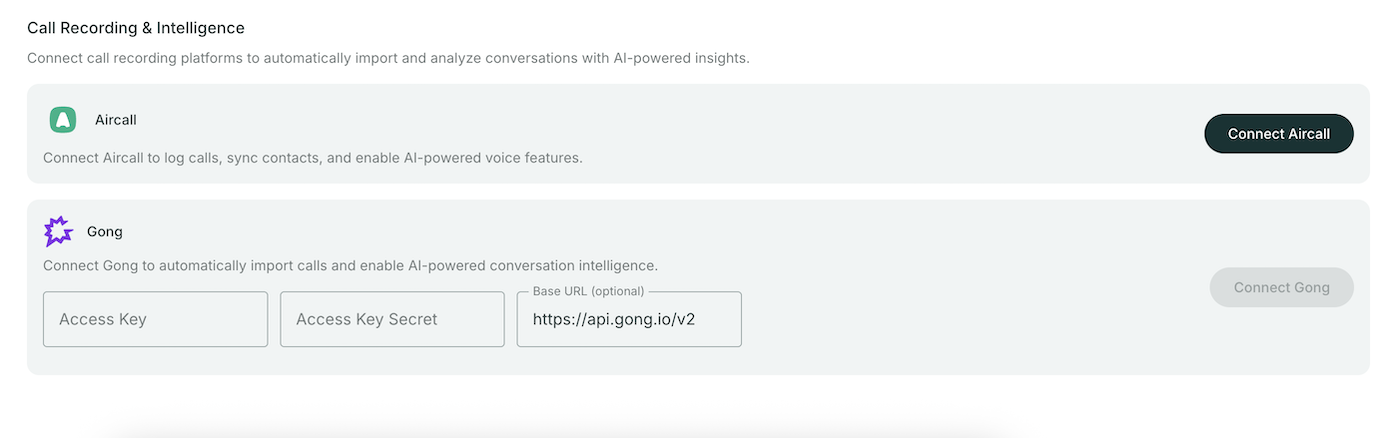
## Import from Gong
To migrate your existing Gong call library:
1. Go to **Settings** > **Integrations**
2. Under **Gong**, enter your:
- **Access Key**
- **Secret**
- **Base URL**
3. Click **Connect**
4. Your Gong calls will be imported into Qubi
## Import call transcripts to your Knowledge Base
You can also add individual call transcripts to your Knowledge Base so Qubi can reference them when answering questions or providing live coaching:
1. Open any call from the **Conversations** page
2. Open the actions menu (three dots)
3. Select **Import to Knowledge Space**
4. Choose which Knowledge Space to add it to
5. Select the participant to use as the source of truth
6. Click **Import**
This is useful for preserving important calls as reference material for your team.
---
# Record & Capture
URL: https://docs.getqubi.com/docs/recording/
Qubi works wherever you work: Zoom, Google Meet, or Microsoft Teams. It joins your meetings automatically, records the conversation, and processes everything so you get a full transcript and AI summary within minutes.
---
# Upload a Recording
URL: https://docs.getqubi.com/docs/recording/upload-a-recording
Already have a recording from a meeting Qubi didn't attend? You can upload it directly and get the same AI analysis: transcript, summary, coaching, and deal insights.
## How to upload
1. Click the **Upload** button in the top-right corner of Qubi
2. Drag and drop your file into the upload zone, or click to browse for a file
3. Fill in the details:
- **Meeting Title**: Auto-filled from the file name, but you can edit it
- **Meeting Date**: When the meeting took place
- **Participants**: Who was on the call
4. Click **Upload**
## Supported file formats
Qubi accepts common audio and video formats:
| Type | Formats |
|---|---|
| **Audio** | MP3, WAV, OGG, FLAC, M4A |
| **Video** | MP4, WebM, QuickTime (MOV) |
**Maximum file size:** 2 GB
## What happens after upload
Once uploaded, Qubi processes the file just like a live recording:
- Speaker identification and separation
- Full transcript generation
- AI summary, action items, and key moments
- Coaching analysis (for sales calls)
- Deal review (if linked to an opportunity)
Turn on **Voice Identification** in Settings > Recordings so Qubi can recognize your voice in uploaded recordings, even though it wasn't present on the call.
---
# Zoom Recording Setup
URL: https://docs.getqubi.com/docs/recording/zoom-recording-setup
Qubi records your Zoom meetings by joining as a bot participant. This page covers everything you need to know to get Zoom recording working reliably for your team.
## Why Zoom requires authorization
Zoom requires any third-party app that joins meetings to be explicitly authorized by the user. This is done through an **On-Behalf-Of (OBF) token**, a short-lived, single-use credential that ties the Qubi bot to your Zoom identity.
When Qubi joins a meeting, Zoom needs to know which user authorized it. The OBF token answers that question: it tells Zoom that you gave Qubi permission to join meetings on your behalf. Without it, Zoom will block the bot from entering the call.
This is a Zoom platform requirement, not a Qubi-specific limitation.
## What you need before you start
- A Zoom account (Pro, Business, or Enterprise plan)
- **"Record to computer files"** enabled in your Zoom account settings. Your Zoom admin can enable this for all users under **Zoom Settings → Recording**
- **"Hosts can give meeting participants permission to record on their computer"** enabled in Zoom
If "Record to computer files" is turned off in your Zoom admin settings, Qubi will not be able to record your calls. Ask your Zoom administrator to verify this setting is enabled.
## Connect your Zoom account
1. In Qubi, go to **Settings → Recording**
2. Click **Connect Zoom**
3. Zoom opens an authorization page. Review the permissions and click **Allow**
4. Qubi receives your OBF token and can now join your Zoom meetings
This is a one-time setup. Qubi handles token refresh automatically in the background.
## How the Qubi bot behaves in Zoom meetings
Once connected, here's what happens during your Zoom calls:
1. **Qubi joins the meeting** a few moments after the scheduled start time. It appears as a named participant in the call (e.g., "Qubi Notetaker" or your organization's custom bot name)
2. **Zoom notifies participants** that the meeting is being recorded. An audio prompt plays and a recording consent banner is displayed
3. **If a waiting room is enabled**, the host must admit the Qubi bot before recording can begin
4. **If the host hasn't joined yet**, the bot waits in the meeting until the host arrives. Recording starts once the host is present
5. **When the meeting ends**, Qubi processes the recording and delivers the transcript, summary, and coaching insights within minutes
## When the host is outside your organization
If someone outside your company hosts the Zoom meeting, the host must approve the recording. Qubi's bot will join and request recording permission, but the host has the final say.
This is a Zoom security policy: only the meeting host can grant recording rights to participants.
## Zoom admin settings to verify
If you're a Zoom administrator, make sure the following settings are configured for your organization:
1. Go to your **Zoom Admin Portal → Settings → Recording**
2. Verify these settings:
| Setting | Required value |
|---|---|
| **Record to computer files** | On |
| **Hosts can give meeting participants permission to record** | On |
| **Only users in your account can request to record** | Off (unless you've installed the Qubi Zoom app at the org level) |
If your organization has strict Zoom policies, work with your Zoom admin to whitelist the Qubi bot. This ensures it can join and record without being blocked by security rules.
## Voice Identification
On the Recording settings page, you can also enable **Voice Identification**. When enabled, Qubi extracts samples of your voice from your meetings and uses them to improve speaker attribution over time. This is especially useful for:
- Meetings with many participants where speaker identification is harder
- Uploaded recordings where Qubi wasn't present as a participant
- In-person meetings recorded with a shared device
## Troubleshooting
### Qubi doesn't join my Zoom meeting
- Verify your Zoom account is connected in **Settings → Recording**
- Check that **Auto-invite Bot** is enabled in **Settings → Preferences**, or that you manually activated Qubi for the meeting on your schedule page
- Make sure your Zoom admin has "Record to computer files" enabled
### The host is asked to approve recording every time
This happens when the Qubi Zoom app hasn't been installed at the organization level. Ask your Zoom admin to install the Qubi app from the Zoom Marketplace. Once installed, recording is approved automatically for meetings hosted by people in your organization.
### Qubi joins but doesn't record
- The host may not have approved the recording request. Check with the host
- The Zoom setting "Record to computer files" may be disabled. Ask your Zoom admin to verify
- If a waiting room is active, the bot may still be waiting to be admitted
### Recording quality is poor
- Qubi records the audio stream directly from Zoom, so quality depends on participants' internet connections and microphone setup
- For the best results, encourage participants to use headsets and a stable internet connection
---
# Connect Your Meeting Platform
URL: https://docs.getqubi.com/docs/setup/connect-meeting-platform
Qubi records your meetings by joining as a participant. Connect your meeting platform so Qubi can join your calls automatically.
## Connect Zoom
Zoom requires each user to individually authorize Qubi before it can join their meetings. This is because Zoom's On-Behalf-Of (OBF) token system ties each bot instance to a specific user.
1. Go to **Settings** > **Recordings**
2. Click **Connect** next to Zoom Integration
3. Sign in with your Zoom account and authorize Qubi
4. Grant the On-Behalf-Of token when prompted
Once connected, Qubi can automatically join your Zoom meetings. If you skip this step or revoke authorization, Qubi won't be able to join your Zoom calls.
For a detailed walkthrough of Zoom requirements, admin settings, and troubleshooting, see the [Zoom Recording Setup Guide](/docs/recording/zoom-recording-setup).
## Record on Google Meet
Google Meet calls are supported out of the box. As long as your calendar is connected and Qubi is invited to the meeting, it will join your Google Meet calls automatically, no additional setup needed.
## Record on Microsoft Teams
Microsoft Teams meetings work similarly to Google Meet. Connect your Microsoft Calendar, and Qubi will join your Teams meetings when invited.
## Voice identification
Qubi can learn to recognize your voice so it can accurately identify you as a speaker, even in in-person meetings or uploaded recordings:
1. Go to **Settings** > **Recordings**
2. Toggle on **Voice Identification**
This is especially useful when you upload recordings where Qubi wasn't present as a participant.
Qubi supports Zoom, Google Meet, and Microsoft Teams. You can also [upload recordings](/docs/recording/upload-a-recording) from any other platform.
---
# Connect Your Calendar
URL: https://docs.getqubi.com/docs/setup/connect-your-calendar
Connecting your calendar is the most important step. It lets Qubi detect your upcoming meetings, prepare AI briefs before each call, and automatically join your calls to record them.
## Connect Google Calendar
1. Go to **Settings** > **Calendar Integration**
2. Click **Connect** next to Google Calendar
3. Sign in with your Google account and authorize Qubi
4. Your upcoming meetings will appear on the **Upcoming Meetings** page within seconds
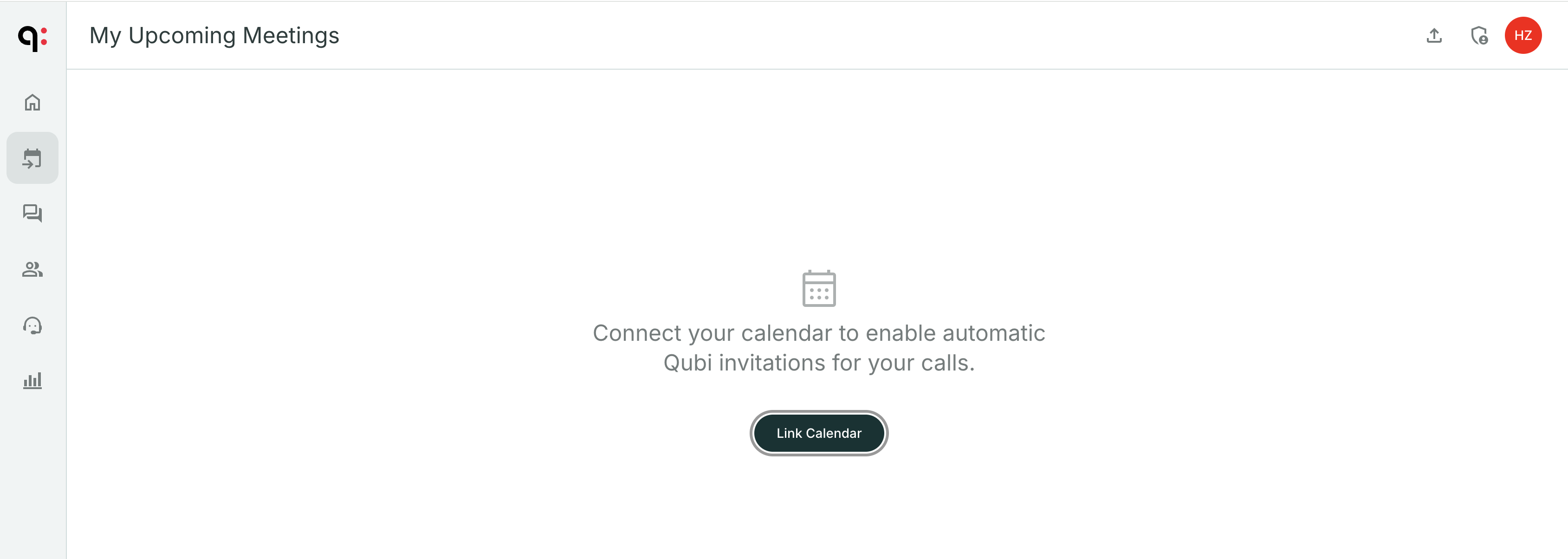
## Connect Microsoft Calendar
1. Go to **Settings** > **Calendar Integration**
2. Click **Connect** next to Microsoft Calendar
3. Sign in with your Microsoft account and authorize Qubi
4. Your meetings will sync automatically
## How calendar sync works
Once connected, Qubi continuously syncs your calendar:
- New meetings appear on your **Upcoming Meetings** page automatically
- Changes to meeting times or participants are reflected in real time
- You can manually trigger a sync using the **Sync** button on the Upcoming Meetings page
- The last sync time is displayed so you always know your schedule is current
## Disconnect your calendar
If you need to unlink your calendar:
1. Go to **Settings** > **Calendar Integration**
2. Click **Unlink** next to the connected calendar
3. Your meetings will no longer sync, but existing recordings are kept
You can connect either Google Calendar or Microsoft Calendar. Pick whichever your organization uses.
---
# Create Your Profile
URL: https://docs.getqubi.com/docs/setup/create-your-profile
Your profile helps Qubi identify you in meetings and personalize your experience.
## Sign up and log in
1. Go to [app.getqubi.com](https://app.getqubi.com)
2. Sign in with your work email. Your admin may have already sent you an invitation
3. If this is your first time, follow the on-screen prompts to complete setup
## Complete your profile
1. Click **Settings** in the left sidebar
2. Go to the **Personal Info** tab
3. Fill in:
- **First Name** and **Last Name**
- **Job Title** (e.g., Account Executive, Sales Manager)
- **Phone Number** (optional)
4. Click **Save Profile**
## Set your timezone
1. Go to **Settings** > **Preferences**
2. Select your **Timezone** from the dropdown
3. Click **Save Preferences**
Your timezone ensures meeting times display correctly and notifications arrive at the right time.
---
# Data & Privacy
URL: https://docs.getqubi.com/docs/setup/data-and-privacy
You are in full control of your data in Qubi.
## Download your personal data
You can export a copy of all your personal data at any time, including your profile information, meeting transcripts, and account settings.
1. Go to **Settings** > **Data & Privacy**
2. Click **Download Your Data**
3. A file will be prepared and downloaded to your computer
## Delete your account
If you need to delete your Qubi account:
1. Go to **Settings** > **Data & Privacy**
2. Click **Delete Account**
3. A confirmation dialog will appear with a 5-second countdown to prevent accidental deletion
4. Confirm to permanently delete your account and all associated data
Account deletion is permanent and cannot be undone. All your meeting recordings, transcripts, coaching data, and settings will be removed.
---
# Set Up Your Account
URL: https://docs.getqubi.com/docs/setup/
Get your Qubi account ready in just a few minutes. Connect your calendar, link your meeting platform, and set your preferences so Qubi can start working for you right away.
> **Estimated setup time:** 5 minutes
---
# Notification Preferences
URL: https://docs.getqubi.com/docs/setup/notification-preferences
Control how and when Qubi notifies you. All notification settings are in **Settings** > **Preferences**.
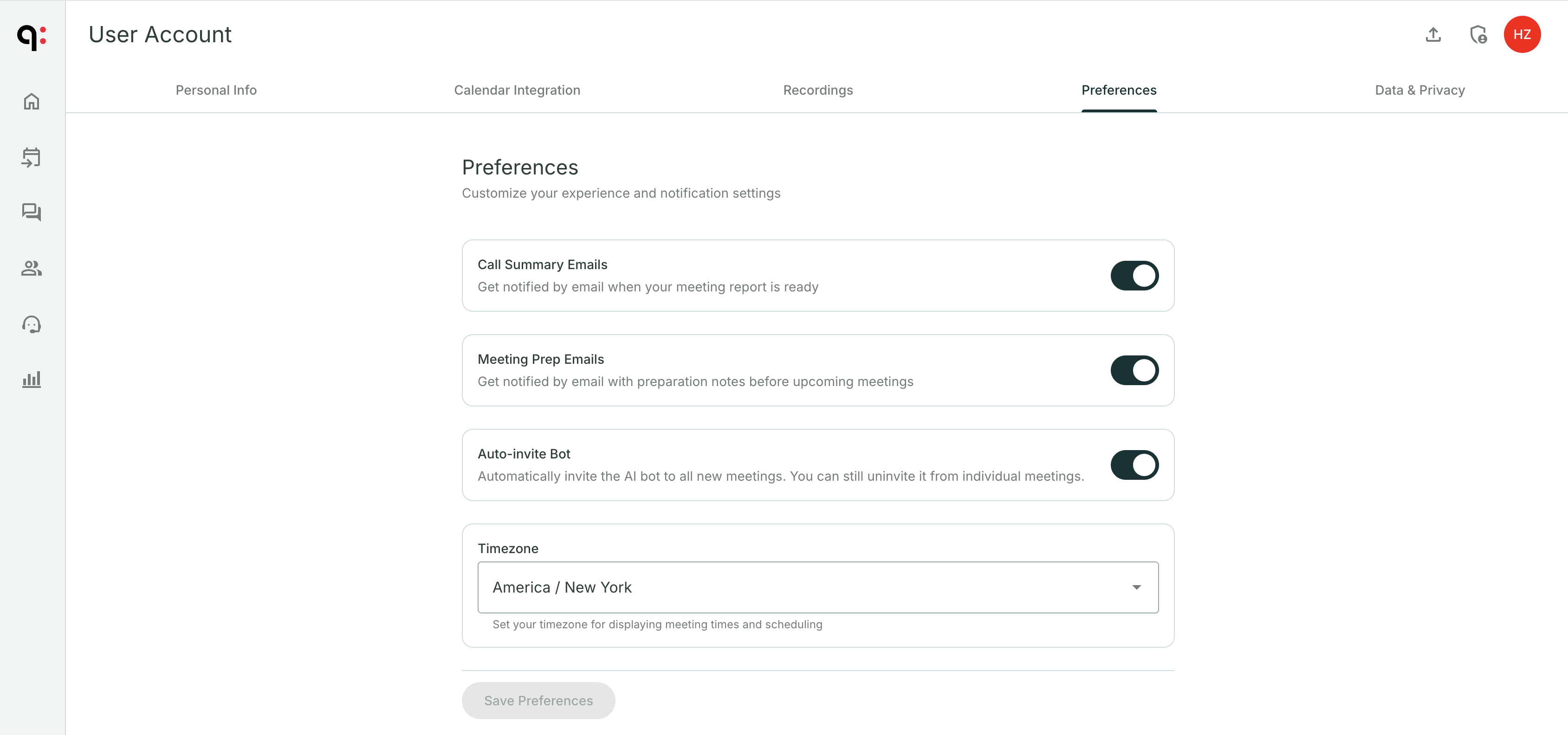
## Call summary emails
Turn on **Call Summary Emails** to receive an email after every recorded meeting with the AI-generated summary, key moments, and action items.
This is useful if you want a quick recap in your inbox without opening Qubi.
## Meeting prep emails
Turn on **Meeting Prep Emails** to get an AI-prepared brief delivered to your inbox before each upcoming call.
The prep email includes:
- Context from previous calls with the same participants
- Key opportunities and conversation starters
- Potential objections to anticipate
## Auto-invite Qubi to every meeting
Turn on **Auto-invite Bot** so Qubi automatically joins all your new meetings. This means you never have to remember to invite it. Every call gets recorded and analyzed.
If you prefer to choose which meetings to record, leave this off and invite Qubi on a per-meeting basis from the [Upcoming Meetings](/docs/meeting-prep/your-schedule) page.
## Save your preferences
After adjusting your settings, click **Save Preferences** to apply the changes.
---
# Team Analytics Dashboard
URL: https://docs.getqubi.com/docs/team-analytics/dashboard
The Team Analytics dashboard gives managers a bird's-eye view of their team's call activity and performance. Use it to identify trends, spot coaching opportunities, and track progress over time.
The Team Analytics section is available to users with manager or admin roles.
## Accessing the dashboard
Click **Team** in the navigation. You'll see:
- **Date range selector**: Choose the time period to analyze (last week, last month, custom range)
- **Team scope**: Filter by the entire team or a specific group
- **Overview metrics**: High-level performance indicators for the selected period
## Overview metrics
The dashboard surfaces key metrics including:
- **Total meetings**: Number of calls recorded across the team
- **Average meeting duration**: Are calls getting shorter or longer?
- **Methodology coverage**: How consistently is the team following the sales process?
- **Coaching scores**: Average AI coaching scores across the team
## Filter and compare
Use the filters to drill into specific:
- **Time periods**: Compare this month to last, or look at quarter-over-quarter trends
- **Teams or managers**: See how different groups are performing
- **Individual reps**: Click into any rep's data for a detailed view
---
# Team Analytics
URL: https://docs.getqubi.com/docs/team-analytics/
For managers and leaders, Qubi provides a Team Analytics dashboard with performance metrics, leaderboards, and the ability to drill into any rep's stats. Coach with data, not guesswork.
---
# Leaderboard
URL: https://docs.getqubi.com/docs/team-analytics/leaderboard
The Leaderboard ranks your team members side by side, making it easy to identify top performers, recognize strong results, and find coaching opportunities.
## How the Leaderboard works
The Leaderboard displays each rep alongside their key performance metrics for the selected time period:
- **Coaching score**: Average AI coaching score across calls
- **Methodology coverage**: How thoroughly they follow the sales process
- **Number of calls**: Total meetings recorded
- **Talk/listen ratio**: How much they speak vs. listen during calls
## Identify coaching opportunities
Use the Leaderboard to:
- **Spot reps who may need support**: Lower scores or methodology coverage may indicate a need for coaching
- **Find winning behaviors to replicate**: Look at what top performers are doing differently
- **Track improvement over time**: Compare leaderboard positions week over week
## Drill into any rep's stats
Click on a team member's name to see their detailed performance data:
- Individual call list with scores
- Methodology coverage trends
- Coaching profile with strengths and growth areas
Use the Leaderboard data in your weekly team meetings or 1:1s. It gives you specific, conversation-based evidence to guide coaching conversations.
---
# Templates & Methodology
URL: https://docs.getqubi.com/docs/templates/
Qubi adapts to your sales process. Define your meeting types, set up methodology checklists, and ensure your team follows a consistent approach, with Qubi tracking adoption automatically.
---
# Meeting Types
URL: https://docs.getqubi.com/docs/templates/meeting-types
Qubi automatically classifies your meetings into categories so that coaching, summaries, and analytics are tailored to each type of conversation.
## Default meeting categories
Qubi comes with built-in meeting categories:
| Category | Examples |
|---|---|
| **Sales Discovery** | First calls, qualification calls |
| **Demo** | Product demonstrations |
| **Negotiation** | Pricing and contract discussions |
| **QBR** | Quarterly business reviews |
| **Interview** | Hiring interviews |
## How classification works
Qubi analyzes the conversation content and automatically assigns a category to each meeting. This classification determines:
- Which **methodology checklist** is applied
- How the **AI summary** is structured
- What **coaching criteria** are used
## Customize meeting types
Admins can customize meeting type categories in **Settings** > **Templates**:
1. Go to **Settings** > **Templates**
2. Under **Classification & Tagging**, view the available categories
3. Add, edit, or remove categories to match your team's workflow
Meeting classification happens automatically after call processing. If Qubi misclassifies a meeting, you can manually change the category on the call detail page.
---
# Methodology Templates
URL: https://docs.getqubi.com/docs/templates/methodology-templates
Your methodology and templates live inside Qubi, so your team always has them at hand, during calls, in post-call reviews, and in coaching.
## Supported methodologies
Qubi supports several popular sales methodologies:
| Methodology | What it covers |
|---|---|
| **MEDDPICC** | Metrics, Economic Buyer, Decision Criteria, Decision Process, Paper Process, Identify Pain, Champion, Competition |
| **BANT** | Budget, Authority, Need, Timeline |
| **SPIN** | Situation, Problem, Implication, Need-Payoff |
| **Challenger** | Teach, Tailor, Take Control |
| **Sandler** | Pain, Budget, Decision |
## Configure methodologies
1. Go to **Settings** > **Templates**
2. Under **Sales Methodology**, you'll see available methodologies
3. **Enable** the methodologies your team uses
4. **Disable** methodologies you don't need
5. **Set a default** methodology for your team
## Customize checklist items
For each enabled methodology, you can customize the checklist items:
- Edit the label or description of any item
- Add custom items specific to your sales process
- Reorder items to match your team's workflow
## How methodologies are used
Once configured, methodologies appear throughout Qubi:
- **Live calls**: Track methodology coverage in real time during meetings
- **Post-call coaching**: See which items were covered with evidence (quotes and timestamps)
- **Team analytics**: Monitor methodology adoption across your team
- **Coaching profiles**: Identify which methodology items individual reps consistently miss
Don't enable more methodologies than your team actually uses. Pick one or two and ensure your team adopts them consistently. Qubi will help track and reinforce adoption.
---
# Contact Support
URL: https://docs.getqubi.com/docs/welcome/contact-support
We're here to help. Whether you have a question, found a bug, or want to request a feature, the Qubi team is ready to assist.
## Get in Touch
### Email Support
Send us an email at **[support@getqubi.com](mailto:support@getqubi.com)** and we'll get back to you as quickly as possible.
### Schedule a Call
Need hands-on help? [Book a time](https://getqubi.com/support) with our team for a live walkthrough or troubleshooting session.
## What to Include in Your Request
To help us resolve your issue faster, please include:
- **Your email address**: The one associated with your Qubi account
- **A description of the issue**: What happened, and what you expected to happen
- **Steps to reproduce**: How can we see the same issue?
- **Screenshots or screen recordings**: If applicable, these help enormously
- **Browser and device**: e.g., Chrome on macOS, Safari on iPhone
## Common Topics
| Topic | Where to look |
|---|---|
| Can't connect my calendar | [Set Up Your Calendar](/docs/setup/connect-your-calendar) |
| Qubi isn't joining my meetings | [How Recording Works](/docs/recording/how-recording-works) |
| I can't find a recording | [Browse Past Meetings](/docs/past-meetings/browse-meetings) |
| I need to manage users | [Manage Users](/docs/admin/manage-users) |
| Billing and subscription | Email [billing@getqubi.com](mailto:billing@getqubi.com) |
## Feature Requests
Have an idea for how Qubi could be better? We'd love to hear it. Send your suggestions to **[feedback@getqubi.com](mailto:feedback@getqubi.com)** or use the **Feedback** button in the app.
We read every suggestion and use your feedback to prioritize our roadmap.
---
# Welcome to Qubi
URL: https://docs.getqubi.com/docs/welcome/
Everything you need to get the most out of Qubi, the AI-powered conversation intelligence platform built to help your team **win more deals**.
*Once connected, you'll see your Slack workspace here, with a **Disconnect** button.*
## Meeting notifications
With Slack Chat connected, Qubi also sends each rep a Slack direct message:
- A **meeting-prep brief** before their meetings
- A **recap summary** after each meeting
## Add Slack to your Knowledge Base
To make Slack conversations searchable for live coaching and Ask Qubi, add Slack as a Knowledge Base connector and choose which channels to sync. See [Add Content from Anywhere](/docs/knowledge-base/add-content).
---
# Ask About Deals & Customers
URL: https://docs.getqubi.com/docs/ask-qubi/deals-and-customers
Ask Qubi is particularly powerful when used for deal and customer intelligence. Instead of digging through your CRM or replaying old calls, just ask.
## Deal-related questions
Get instant answers about any deal in your pipeline:
- "What's the current status of the Acme opportunity?"
- "What risks should I be aware of for this deal?"
- "When was our last interaction with the Globex buying committee?"
- "What's the next step on the Initech renewal?"
Qubi combines CRM data with your past conversations to give you a complete picture.
## Customer-related questions
Learn about any contact or account without searching through meeting notes:
- "What are the main pain points for [contact name]?"
- "How many times have we met with [account name] this quarter?"
- "Who from our team has spoken with [contact name]?"
## Voice input
Prefer to speak? Click the **microphone icon** and ask your question out loud. Qubi transcribes your question in real time and returns the answer just like a typed query.
This is especially useful when you're prepping between back-to-back calls and need a quick answer.
---
# Ask Qubi
URL: https://docs.getqubi.com/docs/ask-qubi/
Have a question about a deal, a prospect, or your next move? Just ask Qubi. Whether it's about a specific meeting, a CRM opportunity, or your team's knowledge base. Qubi gives you instant, grounded answers.
---
# What Is Ask Qubi?
URL: https://docs.getqubi.com/docs/ask-qubi/what-is-ask-qubi
Ask Qubi is your always-available AI sales assistant. It lives on the home page of Qubi and can answer questions about your deals, customers, past conversations, and internal knowledge, instantly.
## How to use Ask Qubi
1. Go to the **Home** page (the **Ask Qubi** tab in the navigation)
2. Type your question in the "Ask anything..." text field, or use **voice input** by clicking the microphone icon
3. Qubi searches across your meetings, CRM data, and Knowledge Base to generate an answer
4. The response includes sources so you can verify where the information came from
If your workspace has Slack Chat connected, you can also DM the Qubi bot in Slack to ask the same questions without leaving Slack. See [Ask Qubi from Slack](/docs/ask-qubi/ask-from-slack).
## What kind of questions can you ask?
Ask Qubi is designed for real sales scenarios:
- **"What are the main concerns from our last call with Acme Corp?"**
- **"When is our next meeting with the Globex team?"**
- **"What competitors did the prospect mention?"**
- **"Summarize the deal status for the Q4 pipeline review"**
- **"What pricing did we discuss with Initech last month?"**
- **"What are our key differentiators against [competitor]?"**
## Where Qubi finds answers
Qubi draws from multiple sources to build its responses:
| Source | Examples |
|---|---|
| **Past meetings** | Transcripts, summaries, action items |
| **CRM data** | Accounts, opportunities, deal stages |
| **Knowledge Base** | Documents, Google Drive files, Confluence pages, Slack threads |
| **Competitor intel** | Battlecards, competitor profiles |
The more context you provide in your question, the better Qubi's answer. Instead of "Tell me about Acme," try "What pricing objections did Acme raise in our last discovery call?"
---
# Call-Level Coaching
URL: https://docs.getqubi.com/docs/coaching/call-level-coaching
After every sales call, Qubi generates a detailed coaching analysis in the **Sales Coaching** tab on the call detail page. This gives you specific, actionable feedback on what you did well and where you can improve.
## AI performance score
Each call receives an overall performance score based on methodology coverage, conversation quality, and sales effectiveness. This score helps you quickly gauge how a call went.
## Methodology coverage with evidence
Qubi checks each item from your active sales methodology and shows:
- **Which items you covered**: with the exact quote and timestamp as evidence
- **Which items you missed**: opportunities to address in follow-up
- **How thoroughly each item was addressed**: surface-level mention vs. deep exploration
## AI-recommended responses
For key moments in the call, Qubi compares what you said to what an ideal response might look like:
- See the **actual response** you gave
- See the **AI-recommended response** based on your Knowledge Base and best practices
- Understand the gap and how to improve next time
## What you did well
Coaching isn't just about improvement. Qubi highlights your strengths too:
- Effective discovery questions you asked
- Objections you handled well
- Moments where you demonstrated strong sales skills
Review your Sales Coaching tab within 24 hours of a call, while the conversation is still fresh. This is when coaching insights are most actionable.
---
# Your Coaching Profile
URL: https://docs.getqubi.com/docs/coaching/coaching-profile
Beyond individual call coaching, Qubi builds a comprehensive coaching profile that aggregates insights across all your conversations. This is your personalized improvement roadmap.
## Accessing your Coaching Profile
Click on your **Coaching** section in the navigation to see your profile. It includes:
- **Executive Summary**: A high-level overview of your coaching trajectory
- **Key metrics**: Performance scores aggregated over time
- **Strengths**: What you consistently do well across calls
- **Growth opportunities**: Patterns where you can improve
- **Action items**: Specific, prioritized next steps for development
- **Key patterns**: Recurring behaviors Qubi has identified across your calls
## How metrics are calculated
Your coaching metrics are built from data across all your recorded sales calls. The more calls Qubi analyzes, the more accurate and useful your profile becomes.
## For managers: view your team's profiles
As a manager, you can view the coaching profile of any team member you manage:
1. Navigate to the **Coaching** section
2. Select a team member from your reports
3. Review their strengths, growth areas, and action items
This gives managers data-driven coaching material for 1:1s, replacing guesswork with specific, evidence-backed recommendations.
Your coaching profile improves over time as Qubi analyzes more of your calls. The first few calls establish a baseline; after 10+ calls, patterns and trends become much more visible.
---
# AI Coaching
URL: https://docs.getqubi.com/docs/coaching/
Qubi doesn't just analyze your calls. It helps you get better. Every call gets a coaching assessment, and over time, Qubi builds a personalized coaching profile that tracks your strengths, patterns, and areas for growth.
---
# Competitor Intelligence
URL: https://docs.getqubi.com/docs/competitors/competitor-intelligence
Once you've set up your competitors, Qubi organizes intelligence about each one and makes it available across the platform: in live coaching, meeting prep, and Ask Qubi.
## Intel cards
Each competitor has an intel card that organizes competitive information by category:
- **Product**: Features, capabilities, and limitations
- **Pricing**: Pricing models, discounts, and typical contract structures
- **Market**: Target segments, customer base, and positioning
- **Sales tactics**: How they sell, common pitches, and closing techniques
## Source attribution
Every piece of competitive intelligence includes a source, so your team knows whether the information comes from:
- A customer conversation (transcript)
- An internal document
- A battlecard or manual entry
## Your own product profile
Qubi also maintains an intelligence profile for your own product, organized the same way. This lets you compare your solution side by side with any competitor.
## How competitive intel powers Qubi
Competitor information flows throughout Qubi:
| Feature | How competitor intel is used |
|---|---|
| **Live coaching** | When a competitor is mentioned on a call, Qubi surfaces relevant battlecard responses |
| **Meeting prep** | Competitor context is included in preparation notes for competitive deals |
| **Ask Qubi** | You can ask "How do we compare to [competitor] on [feature]?" |
| **Coaching** | Post-call analysis evaluates how you handled competitive mentions |
---
# Competitors & Battlecards
URL: https://docs.getqubi.com/docs/competitors/
Qubi helps you track your competitors and arm your team with the right information to win competitive deals. Surface key competitors automatically, create battlecards, and get competitive intelligence surfaced during live calls.
---
# Track Your Competitors
URL: https://docs.getqubi.com/docs/competitors/track-competitors
Qubi maintains a list of your competitors and uses it to surface relevant intelligence during meetings, in coaching, and through Ask Qubi.
## Automatic competitor detection
Qubi's AI can detect when competitors are mentioned in your calls. When it identifies a company being discussed competitively, it flags it for you. You can then:
- **Confirm** the detection and add it to your tracked competitors
- **Dismiss** false positives
## Add competitors manually
To add a competitor yourself:
1. Go to **Settings** > **Competitors**
2. Click **Add Competitor**
3. Enter the competitor's name and website
4. Save
## Maintain competitor profiles
Each competitor in Qubi has a profile that you can build out with:
- **Overview**: Who they are and what they offer
- **Strengths and weaknesses**: How they compare to your solution
- **Key differentiators**: What sets you apart
- **Common objections**: What prospects say about them and how to respond
Keep your competitor profiles up to date. The better your competitive intel, the more helpful Qubi's live coaching will be during competitive deals.
---
# Deal Review on Calls
URL: https://docs.getqubi.com/docs/deals/deal-review
After every sales call, Qubi links the conversation to the relevant CRM account and opportunity, giving you deal context right alongside the meeting analysis.
## The Deal Review tab
On sales call detail pages, the **Deal Review** tab shows:
- **Linked account**: The CRM account associated with this meeting
- **Linked opportunity**: The specific deal or opportunity
- **Deal health signals**: Risks, momentum indicators, and next steps
- **Key insights**: What changed as a result of this call
## How Qubi links calls to deals
Qubi automatically matches meetings to CRM accounts and opportunities based on:
- Meeting participants (email matching against CRM contacts)
- Calendar event details
- Conversation content
If Qubi can't make an automatic match, you can manually link a call to the correct account or opportunity.
Review the Deal Review tab after every sales call to make sure your CRM is up to date. Qubi surfaces what changed, so you know exactly what to update.
---
# Deals Dashboard
URL: https://docs.getqubi.com/docs/deals/deals-dashboard
The Deals Dashboard gives you a complete, conversation-powered view of your pipeline. See all your accounts and opportunities in one place, with meeting history and deal health for each.
## View your accounts and opportunities
The dashboard shows your CRM accounts and their associated opportunities. For each, you can see:
- **Account name** and key contacts
- **Open opportunities** with stage, amount, and close date
- **Meeting history**: How many conversations you've had and when the last one was
- **Deal health**: AI-assessed health status based on conversation signals
## Monitor deal health
Qubi assesses deal health based on what's happening in your conversations, not just CRM field updates:
- **Healthy**: Positive signals, engaged stakeholders, good momentum
- **At risk**: Warning signs like stalled conversations, unresolved objections, or missing stakeholders
- **Needs attention**: Significant gaps in methodology coverage or long periods without contact
## Drill into a deal
Click any account or opportunity to see:
- Every meeting associated with that deal
- Key moments and decisions from each call
- Action items and follow-ups
- Contact engagement across meetings
The Deals Dashboard requires a CRM integration (Salesforce or HubSpot). See [Admin Guide: CRM Integration](/docs/admin/crm-integration) for setup instructions.
---
# Deals & Pipeline
URL: https://docs.getqubi.com/docs/deals/
Qubi connects directly to your CRM and updates in real time, giving you a conversation-powered view of every deal. See deal health, review meeting history per account, and catch risks before they derail your pipeline.
---
# Chrome Extension
URL: https://docs.getqubi.com/docs/devices/chrome-extension
The Qubi Assistant Chrome extension brings Qubi into your browser. It works in two places:
- **Google Calendar**: see whether each meeting is set to be recorded, and invite or remove the Qubi bot with one click
- **Google Meet, Microsoft Teams, and Zoom**: the Qubi assistant opens in a side panel when you join a call, with live intelligence, your playbook, and a wrap-up as the conversation happens
## Install the extension
1. Open the [Chrome Web Store](https://chromewebstore.google.com/search/Qubi) and search for **Qubi Assistant**
2. Open the listing and click **Add to Chrome**, then **Add extension**
3. Pin the extension: click the extensions (puzzle piece) icon in the Chrome toolbar, then the pin next to **Qubi Assistant**
4. Sign in to Qubi when the assistant asks you to — the side panel keeps its own session, separate from your browser tabs


Pin Qubi Assistant to your Chrome toolbar for one-click access throughout your workday.
## What the extension does
- **Auto-joins your calls**: when you join a Google Meet, Microsoft Teams, or Zoom meeting, the assistant opens in a side panel and the Qubi bot joins the call automatically
- **Live transcription and intelligence cards**: talking points, product information with its sources, and pain points appear as the conversation unfolds
- **Playbook tracking**: your sales methodology, checked off live as you cover each item
- **Wrap-up on demand**: a structured summary of the call while you're still on it
- **Ask Qubi during the call**: ask about the ongoing conversation, the attendees, or your internal documentation
- **One-click recording setup in Google Calendar**: invite the bot to a meeting without leaving your calendar
- **"Qubi is ready" notification**: a nudge whenever a call starts without the assistant open
The assistant itself is the same live experience described in [What Is Live Call Intelligence?](/docs/live-calls/what-is-live-call-intelligence) — the extension is simply where it runs on Google Meet, Microsoft Teams, and Zoom.
## During a call
### Open the assistant
The side panel opens by itself a couple of seconds after you join a supported call. If it doesn't, the **Qubi Assistant** notification appears in the top-right corner of the call window — click **Open** to bring up the panel. The notification dismisses itself after a minute; you can always click the extension icon in the Chrome toolbar instead.

### The assistant panel
The panel sits next to your call and stays out of the way. At the top you'll see the recording status — **Recording in progress** with a red dot — and a **Stop** button if you need to end the recording early. Below that are three tabs: **Live Help**, **Playbook**, and **Wrap Up**. The **Ask anything…** box at the bottom is always available.

### Live Help
Live Help is the running feed of intelligence cards, revealed one at a time as the conversation progresses:
- **Talking points** with a green arrow, such as a capability worth highlighting while you demo
- **Info** cards quoting a product or process detail, each with a chip showing which knowledge source it came from
- **Pain Point** cards describing a customer problem Qubi picked up on, with a **Deep dive with Qubi** link to explore it further
The tab stays empty until there's something worth surfacing, with the note *"Intelligence cards will appear here as the call progresses."*

### Playbook
The Playbook tab tracks your methodology live: the header shows how much you've covered (**MEDDPICC Playbook 2/8**) with a progress bar underneath, and each item you hit gets a checked box and an evidence line quoting what was said. See [Methodology Tracking](/docs/live-calls/methodology-tracking) for how your team's framework is configured.

### Wrap Up
The Wrap Up tab summarizes the call while you're still on it: the meeting type, followed by **Context & alignment**, **Where we are**, **Remaining questions / risk**, and **Next steps** with owners. Open the tab during the call to generate it — if you only look at the end, Qubi needs a moment to catch up.

### Ask Qubi
The **Ask anything…** box at the bottom of the panel opens Ask Qubi over the tabs — close it with the **✕** to return. Ask about the call in progress, the people on it, or anything in your internal documentation, and pick one of the suggested follow-ups if you're not sure where to start. See [What Is Ask Qubi?](/docs/ask-qubi/what-is-ask-qubi).

## Google Calendar
Open any event in Google Calendar and the event popup shows a Qubi button with the current recording status:
- **Activate Qubi for this call** — the bot isn't invited yet; click to add it
- **Will be recorded with Qubi** — the bot is invited; click to remove it
- **Recording link** — the meeting already happened; click to open the recording in Qubi
If your Qubi session has expired, a banner appears at the top of Google Calendar with a **Login to Qubi** button. Sign in and the banner clears on its own.
## Requirements
The extension runs in Google Chrome and other Chromium-based browsers. You need a Qubi account, and calls must be on Google Meet, Microsoft Teams, or Zoom.
---
# Desktop App
URL: https://docs.getqubi.com/docs/devices/desktop-app
The Qubi Desktop App provides a dedicated experience on macOS or Windows, always accessible from your taskbar or dock.
## Install the Desktop App
1. Visit [app.getqubi.com](https://app.getqubi.com)
2. Look for the desktop app download link in your Settings or profile
3. Download and install for your operating system
4. Sign in with your Qubi account
## Benefits of the Desktop App
- **Dedicated window**: Keep Qubi open alongside your other tools without browser tab clutter
- **System notifications**: Get native desktop notifications for meeting prep and call summaries
- **Quick access**: Launch Qubi from your dock or taskbar with one click
---
# Qubi on Every Device
URL: https://docs.getqubi.com/docs/devices/
Access Qubi wherever you work: in your browser, on your desktop, on your phone, directly inside Zoom, or through your favorite AI assistant. Your meetings, coaching, and insights are always within reach.
---
# AI Assistant Integration (MCP)
URL: https://docs.getqubi.com/docs/devices/mcp-integration
Qubi plugs into AI assistants such as **Claude** and **ChatGPT** through the **Model Context Protocol (MCP)**. Your assistant gets direct access to the same sales intelligence Ask Qubi uses: past meetings and transcripts, CRM deals, contacts, competitors, coaching, and your Knowledge Base.
Ask a question in plain language and your assistant works out which Qubi data to pull. Think of it as Ask Qubi, available wherever you already work with AI.
MCP access is **read-only**. Your assistant can read Qubi data. It cannot change anything in Qubi, your CRM, or your calendar.
## What you can do
| Capability | Example question |
|---|---|
| **Ask about meetings** | *"What objections came up in calls with Acme last month?"* |
| **Search deals** | *"What's the status of the TechCorp renewal?"* |
| **Count deals and pipeline** | *"How many deals did we close last quarter?"* |
| **Research people** | *"Who is the decision-maker at Globex?"* |
| **Prepare for a call** | *"What should I know before my 2pm with Initech?"* |
| **Review recent calls** | *"Summarize my meetings from last week"* |
| **Compare against competitors** | *"How do we stack up against CompetitorX?"* |
| **Search internal docs** | *"What's our onboarding process for enterprise customers?"* |
| **Check your todos** | *"What follow-ups are still open?"* |
## Before you start
- You need a **Qubi account with data in it** — recorded meetings, a connected CRM, Knowledge Base content, or a mix. Your assistant can only answer from what Qubi holds.
- Your Qubi user must be **provisioned in your organization**. If it is not, the connection succeeds but every question fails. See [Not provisioned in Qubi](#not-provisioned-in-qubi).
- Your AI assistant must support **remote MCP servers with OAuth**. Claude and ChatGPT both do.
## Connect your AI assistant
Qubi runs a hosted MCP server:
```
https://mcp.getqubi.com/mcp
```
There is nothing to install and no API key to copy. Your assistant discovers the server's OAuth metadata, registers itself, and sends you to a browser to **sign in with your Qubi account**. It then keeps the connection alive on its own, so you sign in once.
### Claude Desktop
1. Open [Claude Desktop](https://claude.ai/download)
2. Go to **Settings** → **MCP Servers** (labelled **Connectors** in newer builds) → **Add**
3. Name it `Qubi` and enter the server URL: `https://mcp.getqubi.com/mcp`
4. Claude opens a browser window — **sign in with your Qubi account**
5. Finish the browser flow, then restart Claude Desktop
6. Click the **tools** icon in the chat input and confirm the Qubi tools are listed
### Claude on the web
1. Open **Settings** → **Connectors** → **Add custom connector**
2. Name it `Qubi` and enter `https://mcp.getqubi.com/mcp`
3. Click **Connect** and sign in with your Qubi account
### ChatGPT
ChatGPT connects to remote MCP servers as a **custom connector**, and needs a **paid plan** (Plus, Pro, Business, Enterprise, or Edu).
1. In the ChatGPT **web app**, open **Settings** → **Connectors** (or **Apps**) → **Advanced settings** and turn on **Developer mode**
2. Create a **custom connector** and enter the Qubi server URL: `https://mcp.getqubi.com/mcp`
3. Choose **OAuth** as the authentication method. ChatGPT discovers the remaining settings automatically
4. Sign in with your Qubi account when prompted
On Business and Enterprise plans, an administrator may need to allow custom connectors and developer mode before you can add one.
### Other MCP clients
Any assistant that supports remote MCP with OAuth can connect:
1. Point it at `https://mcp.getqubi.com/mcp`
2. Complete the OAuth sign-in when the client opens your browser
3. Confirm the Qubi tools are listed
The protocol is young and client support moves quickly. If your assistant only supports local (stdio) MCP servers, it cannot connect to Qubi's hosted server.
### Verify the connection
Once connected, you should see **21 Qubi tools** listed — the same tools Ask Qubi uses. They are all listed in the [tool reference](#tool-reference) below.
If they are missing, see [Tools don't appear](#tools-dont-appear).
## Tool reference
You rarely need to name a tool. Ask the question you care about and your assistant picks the right one. This reference is here for when you want to know what is available, or what a tool will not return.
### Meetings and transcripts
| Tool | What it returns | Useful inputs |
|---|---|---|
| `search_summaries` | Summaries of past meetings, filtered by date, topic, or deal | `limit` 1–20 (default 10), `start_date`, `end_date`, `semantic_query`, `opportunity_id` |
| `load_transcript` | The full transcript of one meeting | `transcript_id` |
| `extract_from_transcripts_with_instructions` | Answers pulled out of several transcripts at once — objections, pricing talk, next steps, competitors named | `extraction_instructions`, `limit` 1–20 (default 5), date and participant filters |
### Deals and pipeline
| Tool | What it returns | Useful inputs |
|---|---|---|
| `search_opportunities` | Deals by name or account, or a page of your whole book | `query`, `limit`, `owner_email` |
| `get_crm_opportunity_analytics` | Counts: deals created in a date window, the won/lost/open split, close rate, and results per rep | `start_date`, `end_date` |
| `get_crm_deal_velocity` | How long deals take to close — won and lost, per rep — and the days deals spend in each stage | `start_date`, `end_date`, `owner_email` |
| `get_crm_forecast_accuracy` | A forecast graded: the deals expected to close in a period, read on a date, against what actually closed | `period_start`, `period_end`, `as_of`, `owner_email` |
Deal search returns a **page of deals, not a total**, so it cannot answer "how many". For any counting question your assistant uses `get_crm_opportunity_analytics` instead. Questions about timing — sales cycle length, time in each stage, how accurate a forecast was — use `get_crm_deal_velocity` and `get_crm_forecast_accuracy`.
### People
| Tool | What it returns | Useful inputs |
|---|---|---|
| `search_participants` | Contacts and meeting participants | `query` for names, roles, and companies; `semantic_query` for descriptions such as *"who cares about security?"* |
| `get_contact_email_history` | Recent email engagement with one contact | `email`, `limit` 1–25 (default 10) |
### Meeting preparation
| Tool | What it returns | Useful inputs |
|---|---|---|
| `get_upcoming_prep_notes` | Prep briefs for your upcoming meetings | none |
| `get_prep_note_for_event` | The prep note for one calendar event | `event_id` |
### Competitors
| Tool | What it returns | Useful inputs |
|---|---|---|
| `list_competitors` | Every competitor your team tracks | none |
| `get_competitor_intel` | Detail on one competitor | `competitor_id` |
| `get_all_competitor_intel` | Competitive intelligence for all tracked competitors | none |
### Knowledge Base
| Tool | What it returns | Useful inputs |
|---|---|---|
| `search_knowledge_base` | Passages from your documents, playbooks, and battlecards, plus Q&A pairs already verified against their source | `query`, `top_k` (default 10) |
| `multi_query_search` | Results for several queries at once, deduplicated | `queries`, `top_k_per_query` (default 5) |
| `get_document_outline` | A document's sections and headings, so the assistant can navigate a long document | `document_id` |
| `read_document_segment` | One slice of a document, with surrounding context | `document_id`, `start_chunk`, `end_chunk` |
### Analytics, coaching, and todos
| Tool | What it returns | Useful inputs |
|---|---|---|
| `get_meeting_analytics` | Aggregated meeting analytics — distributions, trends, correlations | `start_date`, `end_date`, `dimension_type`, `filter_user_id` |
| `get_taxonomy_dimensions` | Your company's meeting categories | `dimension_type` |
| `get_meeting_classifications` | The taxonomy tags on one meeting | `meeting_id` |
| `get_coaching_profile` | Strengths, growth areas, and metrics | `email` — omit it for your own profile |
| `get_user_todos` | Your todo list | `status_filter` (default `OPEN`), `account_query`, `category`, `sort_by`, `order`, `limit` |
## What MCP cannot do
- **Change anything.** Every Qubi tool is read-only. Your assistant cannot create todos, edit deals, or write to your CRM or calendar.
- **Read a call that is happening right now.** Live-call tools are not exposed over MCP. A meeting becomes available once it has been recorded and processed.
- **See past your permissions.** Results are limited to your own Qubi account, and Knowledge Base results to the spaces you can open in Qubi.
- **Answer from data Qubi does not have.** If a meeting was never recorded, or a CRM is not connected, there is nothing to return.
## Example conversations
### Preparing for a call
> **You:** I have a call with Sarah Chen from Acme Corp in 30 minutes. What should I know?
>
> **Claude:** *(uses get_upcoming_prep_notes, search_summaries, extract_from_transcripts_with_instructions)* From your last three meetings with Acme: the open question is security review timing, and they asked twice about SSO...
### Checking deal status
> **You:** What's happening with the Globex enterprise deal?
>
> **Claude:** *(uses search_opportunities)* The Globex Enterprise deal is in Negotiation, valued at $85,000 with a 70% win probability. Expected close: March 15...
### Counting pipeline
> **You:** How many deals did we close last quarter, and who closed them?
>
> **Claude:** *(uses get_crm_opportunity_analytics)* 18 deals were created in Q3, of which 7 are won and 3 lost today. Close rate 70%. By rep: Sarah 4 won, Marcus 2, Priya 1...
### Finding competitor intel
> **You:** What do we know about how we compare to CompetitorX?
>
> **Claude:** *(uses search_knowledge_base, get_competitor_intel)* From your CompetitorX battlecard: your key differentiators are native CRM sync and per-seat pricing...
## Privacy and security
- The MCP integration uses the **same authentication and permissions as your Qubi web account**. Your assistant can only read what you can read.
- All access is **read-only**.
- Authentication is **OAuth 2.0 with PKCE**. Your assistant stores a token and refreshes it in the background — Qubi never receives or stores your password.
- Qubi sends the data your assistant asks for **into that assistant's own context**. Once it is there, the assistant vendor's retention and training policies apply to it. Use an assistant whose data terms you are comfortable with.
## Troubleshooting
### Tools don't appear
- Check the server URL is exactly `https://mcp.getqubi.com/mcp`
- Quit and reopen your AI assistant completely
- Remove the Qubi connector and add it again
- In Claude Desktop, click the tools icon in the chat input — if the list is empty, the connection did not complete
### Sign-in fails, or the connection stops working
- Finish the whole browser flow; a closed tab leaves the connection half-made
- Remove the connector and add it again to start a fresh sign-in
- Sign in with the same email you use for Qubi
### Not provisioned in Qubi
If every question fails with a message about your user not being provisioned, your Qubi account exists in your identity provider but not in your organization's Qubi workspace. Ask your Qubi administrator to add you, then reconnect.
### Empty or incomplete answers
- Confirm the data exists in Qubi first — open the meeting or deal in Qubi and check
- For questions about documents, confirm you have access to the relevant [Knowledge Base](/docs/knowledge-base) space
- Ask for a wider date range, or name the company or person explicitly
### A question about "how many" gets a list instead of a number
Deal and meeting search return a page of results, not totals. Ask for a **count** explicitly — *"how many deals..."* — so your assistant reaches for the analytics tool, or give it a count to make.
## Related
- [What Is Ask Qubi?](/docs/ask-qubi/what-is-ask-qubi) — the same intelligence, inside Qubi
- [Ask About Deals & Customers](/docs/ask-qubi/deals-and-customers) — question patterns that work well
- [Build Your Knowledge Base](/docs/knowledge-base/build-knowledge) — what the knowledge tools can reach
- [Track Competitors](/docs/competitors/track-competitors) — where competitor intelligence comes from
Need more help? [Contact Qubi support](/docs/welcome/contact-support).
---
# Mobile App
URL: https://docs.getqubi.com/docs/devices/mobile-app
Take Qubi on the go with the mobile app. Review meeting summaries, check your schedule, and ask Qubi questions from your phone.
## Download the app
- **iOS**: Available on the App Store
- **Android**: Available on Google Play
## What you can do on mobile
- **Review meeting summaries**: Read briefs and outlines from your recent calls
- **Check your schedule**: See upcoming meetings and AI prep materials
- **Ask Qubi**: Get instant answers about deals, customers, and meetings
- **Get notifications**: Stay informed about call summaries and meeting prep
The mobile app provides access to Qubi's core features. For the full experience, including live coaching, detailed analytics, and admin settings, use the web app or desktop app.
---
# Zoom App
URL: https://docs.getqubi.com/docs/devices/zoom-app
The Qubi Zoom App runs the assistant in your Zoom sidebar, so you get live intelligence, methodology tracking, and Ask Qubi without leaving your meeting window. It's the same live experience described in [What Is Live Call Intelligence?](/docs/live-calls/what-is-live-call-intelligence).
## Before your first call
1. **Connect Zoom in Qubi.** Go to **Settings** > **Recordings** > **Zoom Integration** and click **Connect Zoom**. The section reads "Connect your Zoom account to enable automatic meeting recording and transcription."
2. **Add the Qubi app to your Zoom account.** Your Zoom admin may have already done this for the team. If not, open the Zoom client, go to **Apps** > **Add apps**, search for **Qubi**, and open the result.

If you'd rather have Qubi join and record your Zoom meetings without opening a sidebar, see [Zoom Recording Setup](/docs/recording/zoom-recording-setup).
## During a meeting
1. Join your Zoom meeting
2. Click **Apps** in the meeting toolbar and choose **Qubi**
3. Qubi doesn't join the call on its own here. If it isn't recording yet, the panel shows **Start the assistant** — click it, then admit the bot when Zoom asks you to let it in

4. Once recording starts, the panel becomes the **Meeting Assistant**, with the **Context**, **Cues**, **Playbook** (and its covered/total counter), and **Wrap Up** tabs, plus the **Ask anything…** box for Ask Qubi

For a meeting with no calendar event behind it, the panel is just the Ask Qubi chat — there's no meeting context to fill the tabs with.
## Stopping the recording
The Zoom panel shows the recording status but has no **Stop** button. To stop a recording early, use the Qubi web app (or the [Chrome extension](/docs/devices/chrome-extension)); otherwise the recording ends when the meeting does.
## If something looks off
- **No Active Call** — the app is open but Qubi isn't recording this meeting. This is what you see when the panel is opened from the Zoom client rather than from inside a call. Click **Check Again** after starting the bot from a meeting.
- **Assistant stopped** — Qubi has left the meeting and is no longer recording. Click **Start again** to bring it back.
- **Enter the join link** — Zoom didn't hand Qubi the meeting's password, so paste the meeting's join link, the one ending in `?pwd=…`, and click **Start with this link**.
---
# Add Content from Anywhere
URL: https://docs.getqubi.com/docs/knowledge-base/add-content
Qubi can ingest content from multiple sources, so your Knowledge Base stays comprehensive and up to date without manual effort.
## Upload files directly
The simplest way to add content is uploading files:
1. Open a Knowledge Space
2. Click **Upload** or drag and drop files
3. Supported formats: PDF, DOCX, PPTX, XLSX, TXT, CSV, Markdown, HTML
4. Maximum file size: 500 MB
## Connect external sources
For content that lives outside Qubi, set up a connector to automatically sync and keep your Knowledge Base current:
| Source | What it syncs |
|---|---|
| **Google Drive** | Documents, sheets, slides from selected folders |
| **Confluence** | Pages from selected spaces |
| **Notion** | Pages from selected databases or workspaces |
| **Slack** | Messages and threads from selected channels |
| **Web Crawler** | Content from specified web pages or sitemaps |
### Set up a connector
1. Go to **Settings** > **Knowledge Base**
2. Open the Space you want to add content to
3. Click **Add Connector**
4. Choose the source type
5. Authorize access and configure which content to sync
6. Qubi will sync the content and keep it updated
## Import call transcripts
You can also add transcripts from past meetings to your Knowledge Base:
1. Open a meeting from **Conversations**
2. Open the actions menu
3. Select **Import to Knowledge Space**
4. Choose the destination Space
This is useful for preserving great calls as reference material. For example, a perfect discovery call that other reps can learn from.
Connected sources sync automatically on a regular schedule. When you update a document in Google Drive or a page in Confluence, the changes will appear in your Knowledge Base after the next sync.
---
# Ask Questions Against Your Knowledge
URL: https://docs.getqubi.com/docs/knowledge-base/ai-playground
The **AI Playground** lets you query your Knowledge Base directly: test whether your content is complete, find answers, and explore what Qubi knows.
## Using the AI Playground
1. Go to **Settings** > **Knowledge Base**
2. Open the **AI Playground**
3. Type a question (e.g., "What's our pricing for Enterprise plans?")
4. Qubi searches your Knowledge Base and returns an answer with source attribution
## Source attribution
Every answer from the AI Playground includes links to the source documents that informed the response. This lets you:
- **Verify accuracy**: Click through to the original document
- **Identify gaps**: If Qubi can't answer a question, you know what content is missing
- **Test your Knowledge Base**: Before relying on live coaching, make sure the answers are there
## Use cases
The AI Playground is useful for:
- **Testing before launch**: Make sure critical questions can be answered before enabling live coaching
- **Verifying new content**: After uploading documents, test whether the information is retrievable
- **Sales prep**: Quickly find information from your knowledge library
Use the AI Playground to test the questions your sales team gets asked most often. If Qubi can't answer them well, it's a signal to add more content to your Knowledge Base.
---
# Build Your Team's Knowledge
URL: https://docs.getqubi.com/docs/knowledge-base/build-knowledge
The Knowledge Base is organized into **Spaces**, collections of documents and content grouped by topic. Spaces make it easy to organize your team's knowledge and control what Qubi uses for coaching and answers.
## What is a Knowledge Space?
A Knowledge Space is a container for related content. For example:
- **Product Knowledge**: Product sheets, feature briefs, pricing guides
- **Sales Playbook**: Objection-handling scripts, discovery best practices, case studies
- **Onboarding**: Training materials, call recordings from top performers
- **Industry Research**: Market reports, analyst briefings
## Why your Knowledge Base matters
The quality of Qubi's coaching and answers depends directly on the quality of your Knowledge Base:
- **Live coaching** uses your Knowledge Base to suggest answers during calls
- **Ask Qubi** searches your Knowledge Base for answers to your questions
- **Competitor battlecards** draw from Knowledge Base content
- **Meeting prep** references relevant documents for upcoming calls
Start with your most-used sales materials: pricing guides, feature comparisons, and objection-handling docs. These give Qubi the biggest immediate impact on live coaching quality.
## Create a new Space
1. Go to **Settings** > **Knowledge Base**
2. Click **New Space**
3. Give it a name and description
4. Start adding content
---
# Knowledge Base
URL: https://docs.getqubi.com/docs/knowledge-base/
Your Knowledge Base is what makes Qubi truly intelligent. By integrating your internal documents, Slack channels, Google Drive files, and more, you give Qubi the context it needs to provide accurate live coaching, answer questions, and surface the right information at the right time.
---
# Live Conversation Insights
URL: https://docs.getqubi.com/docs/live-calls/conversation-insights
While your call is in progress, Qubi monitors several conversation dynamics to help you stay aware of how the meeting is going.
## Talk time balance
See a real-time breakdown of how much each participant has spoken. This helps you:
- **Avoid dominating the conversation**: the best discovery calls let the prospect talk more
- **Spot disengaged participants**: if a key stakeholder hasn't spoken, it may be time to bring them in
- **Balance multi-person calls**: make sure all participants are included
## Sentiment tracking
Qubi analyzes tone and language to give you a sense of how the conversation is going. Use sentiment signals to:
- Adjust your approach if the tone shifts
- Lean into topics that generate positive engagement
- Notice when a prospect becomes hesitant or resistant
## Key triggers
As the conversation unfolds, Qubi flags key triggers: moments where a competitor is mentioned, pricing comes up, or a pain point is expressed. These highlights help you respond in the moment rather than discovering them later in the transcript.
---
# Live Call Intelligence
URL: https://docs.getqubi.com/docs/live-calls/
Qubi doesn't just record your meetings. It coaches you in real time. While you're on a call, Qubi surfaces answers, highlights key information, and tracks your methodology coverage, all without you leaving the conversation.
---
# Live Guidance & Coaching
URL: https://docs.getqubi.com/docs/live-calls/live-guidance
During a live call, Qubi's Live Guidance thread delivers real-time suggestions based on what's being discussed. Think of it as having your best sales coach whispering in your ear.
## How Live Guidance works
As the conversation progresses, Qubi listens and surfaces relevant coaching cues in a thread alongside your call:
- **Recommended responses** when the prospect asks a tough question
- **Objection handling** with battlecard-backed answers pulled from your Knowledge Base and competitor intel
- **Key information highlights**: important data points, pricing, or terms mentioned during the call
- **Talking points** you haven't covered yet
## Knowledge-backed answers
Every suggestion Qubi provides is grounded in your team's actual knowledge. Sources can include:
- **Knowledge Base documents**: Product sheets, case studies, FAQs
- **Competitor battlecards**: How you compare on specific features or pricing
- **Past call transcripts**: How your best reps handled similar situations
- **CRM data**: Account history and deal context
Each coaching cue shows where the information came from, so you can trust and verify the suggestion.
## Contextual Help
Need an answer to something specific during the call? Use the **Contextual Help** tab:
1. Type your question (e.g., "What's our enterprise pricing?")
2. Qubi searches your Knowledge Base and returns an answer instantly
3. Use the answer naturally in your conversation
## Meeting Wrap Up
As the call nears its end, the **Meeting Wrap Up** tab helps you:
- Review what was covered during the call
- Check if any critical items are still outstanding
- Prepare next steps before you hang up
Keep the Qubi tab visible on a second monitor or side-by-side with your meeting window. This lets you glance at coaching cues without breaking eye contact on camera.
## Frequently asked questions
### What is Live Guidance in Qubi?
Live Guidance is a coaching thread that runs during a live call. It surfaces recommended responses, objection handling, key information, and talking points that you have not covered yet.
### Where do Qubi's live suggestions come from?
Suggestions come from your Knowledge Base, competitor battlecards, past call transcripts, and CRM data. Each cue shows its source so you can verify the answer.
### Can I ask Qubi a question during a call?
Yes. Open the **Contextual Help** tab, type your question, and Qubi searches your Knowledge Base and returns an answer instantly.
### What does the Meeting Wrap Up tab show?
Meeting Wrap Up reviews what the call covered, critical items that are still outstanding, and the next steps to agree before you hang up.
---
# Live Methodology Tracking
URL: https://docs.getqubi.com/docs/live-calls/methodology-tracking
During a live call, Qubi tracks your sales methodology coverage in real time, showing which items you've addressed and which still need attention.
## How it works
On the left side of the live call view, you'll see your active methodology checklist. As the conversation progresses:
- **Covered items** are checked off automatically when Qubi detects you've addressed them
- **Uncovered items** remain visible so you know what ground you still need to cover
- **Progress updates** happen live, so you always know where you stand
## Supported methodologies
Qubi supports several popular sales methodologies out of the box:
| Methodology | Focus |
|---|---|
| **MEDDPICC** | Metrics, Economic Buyer, Decision Criteria, Decision Process, Paper Process, Identify Pain, Champion, Competition |
| **BANT** | Budget, Authority, Need, Timeline |
| **SPIN** | Situation, Problem, Implication, Need-Payoff |
| **Challenger** | Teach, Tailor, Take Control |
| **Sandler** | Pain, Budget, Decision |
Your admin selects which methodologies are enabled for your team in Settings > Templates.
## Why it matters
Without methodology tracking, it's easy to leave a call having missed a critical qualification step. With Qubi's live tracking:
- **Never forget a key question**: see what's uncovered before the call ends
- **Build better habits**: consistent methodology use leads to higher win rates
- **Coach yourself in real time**: no need to wait for a post-call review
The methodology checklist is also available in your post-call review, where Qubi provides evidence for each item, including the exact quote and timestamp where you addressed it.
---
# What Is Live Call Intelligence?
URL: https://docs.getqubi.com/docs/live-calls/what-is-live-call-intelligence
Live Call Intelligence is Qubi's real-time coaching engine. While you're on a sales call, Qubi listens to the conversation and proactively provides guidance, surfacing answers, recommending responses, and tracking your methodology progress.
## How it works
1. **Qubi joins your meeting** as a recording participant
2. **As the conversation unfolds**, Qubi analyzes what's being discussed in real time
3. **Coaching cues appear** on your screen: answers to prospect questions, objection-handling tips, and methodology reminders
4. **After the call**, everything Qubi surfaced is saved and available for review
## What you see during a live call
The live call experience includes three key areas:
- **Live Guidance**: A real-time thread of AI coaching suggestions based on what's being said
- **Methodology Checklist**: Your sales methodology items, updated live as you cover each one
- **Contextual Help**: Quick access to ask Qubi a question or get help with a specific topic during the call
## Where live coaching runs
Live Call Intelligence works on all supported platforms:
| Platform | Experience |
|---|---|
| **Zoom** | Use the Qubi Zoom App for in-meeting coaching, or view coaching in the Qubi web app |
| **Google Meet** | View coaching in the Qubi web app alongside your meeting |
| **Microsoft Teams** | View coaching in the Qubi web app alongside your meeting |
For the best experience on Zoom, install the Qubi Zoom App so coaching appears directly inside your Zoom window, without switching tabs.
---
# AI Meeting Prep
URL: https://docs.getqubi.com/docs/meeting-prep/ai-meeting-prep
Before every call, Qubi prepares an AI brief so you walk in knowing exactly what to say, what to ask, and what to avoid. As the transcript says: *"Anything you need to know in order to prepare, instantly, Qubi will bring back everything together."*
## Access your meeting prep
1. Go to **Upcoming Meetings** in the left sidebar
2. Click on any meeting to open the detail page
3. The AI prep brief is displayed below the meeting details
## What's in the brief
Qubi generates two types of preparation depending on whether you've had previous meetings with the attendees:
### First-time meetings: Research Brief
For new prospects or contacts you haven't met before, Qubi provides a **Research Brief** with two tabs:
**AI Brief tab:**
- **Executive Summary**: A quick overview of who you're meeting and why it matters
- **Key Opportunities**: What you could gain from this conversation
- **Meeting Prep Tasks**: Specific things to review or prepare before the call
- **Conversation Starters**: Suggested opening topics to build rapport
- **Sources**: Where the information came from
**Participants tab:**
- Each attendee's **name, role, and company**
- **LinkedIn profile link** (when available)
- A short **summary** of their background
### Follow-up meetings: Preparation Notes
When you've had previous conversations with the attendees, Qubi builds a deeper **Preparation Notes** brief with three tabs:
**AI Brief tab:**
- **Meeting Context**: What this meeting is about based on calendar info and past conversations
- **Relationship Summary**: History of your interactions with this prospect (expandable for full detail)
- **Expected Outcomes**: What you should aim to achieve
- **Follow-up Opportunities**: Open threads from previous conversations
**Prep Tasks tab:**
- Categorized preparation tasks with context tooltips explaining why each one matters
**Guidance tab:**
- **Conversation Starters**: Specific topics with suggested opening lines
- **Potential Objections**: Objections the prospect might raise, with suggested responses
- **Pitfalls to Avoid**: Things not to say or do, based on past interactions
## Get prep via email
If you prefer to review your meeting prep in your inbox:
1. Go to **Settings** > **Preferences**
2. Turn on **Meeting Prep Emails**
3. You'll receive an email before each call with the AI brief
The more meetings you record with Qubi, the better your prep briefs become. Qubi learns from every conversation to give you increasingly relevant and specific preparation.
---
# Prepare for Meetings
URL: https://docs.getqubi.com/docs/meeting-prep/
Qubi makes sure every rep walks into every call prepared. It automatically generates AI briefs with context from previous conversations, prospect research, and suggested talking points, so you can focus on the conversation, not on scrambling through notes.
---
# Invite Qubi to Record
URL: https://docs.getqubi.com/docs/meeting-prep/invite-qubi
You control exactly which meetings Qubi joins. There are several ways to invite Qubi to your calls.
## Per-meeting invite
On the **Upcoming Meetings** page, each meeting has a toggle to activate or deactivate Qubi. Simply turn it on for the meetings you want recorded.
## Auto-invite to all meetings
If you want Qubi to join every meeting automatically:
1. Go to **Settings** > **Preferences**
2. Turn on **Auto-invite Bot**
3. Click **Save Preferences**
From now on, every new meeting added to your calendar will have Qubi activated by default.
## Mark a meeting as private
Some meetings are confidential. You can mark any meeting as **Private** so the recording is visible only to you:
1. On the **Upcoming Meetings** page, find the meeting
2. Click the **lock icon** to toggle between Private and Shared
3. Private recordings won't appear in your team's shared conversations list
## Invite Qubi from the meeting detail page
You can also manage the invite from a meeting's detail page:
1. Click on any meeting in your schedule
2. Click the **Invite Qubi** button at the top
3. The button changes to **Qubi invited** to confirm
---
# Your Upcoming Schedule
URL: https://docs.getqubi.com/docs/meeting-prep/your-schedule
The **Upcoming Meetings** page is your daily command center. It shows every meeting on your calendar, lets you control which ones Qubi records, and gives you quick access to AI meeting prep.
## View your meetings
Click **Upcoming Meetings** in the left sidebar to see your schedule. Meetings are grouped by day (Today, Tomorrow, and upcoming dates), with a count of meetings per day.
Each meeting shows:
- **Time range**: when the meeting starts and ends
- **Title**: the meeting name from your calendar (or "Untitled Event" if none)
- **Organizer**: who scheduled the meeting
- **Attendees**: how many people are invited
- **Platform**: Zoom, Google Meet, or Teams (auto-detected from the meeting link)
## Control which meetings Qubi records
For each meeting, you have two controls:
- **Activate/Deactivate Qubi**: Toggle whether Qubi should join and record this meeting
- **Private/Public recording**: Mark a meeting as private (lock icon) so only you can see the recording, or keep it shared with your team
### Bulk actions
Use the **Bulk Actions** dropdown at the top to activate or deactivate Qubi for all your meetings at once. This is handy when you first connect your calendar.
## Sync your calendar
Qubi syncs your calendar automatically, but you can force a manual sync by clicking the **Sync** button. The last sync timestamp is always visible so you know your schedule is current.
## When no meetings are scheduled
If your calendar is clear, you'll see: *"No meeting scheduled. Must feel nice."*
If you don't see any meetings, make sure your [calendar is connected](/docs/setup/connect-your-calendar).
---
# AI Meeting Summary
URL: https://docs.getqubi.com/docs/past-meetings/ai-summary
After every call, Qubi generates a comprehensive AI summary so you can get the full picture in seconds without replaying the entire recording.
## The Brief
The **Brief** tab gives you a concise summary of the meeting:
- **What was discussed**: The main topics and themes
- **Key decisions**: Important conclusions reached during the call
- **Action items**: What needs to happen next, and who owns each item
- **Key moments**: Standout quotes and critical points from the conversation
## The Outline
The **Outline** tab breaks the call into sections, making it easy to scan the entire conversation:
- Each section shows the topic discussed and a brief description
- **Key quotes** are highlighted with timestamps
- Click any section to jump to that part of the recording
Use the Brief when you need a quick catch-up. Use the Outline when you want to find a specific moment or drill into what was said during a particular topic.
---
# Browse Your Meeting Library
URL: https://docs.getqubi.com/docs/past-meetings/browse-meetings
All your past meetings live in the **Conversations** tab. This is your single library for every call Qubi has recorded or that you've uploaded.
## Finding a meeting
Use the **search bar** at the top to find any meeting by keyword, participant name, or topic. Qubi also supports CRM autocomplete: start typing an account or opportunity name and matching results appear instantly.
## Understanding meeting cards
Each meeting appears as a card showing:
- **Meeting title**: The name from your calendar event
- **Date and time**: When the meeting took place
- **Participants**: Who attended, with internal and external contacts displayed
- **Duration**: How long the call lasted
- **AI tags**: Automatically generated topic and meeting-type tags
Click any card to open the full call detail page.
## Meeting statuses
You may see different statuses on your meeting cards:
| Status | What it means |
|---|---|
| **On Air** | The meeting is currently being recorded |
| **Processing** | Qubi is generating the transcript and summary |
| **Ready** | The full analysis is available |
Use the search to find calls linked to a specific CRM account or opportunity. It's the fastest way to review every conversation related to a deal.
---
# The Call Detail Page
URL: https://docs.getqubi.com/docs/past-meetings/call-detail-page
When you open a meeting from your **Conversations** library, you'll land on the call detail page, your central hub for everything about that conversation.
## Watch or listen to the recording
The recording player sits at the top of the page. You can:
- **Play/pause** the recording
- **Scrub** to any point in the conversation
- **Adjust playback speed** for faster review
## Navigate with the speaker timeline
Below the player, a visual timeline shows who was speaking and when. Color-coded segments let you quickly identify speaker turns and jump to any part of the conversation.
## Jump to any moment using the outline
The **Outline** tab organizes the call into key sections and topics. Click any section heading to jump directly to that moment in the recording, no need to scrub through the whole call.
## Tabs on the call detail page
The call detail page adapts based on the type of meeting:
| Tab | What's inside |
|---|---|
| **Brief** | AI-generated summary with key takeaways |
| **Outline** | The call broken into sections with key moments |
| **Transcript** | Full word-by-word, speaker-by-speaker transcript |
| **Deal Review** | CRM intelligence and opportunity details (sales calls) |
| **Sales Coaching** | AI coaching score and improvement suggestions (sales calls) |
| **Interview** | Interview-specific analysis (interview calls) |
The Deal Review and Sales Coaching tabs only appear for meetings classified as sales calls. Interview tabs appear for meetings classified as interviews.
---
# Clips
URL: https://docs.getqubi.com/docs/past-meetings/clips
Clips let you extract and share key moments from any recorded meeting. You can create short segments from a call, keep them for personal reference, or share them with anyone — even people outside your organization — via a link or email.
## Creating a clip
1. Open the call detail page for any meeting that has a recording.
2. Click the **scissors icon** (✂) on the video player to enter clip-creation mode.
3. A timeline selection bar appears. Drag the start and end handles to define the segment you want to clip.
4. Give your clip a **title** (and optionally a note) to describe the moment.
5. Choose a **share type**:
- **Internal** — the clip is only visible to members of your workspace.
- **External** — a shareable link is generated so anyone with the link can view the clip.
6. Click **Create clip** to save it.
The clip will appear in the **Clips** panel on the right side of the call detail page.
## Internal vs external clips
| | Internal | External |
|---|---|---|
| **Audience** | Team members with access to the meeting | Anyone with the link |
| **Expiry** | No expiry | 14 days after creation |
| **Identification** | Not required | Can require viewer email |
| **Sharing** | Visible in the clips panel | Shareable link + email |
## Sharing a clip
### Copy link
For external clips, click the **link icon** next to the clip to copy the shareable URL to your clipboard. Paste it in a message, email, or Slack channel — the recipient can view the clip without signing in.
### Send by email
Click the **email icon** next to an external clip to open the share dialog. Enter the recipient's email address, and Qubi will send them an email with a direct link to the clip.
## Requiring identification
When creating an external clip, you can enable **Require identification**. This asks anyone viewing the clip to enter their email address before they can watch. Their visit is then logged so you can see who viewed the clip and when.
## AI summary
Toggle **Include AI summary** when creating a clip to include an AI-generated summary of the clipped segment alongside the recording. Viewers of the shared clip will see the summary below the player.
## Clip expiry
External clips expire **14 days** after creation. Once expired:
- The shareable link stops working.
- The clip remains visible in your clips panel, marked with an **Expired** badge and a strikethrough title.
- The **copy link** button is hidden for expired clips.
- Expired clips can still be deleted.
Internal clips do not expire.
## Deleting a clip
Click the **delete icon** next to any clip to remove it. A confirmation dialog will appear:
- **External clip (active)** — the dialog warns that deleting will permanently revoke access for anyone with the link.
- **External clip (expired)** — the dialog notes the clip has already expired and is no longer accessible externally.
- **Internal clip** — a straightforward confirmation that the clip will be permanently deleted.
Deletion is irreversible.
## Clips panel
All clips for a meeting are listed in the **Clips** panel on the right side of the call detail page. If there are more than three clips, the list becomes scrollable. The most recent clips appear at the bottom.
Each clip entry shows:
- **Title** — the name you gave the clip.
- **Duration** — the length of the segment.
- **Share type badge** — "External" or "Internal".
- **Expired badge** — shown for external clips past 14 days.
- **Action buttons** — copy link, send email, delete.
---
# Follow Up After a Meeting
URL: https://docs.getqubi.com/docs/past-meetings/follow-up
Once Qubi has analyzed your call, you have several ways to act on it: share insights, follow up with the prospect, or keep your CRM updated.
## Generate a follow-up email
Qubi can draft a follow-up email based on what was discussed. Use it as a starting point, personalize it, and send.
## Share the call with your team
Need a colleague to hear a specific conversation? Share the call directly:
1. Open the meeting from **Conversations**
2. Click the **Share** button
3. Choose team members or copy the link
Shared calls include the full recording, transcript, and AI summary.
## Download the recording
You can download the audio or video file for offline access or archival:
1. Open the meeting from **Conversations**
2. Click the download option in the actions menu
3. Save the file to your device
## Edit meeting details
If you need to update meeting information after the fact:
- **Edit the title**: Click the meeting title to rename it
- **Add or edit tags**: Apply tags to categorize meetings for easier searching later
Share key calls with new team members during onboarding. It's one of the fastest ways to ramp up on how your team sells.
---
# Review Past Meetings
URL: https://docs.getqubi.com/docs/past-meetings/
Every meeting Qubi records is available in your **Conversations** library, fully transcribed, AI-summarized, and ready for review. Come back to any call to revisit what was discussed, catch what you missed, or share key moments with your team.
---
# Transcript
URL: https://docs.getqubi.com/docs/past-meetings/transcript
Every recording Qubi processes includes a full, speaker-separated transcript, so you can read exactly what was said, word for word.
## Read the full transcript
The **Transcript** tab shows the entire conversation organized by speaker. Each segment includes:
- **Speaker name**: Who said it
- **Timestamp**: When it was said
- **Full text**: The exact words spoken
## Jump to any moment
Click any timestamp in the transcript to jump directly to that point in the recording. This makes it easy to hear the exact tone and context around a specific statement.
## Export the transcript
Need to share the transcript outside of Qubi? You can download or copy the full transcript for use in emails, documents, or your CRM.
Combine the transcript with the Outline tab. Use the Outline to find the topic you care about, then switch to the Transcript to read the exact words.
---
# Your Contact Directory
URL: https://docs.getqubi.com/docs/people/contact-directory
The **Contacts** tab in Qubi shows everyone you've met with across all your recorded conversations. No manual data entry needed. Qubi builds your directory automatically.
## Browse your contacts
The contacts page displays a table with:
| Column | What it shows |
|---|---|
| **Name** | The contact's full name |
| **Email** | Their email address |
| **Source** | How Qubi identified them (calendar, CRM, meeting) |
| **Interactions** | How many meetings you've had with this person |
| **Last Interaction** | When you last spoke with them |
## Search and filter
Use the search bar to find contacts by name or email. This is useful when you're preparing for a meeting and want to review your history with a specific person.
## Internal vs. external contacts
Qubi distinguishes between internal team members (people on your company's domain) and external contacts (prospects, customers, partners). Your admin configures which domains are considered internal in Settings.
Before a big meeting, search for the attendees in your Contacts directory. Reviewing your interaction history helps you pick up right where you left off.
---
# Contact Profiles
URL: https://docs.getqubi.com/docs/people/contact-profiles
Click on any contact in your directory to open their full profile. Qubi captures prospect interests and pain points across every interaction, giving you a comprehensive view of the relationship.
## What's in a contact profile
Each profile includes:
- **Contact details**: Name, email, company, title (when available)
- **Interaction timeline**: Every meeting you've had with this person, ordered chronologically
- **Key interests**: Topics and themes this contact cares about, extracted from conversations
- **Pain points**: Challenges or problems they've expressed across calls
- **CRM data**: Linked CRM contact record (if connected)
## View meeting history
The interaction timeline shows each meeting with this contact. Click any meeting to jump directly to the call detail page and review the transcript or summary.
## Edit contact information
You can update a contact's details:
1. Open the contact profile
2. Click the edit button
3. Update name, email, company, or other fields
4. Save your changes
Contact profiles get richer over time. The more meetings Qubi records with a contact, the more insights it captures about their interests, priorities, and concerns.
---
# People & Contacts
URL: https://docs.getqubi.com/docs/people/
Qubi automatically builds a directory of every person you interact with across your meetings. See interaction history, track relationships, and get a complete profile for each contact.
---
# How Recording Works
URL: https://docs.getqubi.com/docs/recording/how-recording-works
When Qubi is invited to a meeting, it joins the call as a participant, records the conversation, and processes it automatically.
## What happens during a meeting
1. **Qubi joins**: A Qubi bot appears as a participant in your meeting a few moments after it starts
2. **Recording begins**: All participants are notified that the meeting is being recorded
3. **The call proceeds normally**: Focus on the conversation; Qubi handles the rest
4. **After the call**: Qubi processes the recording and generates a transcript, AI summary, action items, and coaching insights
## Supported platforms
| Platform | How it works |
|---|---|
| **Zoom** | Qubi joins automatically when connected via Settings > Recordings |
| **Google Meet** | Qubi joins when your Google Calendar is connected |
| **Microsoft Teams** | Qubi joins when your Microsoft Calendar is connected |
## Recording consent
Qubi announces its presence when joining a meeting. All participants are made aware that the meeting is being recorded, helping you stay compliant with recording consent regulations.
## Processing time
After a meeting ends, Qubi typically processes the recording within a few minutes. You'll see a "Processing" indicator on the **Conversations** page while this happens. Once complete, the full transcript, summary, and analysis are ready to review.
---
# Import Calls from Other Tools
URL: https://docs.getqubi.com/docs/recording/import-calls
If you're switching to Qubi from another conversation intelligence platform, you can bring your historical call data with you.
## Import from Aircall
If your team uses Aircall for phone calls:
1. Go to **Settings** > **Integrations**
2. Click **Connect** next to Aircall
3. Authorize the connection
4. Your Aircall recordings will be imported and processed by Qubi
## Import from Gong
To migrate your existing Gong call library:
1. Go to **Settings** > **Integrations**
2. Under **Gong**, enter your:
- **Access Key**
- **Secret**
- **Base URL**
3. Click **Connect**
4. Your Gong calls will be imported into Qubi

## Import call transcripts to your Knowledge Base
You can also add individual call transcripts to your Knowledge Base so Qubi can reference them when answering questions or providing live coaching:
1. Open any call from the **Conversations** page
2. Open the actions menu (three dots)
3. Select **Import to Knowledge Space**
4. Choose which Knowledge Space to add it to
5. Select the participant to use as the source of truth
6. Click **Import**
This is useful for preserving important calls as reference material for your team.
---
# Record & Capture
URL: https://docs.getqubi.com/docs/recording/
Qubi works wherever you work: Zoom, Google Meet, or Microsoft Teams. It joins your meetings automatically, records the conversation, and processes everything so you get a full transcript and AI summary within minutes.
---
# Upload a Recording
URL: https://docs.getqubi.com/docs/recording/upload-a-recording
Already have a recording from a meeting Qubi didn't attend? You can upload it directly and get the same AI analysis: transcript, summary, coaching, and deal insights.
## How to upload
1. Click the **Upload** button in the top-right corner of Qubi
2. Drag and drop your file into the upload zone, or click to browse for a file
3. Fill in the details:
- **Meeting Title**: Auto-filled from the file name, but you can edit it
- **Meeting Date**: When the meeting took place
- **Participants**: Who was on the call
4. Click **Upload**
## Supported file formats
Qubi accepts common audio and video formats:
| Type | Formats |
|---|---|
| **Audio** | MP3, WAV, OGG, FLAC, M4A |
| **Video** | MP4, WebM, QuickTime (MOV) |
**Maximum file size:** 2 GB
## What happens after upload
Once uploaded, Qubi processes the file just like a live recording:
- Speaker identification and separation
- Full transcript generation
- AI summary, action items, and key moments
- Coaching analysis (for sales calls)
- Deal review (if linked to an opportunity)
Turn on **Voice Identification** in Settings > Recordings so Qubi can recognize your voice in uploaded recordings, even though it wasn't present on the call.
---
# Zoom Recording Setup
URL: https://docs.getqubi.com/docs/recording/zoom-recording-setup
Qubi records your Zoom meetings by joining as a bot participant. This page covers everything you need to know to get Zoom recording working reliably for your team.
## Why Zoom requires authorization
Zoom requires any third-party app that joins meetings to be explicitly authorized by the user. This is done through an **On-Behalf-Of (OBF) token**, a short-lived, single-use credential that ties the Qubi bot to your Zoom identity.
When Qubi joins a meeting, Zoom needs to know which user authorized it. The OBF token answers that question: it tells Zoom that you gave Qubi permission to join meetings on your behalf. Without it, Zoom will block the bot from entering the call.
This is a Zoom platform requirement, not a Qubi-specific limitation.
## What you need before you start
- A Zoom account (Pro, Business, or Enterprise plan)
- **"Record to computer files"** enabled in your Zoom account settings. Your Zoom admin can enable this for all users under **Zoom Settings → Recording**
- **"Hosts can give meeting participants permission to record on their computer"** enabled in Zoom
If "Record to computer files" is turned off in your Zoom admin settings, Qubi will not be able to record your calls. Ask your Zoom administrator to verify this setting is enabled.
## Connect your Zoom account
1. In Qubi, go to **Settings → Recording**
2. Click **Connect Zoom**
3. Zoom opens an authorization page. Review the permissions and click **Allow**
4. Qubi receives your OBF token and can now join your Zoom meetings
This is a one-time setup. Qubi handles token refresh automatically in the background.
## How the Qubi bot behaves in Zoom meetings
Once connected, here's what happens during your Zoom calls:
1. **Qubi joins the meeting** a few moments after the scheduled start time. It appears as a named participant in the call (e.g., "Qubi Notetaker" or your organization's custom bot name)
2. **Zoom notifies participants** that the meeting is being recorded. An audio prompt plays and a recording consent banner is displayed
3. **If a waiting room is enabled**, the host must admit the Qubi bot before recording can begin
4. **If the host hasn't joined yet**, the bot waits in the meeting until the host arrives. Recording starts once the host is present
5. **When the meeting ends**, Qubi processes the recording and delivers the transcript, summary, and coaching insights within minutes
## When the host is outside your organization
If someone outside your company hosts the Zoom meeting, the host must approve the recording. Qubi's bot will join and request recording permission, but the host has the final say.
This is a Zoom security policy: only the meeting host can grant recording rights to participants.
## Zoom admin settings to verify
If you're a Zoom administrator, make sure the following settings are configured for your organization:
1. Go to your **Zoom Admin Portal → Settings → Recording**
2. Verify these settings:
| Setting | Required value |
|---|---|
| **Record to computer files** | On |
| **Hosts can give meeting participants permission to record** | On |
| **Only users in your account can request to record** | Off (unless you've installed the Qubi Zoom app at the org level) |
If your organization has strict Zoom policies, work with your Zoom admin to whitelist the Qubi bot. This ensures it can join and record without being blocked by security rules.
## Voice Identification
On the Recording settings page, you can also enable **Voice Identification**. When enabled, Qubi extracts samples of your voice from your meetings and uses them to improve speaker attribution over time. This is especially useful for:
- Meetings with many participants where speaker identification is harder
- Uploaded recordings where Qubi wasn't present as a participant
- In-person meetings recorded with a shared device
## Troubleshooting
### Qubi doesn't join my Zoom meeting
- Verify your Zoom account is connected in **Settings → Recording**
- Check that **Auto-invite Bot** is enabled in **Settings → Preferences**, or that you manually activated Qubi for the meeting on your schedule page
- Make sure your Zoom admin has "Record to computer files" enabled
### The host is asked to approve recording every time
This happens when the Qubi Zoom app hasn't been installed at the organization level. Ask your Zoom admin to install the Qubi app from the Zoom Marketplace. Once installed, recording is approved automatically for meetings hosted by people in your organization.
### Qubi joins but doesn't record
- The host may not have approved the recording request. Check with the host
- The Zoom setting "Record to computer files" may be disabled. Ask your Zoom admin to verify
- If a waiting room is active, the bot may still be waiting to be admitted
### Recording quality is poor
- Qubi records the audio stream directly from Zoom, so quality depends on participants' internet connections and microphone setup
- For the best results, encourage participants to use headsets and a stable internet connection
---
# Connect Your Meeting Platform
URL: https://docs.getqubi.com/docs/setup/connect-meeting-platform
Qubi records your meetings by joining as a participant. Connect your meeting platform so Qubi can join your calls automatically.
## Connect Zoom
Zoom requires each user to individually authorize Qubi before it can join their meetings. This is because Zoom's On-Behalf-Of (OBF) token system ties each bot instance to a specific user.
1. Go to **Settings** > **Recordings**
2. Click **Connect** next to Zoom Integration
3. Sign in with your Zoom account and authorize Qubi
4. Grant the On-Behalf-Of token when prompted
Once connected, Qubi can automatically join your Zoom meetings. If you skip this step or revoke authorization, Qubi won't be able to join your Zoom calls.
For a detailed walkthrough of Zoom requirements, admin settings, and troubleshooting, see the [Zoom Recording Setup Guide](/docs/recording/zoom-recording-setup).
## Record on Google Meet
Google Meet calls are supported out of the box. As long as your calendar is connected and Qubi is invited to the meeting, it will join your Google Meet calls automatically, no additional setup needed.
## Record on Microsoft Teams
Microsoft Teams meetings work similarly to Google Meet. Connect your Microsoft Calendar, and Qubi will join your Teams meetings when invited.
## Voice identification
Qubi can learn to recognize your voice so it can accurately identify you as a speaker, even in in-person meetings or uploaded recordings:
1. Go to **Settings** > **Recordings**
2. Toggle on **Voice Identification**
This is especially useful when you upload recordings where Qubi wasn't present as a participant.
Qubi supports Zoom, Google Meet, and Microsoft Teams. You can also [upload recordings](/docs/recording/upload-a-recording) from any other platform.
---
# Connect Your Calendar
URL: https://docs.getqubi.com/docs/setup/connect-your-calendar
Connecting your calendar is the most important step. It lets Qubi detect your upcoming meetings, prepare AI briefs before each call, and automatically join your calls to record them.
## Connect Google Calendar
1. Go to **Settings** > **Calendar Integration**
2. Click **Connect** next to Google Calendar
3. Sign in with your Google account and authorize Qubi
4. Your upcoming meetings will appear on the **Upcoming Meetings** page within seconds

## Connect Microsoft Calendar
1. Go to **Settings** > **Calendar Integration**
2. Click **Connect** next to Microsoft Calendar
3. Sign in with your Microsoft account and authorize Qubi
4. Your meetings will sync automatically
## How calendar sync works
Once connected, Qubi continuously syncs your calendar:
- New meetings appear on your **Upcoming Meetings** page automatically
- Changes to meeting times or participants are reflected in real time
- You can manually trigger a sync using the **Sync** button on the Upcoming Meetings page
- The last sync time is displayed so you always know your schedule is current
## Disconnect your calendar
If you need to unlink your calendar:
1. Go to **Settings** > **Calendar Integration**
2. Click **Unlink** next to the connected calendar
3. Your meetings will no longer sync, but existing recordings are kept
You can connect either Google Calendar or Microsoft Calendar. Pick whichever your organization uses.
---
# Create Your Profile
URL: https://docs.getqubi.com/docs/setup/create-your-profile
Your profile helps Qubi identify you in meetings and personalize your experience.
## Sign up and log in
1. Go to [app.getqubi.com](https://app.getqubi.com)
2. Sign in with your work email. Your admin may have already sent you an invitation
3. If this is your first time, follow the on-screen prompts to complete setup
## Complete your profile
1. Click **Settings** in the left sidebar
2. Go to the **Personal Info** tab
3. Fill in:
- **First Name** and **Last Name**
- **Job Title** (e.g., Account Executive, Sales Manager)
- **Phone Number** (optional)
4. Click **Save Profile**

## Set your timezone
1. Go to **Settings** > **Preferences**
2. Select your **Timezone** from the dropdown
3. Click **Save Preferences**
Your timezone ensures meeting times display correctly and notifications arrive at the right time.
---
# Data & Privacy
URL: https://docs.getqubi.com/docs/setup/data-and-privacy
You are in full control of your data in Qubi.
## Download your personal data
You can export a copy of all your personal data at any time, including your profile information, meeting transcripts, and account settings.
1. Go to **Settings** > **Data & Privacy**
2. Click **Download Your Data**
3. A file will be prepared and downloaded to your computer
## Delete your account
If you need to delete your Qubi account:
1. Go to **Settings** > **Data & Privacy**
2. Click **Delete Account**
3. A confirmation dialog will appear with a 5-second countdown to prevent accidental deletion
4. Confirm to permanently delete your account and all associated data
Account deletion is permanent and cannot be undone. All your meeting recordings, transcripts, coaching data, and settings will be removed.
---
# Set Up Your Account
URL: https://docs.getqubi.com/docs/setup/
Get your Qubi account ready in just a few minutes. Connect your calendar, link your meeting platform, and set your preferences so Qubi can start working for you right away.
> **Estimated setup time:** 5 minutes

---
# Notification Preferences
URL: https://docs.getqubi.com/docs/setup/notification-preferences
Control how and when Qubi notifies you. All notification settings are in **Settings** > **Preferences**.

## Call summary emails
Turn on **Call Summary Emails** to receive an email after every recorded meeting with the AI-generated summary, key moments, and action items.
This is useful if you want a quick recap in your inbox without opening Qubi.
## Meeting prep emails
Turn on **Meeting Prep Emails** to get an AI-prepared brief delivered to your inbox before each upcoming call.
The prep email includes:
- Context from previous calls with the same participants
- Key opportunities and conversation starters
- Potential objections to anticipate
## Auto-invite Qubi to every meeting
Turn on **Auto-invite Bot** so Qubi automatically joins all your new meetings. This means you never have to remember to invite it. Every call gets recorded and analyzed.
If you prefer to choose which meetings to record, leave this off and invite Qubi on a per-meeting basis from the [Upcoming Meetings](/docs/meeting-prep/your-schedule) page.
## Save your preferences
After adjusting your settings, click **Save Preferences** to apply the changes.
---
# Team Analytics Dashboard
URL: https://docs.getqubi.com/docs/team-analytics/dashboard
The Team Analytics dashboard gives managers a bird's-eye view of their team's call activity and performance. Use it to identify trends, spot coaching opportunities, and track progress over time.
The Team Analytics section is available to users with manager or admin roles.
## Accessing the dashboard
Click **Team** in the navigation. You'll see:
- **Date range selector**: Choose the time period to analyze (last week, last month, custom range)
- **Team scope**: Filter by the entire team or a specific group
- **Overview metrics**: High-level performance indicators for the selected period
## Overview metrics
The dashboard surfaces key metrics including:
- **Total meetings**: Number of calls recorded across the team
- **Average meeting duration**: Are calls getting shorter or longer?
- **Methodology coverage**: How consistently is the team following the sales process?
- **Coaching scores**: Average AI coaching scores across the team
## Filter and compare
Use the filters to drill into specific:
- **Time periods**: Compare this month to last, or look at quarter-over-quarter trends
- **Teams or managers**: See how different groups are performing
- **Individual reps**: Click into any rep's data for a detailed view
---
# Team Analytics
URL: https://docs.getqubi.com/docs/team-analytics/
For managers and leaders, Qubi provides a Team Analytics dashboard with performance metrics, leaderboards, and the ability to drill into any rep's stats. Coach with data, not guesswork.
---
# Leaderboard
URL: https://docs.getqubi.com/docs/team-analytics/leaderboard
The Leaderboard ranks your team members side by side, making it easy to identify top performers, recognize strong results, and find coaching opportunities.
## How the Leaderboard works
The Leaderboard displays each rep alongside their key performance metrics for the selected time period:
- **Coaching score**: Average AI coaching score across calls
- **Methodology coverage**: How thoroughly they follow the sales process
- **Number of calls**: Total meetings recorded
- **Talk/listen ratio**: How much they speak vs. listen during calls
## Identify coaching opportunities
Use the Leaderboard to:
- **Spot reps who may need support**: Lower scores or methodology coverage may indicate a need for coaching
- **Find winning behaviors to replicate**: Look at what top performers are doing differently
- **Track improvement over time**: Compare leaderboard positions week over week
## Drill into any rep's stats
Click on a team member's name to see their detailed performance data:
- Individual call list with scores
- Methodology coverage trends
- Coaching profile with strengths and growth areas
Use the Leaderboard data in your weekly team meetings or 1:1s. It gives you specific, conversation-based evidence to guide coaching conversations.
---
# Templates & Methodology
URL: https://docs.getqubi.com/docs/templates/
Qubi adapts to your sales process. Define your meeting types, set up methodology checklists, and ensure your team follows a consistent approach, with Qubi tracking adoption automatically.
---
# Meeting Types
URL: https://docs.getqubi.com/docs/templates/meeting-types
Qubi automatically classifies your meetings into categories so that coaching, summaries, and analytics are tailored to each type of conversation.
## Default meeting categories
Qubi comes with built-in meeting categories:
| Category | Examples |
|---|---|
| **Sales Discovery** | First calls, qualification calls |
| **Demo** | Product demonstrations |
| **Negotiation** | Pricing and contract discussions |
| **QBR** | Quarterly business reviews |
| **Interview** | Hiring interviews |
## How classification works
Qubi analyzes the conversation content and automatically assigns a category to each meeting. This classification determines:
- Which **methodology checklist** is applied
- How the **AI summary** is structured
- What **coaching criteria** are used
## Customize meeting types
Admins can customize meeting type categories in **Settings** > **Templates**:
1. Go to **Settings** > **Templates**
2. Under **Classification & Tagging**, view the available categories
3. Add, edit, or remove categories to match your team's workflow
Meeting classification happens automatically after call processing. If Qubi misclassifies a meeting, you can manually change the category on the call detail page.
---
# Methodology Templates
URL: https://docs.getqubi.com/docs/templates/methodology-templates
Your methodology and templates live inside Qubi, so your team always has them at hand, during calls, in post-call reviews, and in coaching.
## Supported methodologies
Qubi supports several popular sales methodologies:
| Methodology | What it covers |
|---|---|
| **MEDDPICC** | Metrics, Economic Buyer, Decision Criteria, Decision Process, Paper Process, Identify Pain, Champion, Competition |
| **BANT** | Budget, Authority, Need, Timeline |
| **SPIN** | Situation, Problem, Implication, Need-Payoff |
| **Challenger** | Teach, Tailor, Take Control |
| **Sandler** | Pain, Budget, Decision |
## Configure methodologies
1. Go to **Settings** > **Templates**
2. Under **Sales Methodology**, you'll see available methodologies
3. **Enable** the methodologies your team uses
4. **Disable** methodologies you don't need
5. **Set a default** methodology for your team
## Customize checklist items
For each enabled methodology, you can customize the checklist items:
- Edit the label or description of any item
- Add custom items specific to your sales process
- Reorder items to match your team's workflow
## How methodologies are used
Once configured, methodologies appear throughout Qubi:
- **Live calls**: Track methodology coverage in real time during meetings
- **Post-call coaching**: See which items were covered with evidence (quotes and timestamps)
- **Team analytics**: Monitor methodology adoption across your team
- **Coaching profiles**: Identify which methodology items individual reps consistently miss
Don't enable more methodologies than your team actually uses. Pick one or two and ensure your team adopts them consistently. Qubi will help track and reinforce adoption.
---
# Contact Support
URL: https://docs.getqubi.com/docs/welcome/contact-support
We're here to help. Whether you have a question, found a bug, or want to request a feature, the Qubi team is ready to assist.
## Get in Touch
### Email Support
Send us an email at **[support@getqubi.com](mailto:support@getqubi.com)** and we'll get back to you as quickly as possible.
### Schedule a Call
Need hands-on help? [Book a time](https://getqubi.com/support) with our team for a live walkthrough or troubleshooting session.
## What to Include in Your Request
To help us resolve your issue faster, please include:
- **Your email address**: The one associated with your Qubi account
- **A description of the issue**: What happened, and what you expected to happen
- **Steps to reproduce**: How can we see the same issue?
- **Screenshots or screen recordings**: If applicable, these help enormously
- **Browser and device**: e.g., Chrome on macOS, Safari on iPhone
## Common Topics
| Topic | Where to look |
|---|---|
| Can't connect my calendar | [Set Up Your Calendar](/docs/setup/connect-your-calendar) |
| Qubi isn't joining my meetings | [How Recording Works](/docs/recording/how-recording-works) |
| I can't find a recording | [Browse Past Meetings](/docs/past-meetings/browse-meetings) |
| I need to manage users | [Manage Users](/docs/admin/manage-users) |
| Billing and subscription | Email [billing@getqubi.com](mailto:billing@getqubi.com) |
## Feature Requests
Have an idea for how Qubi could be better? We'd love to hear it. Send your suggestions to **[feedback@getqubi.com](mailto:feedback@getqubi.com)** or use the **Feedback** button in the app.
We read every suggestion and use your feedback to prioritize our roadmap.
---
# Welcome to Qubi
URL: https://docs.getqubi.com/docs/welcome/
Everything you need to get the most out of Qubi, the AI-powered conversation intelligence platform built to help your team **win more deals**.
Discover how Qubi records, transcribes, and analyzes every customer conversation so your team can focus on selling.
Learn more →See how Qubi helps sales reps, managers, leadership, RevOps, and enablement teams.
Find your role →Start using Qubi in under 5 minutes. Connect your calendar, join a meeting, and let Qubi handle the rest.
Get started →Coach your team with real data. See how to access analytics, review calls, and track deals from day one.
Get started →Set up your workspace, manage users, connect integrations, and configure integrations.
Get started →Need help? Reach our team for technical support, feature requests, or billing questions.
Contact us →