CRM Integration
Connect your CRM to Qubi so deal intelligence, contact data, and opportunity tracking work seamlessly. Qubi supports both Salesforce and HubSpot.
Connect your CRM
- Go to Settings > CRM
- Choose Salesforce or HubSpot
- Click Connect and authorize the integration
- Configure your sync settings (see below)
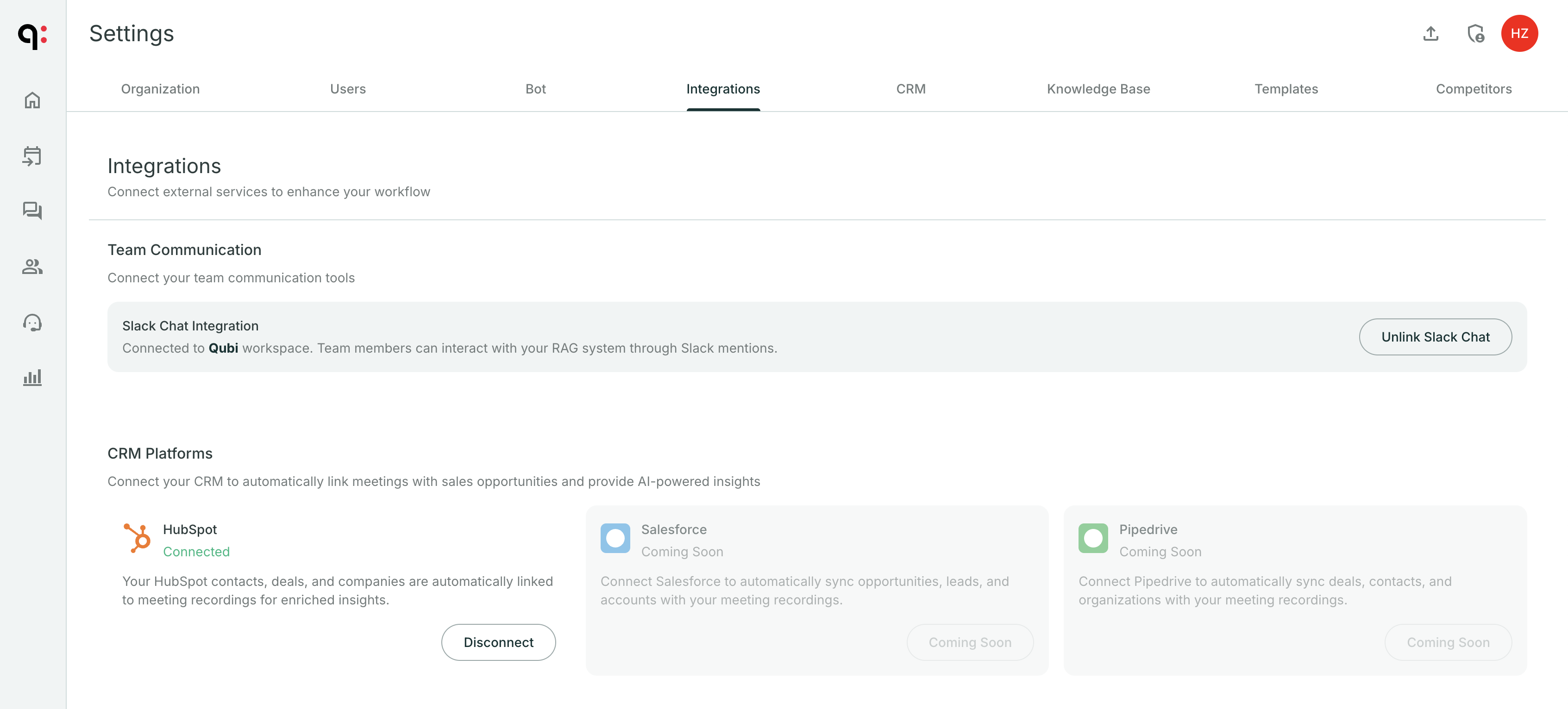
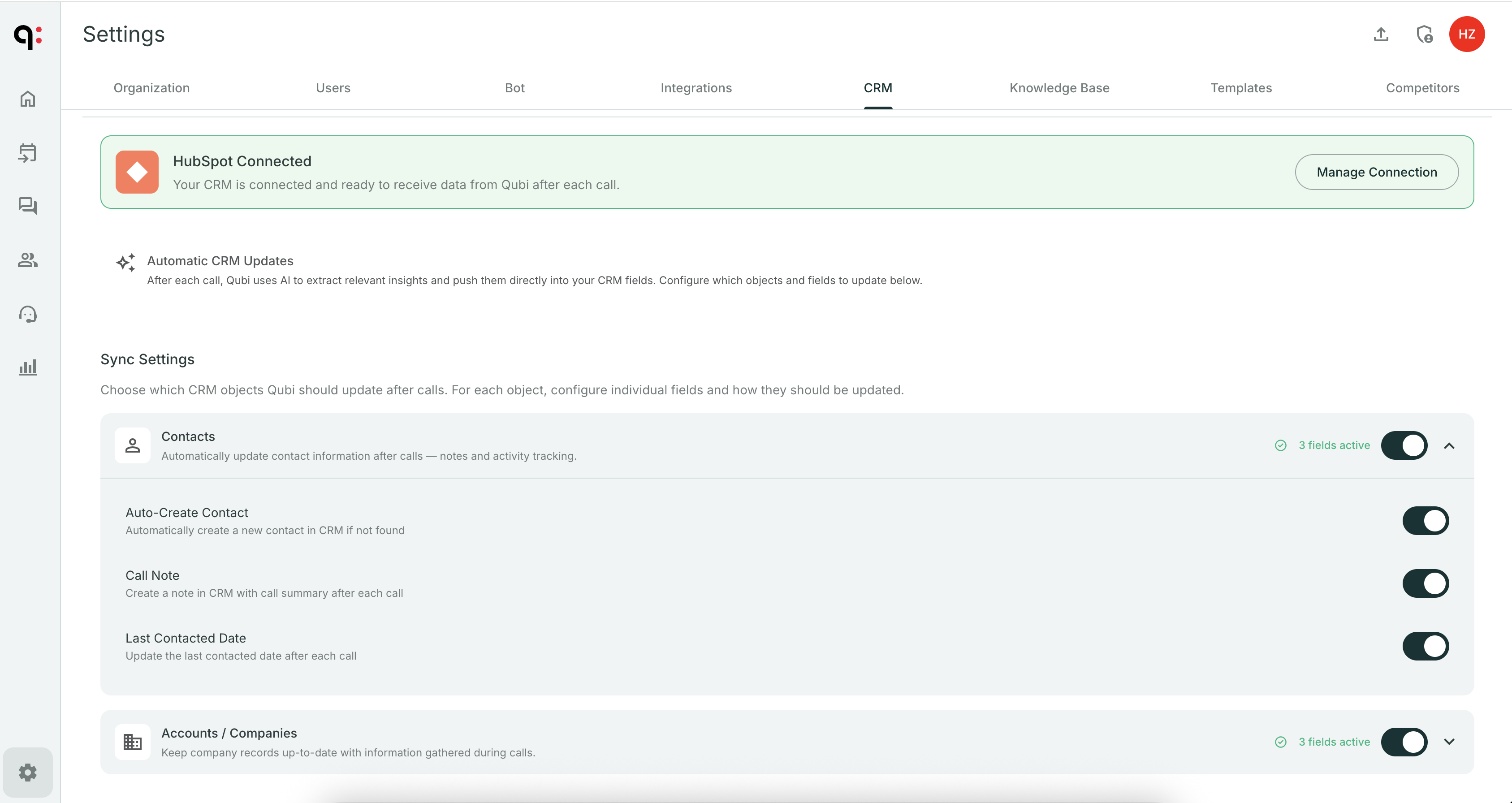
Configure CRM objects
Choose which CRM objects Qubi should sync:
| Object | What it enables |
|---|---|
| Accounts | Match meetings to CRM accounts, show account data in deal reviews |
| Opportunities | Link calls to opportunities, track deal health, monitor pipeline |
| Contacts | Match meeting participants to CRM contacts, enrich contact profiles |
Set field-level sync direction
For each CRM object, configure how data flows:
- Read: Qubi reads data from your CRM (e.g., pulls account names and opportunity stages)
- Write: Qubi writes data back to your CRM (e.g., logs meeting activity, updates fields)
- Bidirectional: Data flows both ways, keeping Qubi and your CRM in sync
caution
Start with read-only sync and test that data flows correctly before enabling write-back to your CRM. This prevents unintended data changes during initial setup.
How CRM data is used
Once connected, CRM data appears throughout Qubi:
- Meeting prep: See linked accounts and opportunities before calls
- Deal Review tab: CRM context on every call detail page
- Deals Dashboard: Pipeline view powered by CRM data
- Ask Qubi: Answer questions using CRM account and opportunity data
- Contacts: Enriched with CRM profiles