Knowledge Base Administration
As an admin, you manage Knowledge Spaces and connectors that power Qubi's live coaching, Ask Qubi answers, and meeting prep intelligence.
Create and manage Knowledge Spaces
- Go to Settings > Knowledge Base
- Click New Space to create a Knowledge Space
- Name it and add a description
- Add content via upload or connectors
For detailed instructions on adding content, see Add Content from Anywhere.
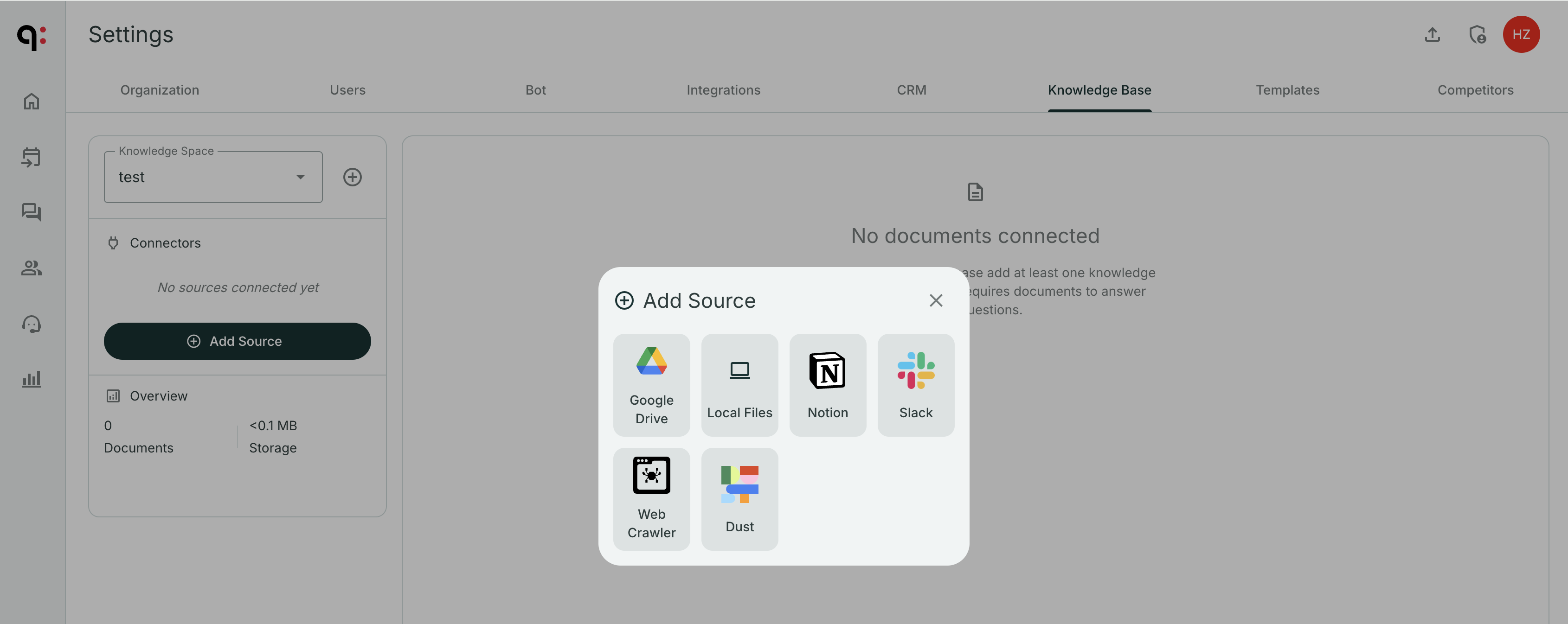
Set up connectors
Connectors keep your Knowledge Base automatically synced with external sources:
| Connector | What it syncs |
|---|---|
| File Upload | PDF, Word, PowerPoint, plain text, and Markdown files |
| Google Drive | Documents, slides, and sheets from selected folders |
| Confluence | Pages from selected spaces |
| Notion | Pages from selected databases |
| Slack | Messages and threads from selected channels |
| Web Crawler | Content from specified URLs or sitemaps |
| Dust.tt | Data sources from your Dust workspace |
Upload files manually
You can also add content directly by uploading files:
- Open a Knowledge Space
- Click Upload Files
- Drag and drop or select files from your computer
- Supported formats include PDF, Word (.docx), PowerPoint (.pptx), plain text, and Markdown
Uploaded files are processed immediately and become searchable within minutes. This is useful for content that doesn't live in a connected tool, like internal playbooks, one-off documents, or competitive research you've compiled.
Connect a Dust.tt workspace
If your team uses Dust.tt as an AI assistant platform, you can connect your Dust workspace to Qubi's Knowledge Base. This lets Qubi access the same curated knowledge your Dust agents use, without duplicating content.
- Open a Knowledge Space
- Click Add Connector and select Dust.tt
- Enter your Dust workspace ID and API key
- Choose which Dust data sources to sync
- Save. Qubi will import the content and keep it in sync
This is particularly useful for teams that have already invested in building structured knowledge in Dust. Instead of maintaining two separate knowledge bases, Qubi pulls directly from your Dust workspace and uses that content for live coaching, meeting prep, and Ask Qubi answers.
Add a connector
- Open a Knowledge Space
- Click Add Connector
- Choose the source type
- Authorize access and select which content to include
- Save. Qubi will begin syncing immediately
Monitor sync status
Each connector shows its sync status:
- Last synced: When the content was last updated
- Document count: How many documents have been ingested
- Sync errors: Any issues that need attention
Set up connectors for your most frequently updated content (like Google Drive folders or Confluence spaces) so Qubi always has the latest information.