CRM Integration
Connect your CRM to Qubi so deal intelligence, contact data, and opportunity tracking work seamlessly. Qubi supports Salesforce, HubSpot, and Attio.
Connect your CRM
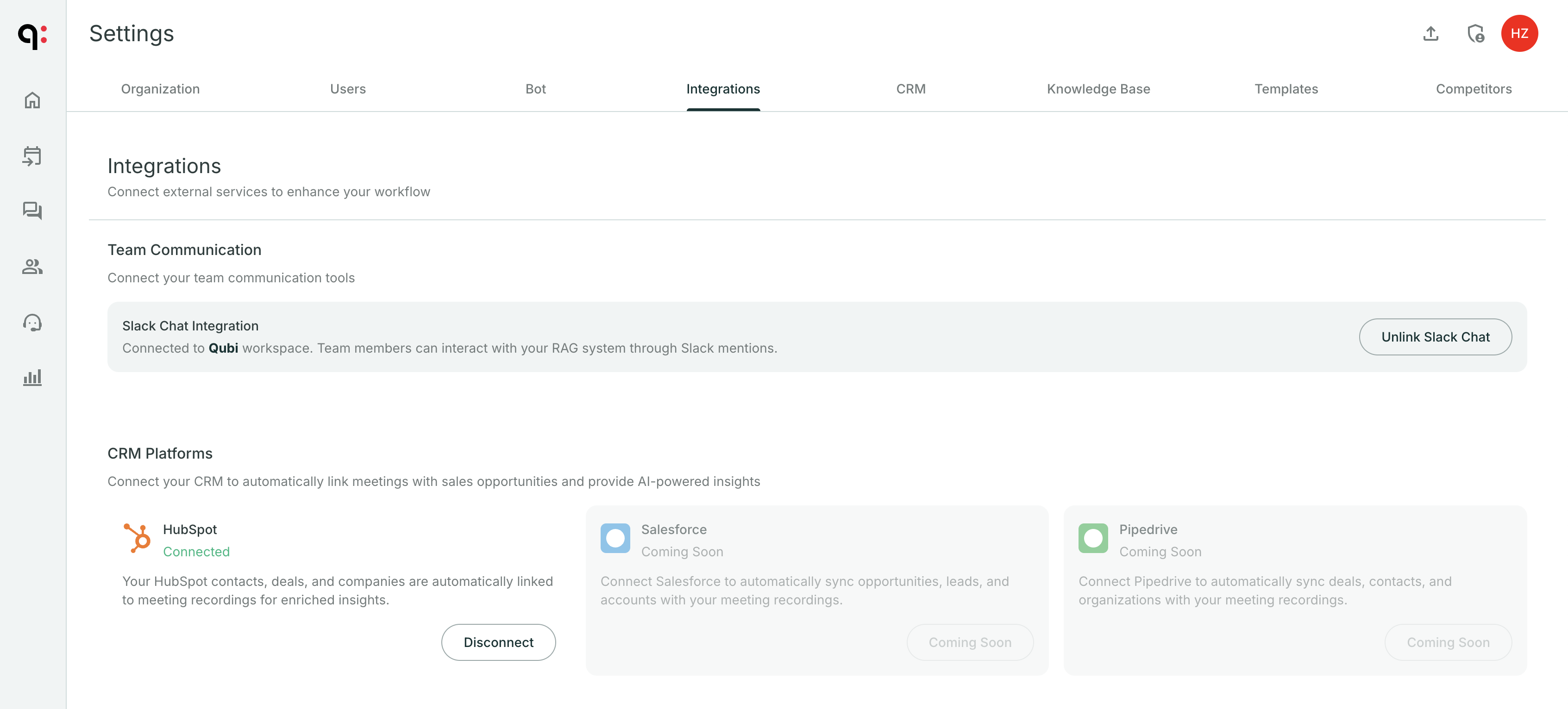
- Go to Settings > CRM
- Choose Salesforce, HubSpot, or Attio
- Click Connect and authorize the integration
- Configure your sync settings (see below)
Configure CRM objects
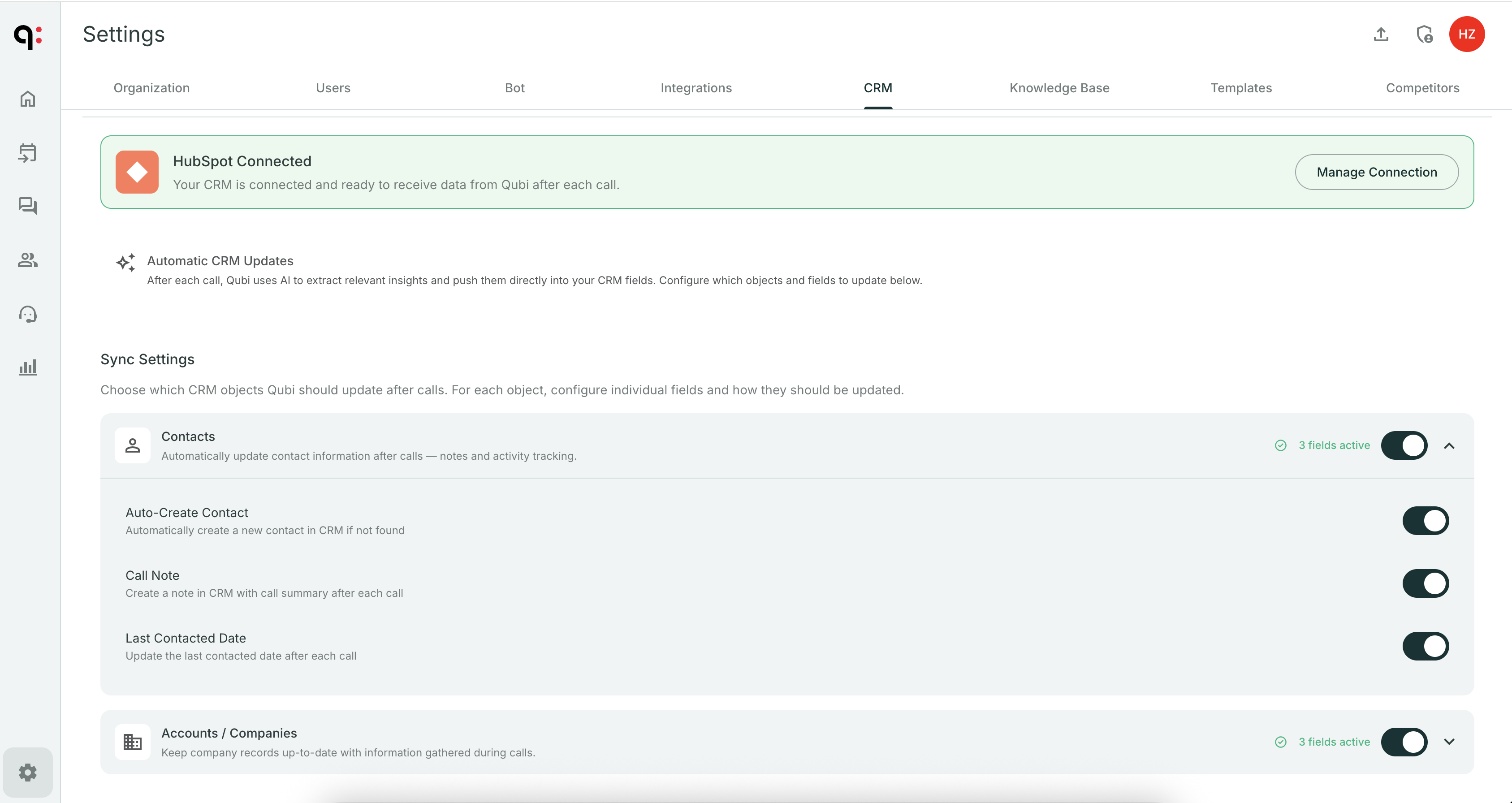
Choose which CRM objects Qubi should sync:
| Object | What it enables |
|---|---|
| Accounts | Match meetings to CRM accounts, show account data in deal reviews |
| Opportunities | Link calls to opportunities, track deal health, monitor pipeline |
| Contacts | Match meeting participants to CRM contacts, enrich contact profiles |
Set field-level sync direction
For each CRM object, configure how data flows:
- Read: Qubi reads data from your CRM (e.g., pulls account names and opportunity stages)
- Write: Qubi writes data back to your CRM (e.g., logs meeting activity, updates fields)
- Bidirectional: Data flows both ways, keeping Qubi and your CRM in sync
Start with read-only sync and test that data flows correctly before enabling write-back to your CRM. This prevents unintended data changes during initial setup.
Apply a suggested field update
While processing meetings and emails, Qubi proposes values for the fields you enabled under field-level sync. Each proposal appears on the todo it belongs to, under Suggested Actions → CRM Update:
- Open the todo and read the proposed field, its current CRM value, and the evidence Qubi based it on.
- Edit the value if you want something different — pick from the allowed values where the field has them.
- Click Apply to CRM to write it, or Discard to reject the suggestion.
Qubi re-reads the field before writing: if someone changed it in the CRM since the proposal was made, Qubi stops and shows you the new value instead of overwriting it. You can then apply your value anyway.
Once every field on a todo has been applied or discarded, the todo is marked completed. Qubi never writes to your CRM on its own — a person applies each change.
Writing fields back needs a token with write access, not just read:
- Attio — the API key needs the Records: Read & Write scope (Workspace settings → Developers → your integration → Scopes).
- HubSpot / Salesforce — the connected user must be allowed to edit the objects Qubi writes to.
A token without write access is reported on the card when you apply, with the CRM's own explanation.
How CRM data is used
Once connected, CRM data appears throughout Qubi:
- Meeting prep: See linked accounts and opportunities before calls
- Deal Review tab: CRM context on every call detail page
- Deals Dashboard: Pipeline view powered by CRM data
- Ask Qubi: Answer questions using CRM account and opportunity data
- Contacts: Enriched with CRM profiles