Connect Your Calendar
Connecting your calendar is the most important step. It lets Qubi detect your upcoming meetings, prepare AI briefs before each call, and automatically join your calls to record them.
Connect Google Calendar
- Go to Settings > Calendar Integration
- Click Connect next to Google Calendar
- Sign in with your Google account and authorize Qubi
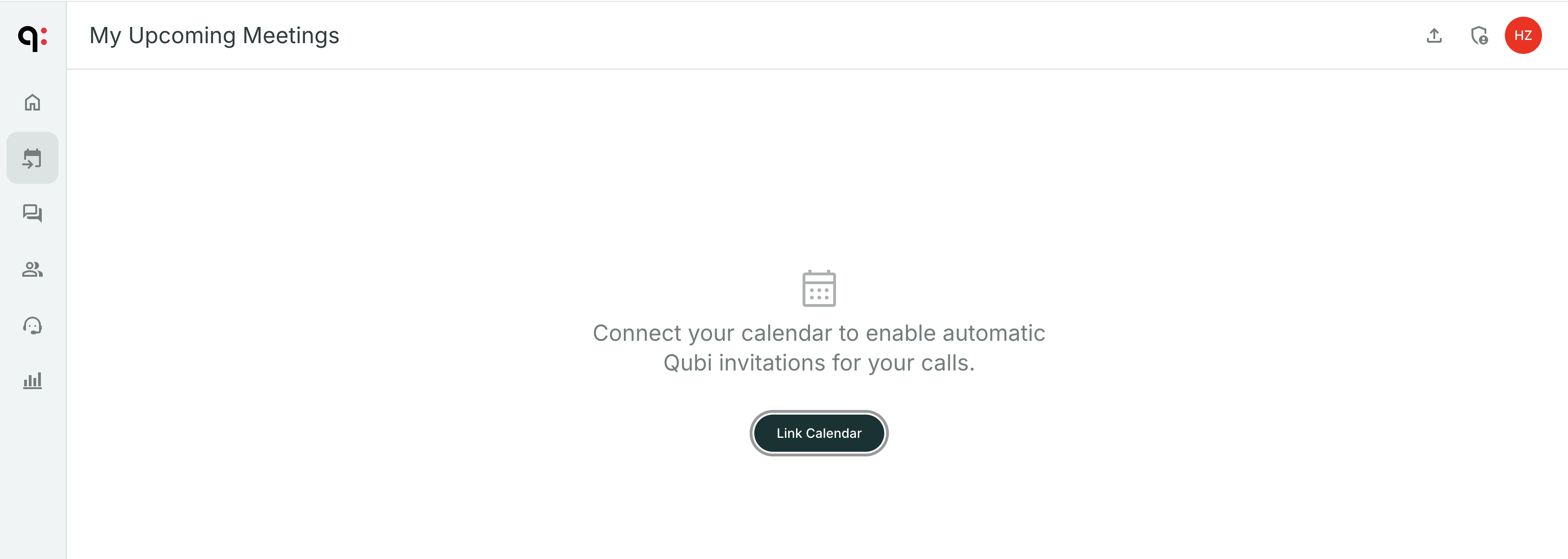
- Your upcoming meetings will appear on the Upcoming Meetings page within seconds
Connect Microsoft Calendar
- Go to Settings > Calendar Integration
- Click Connect next to Microsoft Calendar
- Sign in with your Microsoft account and authorize Qubi
- Your meetings will sync automatically
How calendar sync works
Once connected, Qubi continuously syncs your calendar:
- New meetings appear on your Upcoming Meetings page automatically
- Changes to meeting times or participants are reflected in real time
- You can manually trigger a sync using the Sync button on the Upcoming Meetings page
- The last sync time is displayed so you always know your schedule is current
Disconnect your calendar
If you need to unlink your calendar:
- Go to Settings > Calendar Integration
- Click Unlink next to the connected calendar
- Your meetings will no longer sync, but existing recordings are kept
tip
You can connect either Google Calendar or Microsoft Calendar. Pick whichever your organization uses.